Switching to an eSIM with Lucky Mobile means no more waiting for a SIM card in the mail or juggling plastic chips when you upgrade phones. Everything is digital, faster, and more flexible. With Lucky Mobile’s eSIM, you can set up service instantly on iPhone, Samsung, Google Pixel, or Motorola devices. Enjoy Bell’s nationwide LTE network, and even use dual SIM to separate work and personal numbers.
This step-by-step guide explains exactly how to activate Lucky Mobile eSIM in Canada, how to get your QR code, which devices are supported, and what to do if something doesn’t work the first time. This guide is more detailed than Lucky Mobile’s own site, it’s built to answer every question in one place. You can also read our full eSIM Canada: Best Providers, Setup & Guide for an overview of all major carriers before you start.

Why Lucky Mobile eSIM Is Worth It
- Fast digital activation with a QR code
- Affordable prepaid pricing backed by Bell’s reliable network
- Dual SIM support for combining personal and travel numbers
- Eco-friendly with no more plastic waste
- Easy to transfer when you upgrade your phone
eSIM vs. Traditional SIM: What’s the Difference?
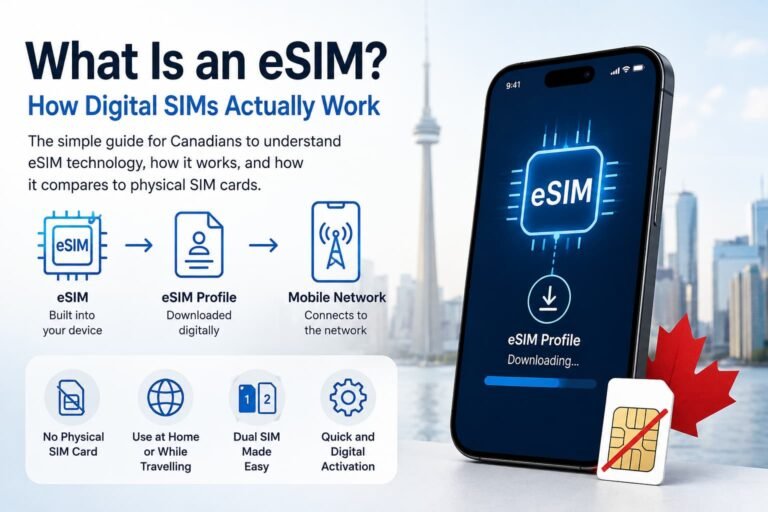
A SIM card is the small piece of plastic that holds your carrier profile. An eSIM does the same thing but is embedded directly inside your phone.
- Key benefits of eSIM:
- Download and activate instantly
- Store multiple carriers and switch between them
- Fewer trips to the store
- Better for the environment
Downside: not every device supports eSIM, so you’ll need a compatible, unlocked phone.
Supported Devices: Lucky Mobile eSIM Compatibility
iPhone
- iPhone XS, XS Max, XR
- iPhone 11, 12, 13, 14, 15 series
- iPhone SE (2nd gen and newer)
Pro Tip: On iPhone, go to Settings > Cellular > Add eSIM. If you see the option, your device is eSIM-ready.
Android
- Google Pixel 4a and newer
- Samsung Galaxy S20–S24 series
- Samsung Galaxy Z Flip & Fold (2020+)
- Motorola Razr 5G and newer
Pro Tip: On Android phone, check under Settings > Network & Internet > SIMs for “Add eSIM.”
What You Need Before You Start
- An unlocked, eSIM-compatible device
- A stable Wi-Fi connection
- Your Lucky Mobile eSIM QR code
- Optional: Lucky Mobile Self Serve account login
Lucky Mobile eSIM QR Code (For All Devices)
You can use the same QR code below to activate your Lucky Mobile eSIM on iPhone, Samsung, Google Pixel, or Motorola devices.

Pro Tip: Before scanning, make sure your phone is connected to Wi-Fi and running the latest software version.
If the QR code doesn’t scan, you can enter it manually:
SM-DP+ Address: bmc.prod.ondemandconnectivity.com
This code connects directly to Lucky Mobile’s activation server for all compatible eSIM devices.
How to Get Your Lucky Mobile eSIM QR Code in Canada
To activate your Lucky Mobile eSIM, you’ll need a QR code. Here are the main ways to get one:
- Contact Lucky Mobile Support
- Request a QR code by phone or live chat through the Lucky Mobile Support page.
- They can send it to you by email or text.
- Visit a Lucky Mobile Retailer
- Head to an authorized Lucky Mobile store or kiosk.
- A staff member can generate a QR code and walk you through the activation if needed.
- Use Self Serve Online (if available)
- Some accounts let you request an eSIM through the Lucky Mobile Self Serve portal.
- Once processed, the QR code is emailed to you directly.
- Check Community Resources
- Lucky Mobile has an official community forum where users and moderators share setup help and troubleshooting tips. Visit forums.luckymobile.ca.
- Customers also discuss Lucky Mobile eSIM experiences on RedFlagDeals and Reddit’s r/eSIM.

How to Activate Lucky Mobile eSIM in Canada on iPhone (Step-by-Step)
Option 1: Activate Through the Lucky Mobile My Account App
- Open the Lucky Mobile My Account app.
- Log in with your Lucky Mobile credentials.
- Tap Set up eSIM and follow the prompts.
- Once setup completes, restart your iPhone.
Option 2: Manual Setup for eSIM Activations from the Website or Store
- Ensure your iPhone is running iOS 13.0 or higher and connected to Wi-Fi.
- Open Settings > Cellular > Add eSIM (or Add Cellular Plan).
- Select Use QR Code and scan your Lucky Mobile code.
- If you don’t have a QR code, select Enter Details Manually and input:
- SM-DP+ Address: bmc.prod.ondemandconnectivity.com
- Leave Activation Code blank.
- Confirm installation and label your line Lucky Mobile.
- Restart your device to complete setup.
Switching from another provider? Reply YES to the text message from your old carrier to confirm the number transfer.
Need a more detailed tutorial? Check out our complete How to Activate an eSIM in Canada: Step-by-Step Guide for iPhone Users for extra tips, screenshots, and troubleshooting help.

How to Activate Lucky Mobile eSIM in Canada on Android (Step-by-Step)
Option 1: Activate Through the Lucky Mobile My Account App
- Open the Lucky Mobile My Account app.
- Log in with your Lucky Mobile details.
- Tap Set up eSIM when prompted.
- Follow the on-screen setup instructions.
- Restart your device when installation completes.
Option 2: Manual Setup for eSIM Activations from the Website or Store
- Ensure your device is on Android 12.0 or higher and connected to Wi-Fi.
- Go to Settings > Connections > SIM Manager.
- Tap Add eSIM > Scan Carrier QR Code.
- Scan your Lucky Mobile QR code and follow the prompts.
- To enter manually, select Enter Activation Code and type:
- Activation Code / SM-DP+ Address: bmc.prod.ondemandconnectivity.com
- Label your line Lucky Mobile.
Transferring your number? Reply YES to your old carrier’s confirmation text.
For a detailed device-specific walkthrough, see our Activate eSIM on Android Canada: Step-by-Step Setup Guide for full screenshots and troubleshooting steps.
Pro Tips for a Smooth Lucky Mobile eSIM Setup
- Always activate on Wi-Fi, not mobile data.
- Keep your physical SIM in until eSIM is confirmed active.
- Save a copy of your QR code — if you reset your device, you’ll need a new one.
- Update your phone software before starting.
- If activation fails, toggle Airplane Mode or restart.
- Use clear labels if you run multiple eSIMs.
- Print your QR code in case your screen doesn’t scan well.
Pros and Cons of Using Lucky Mobile eSIM
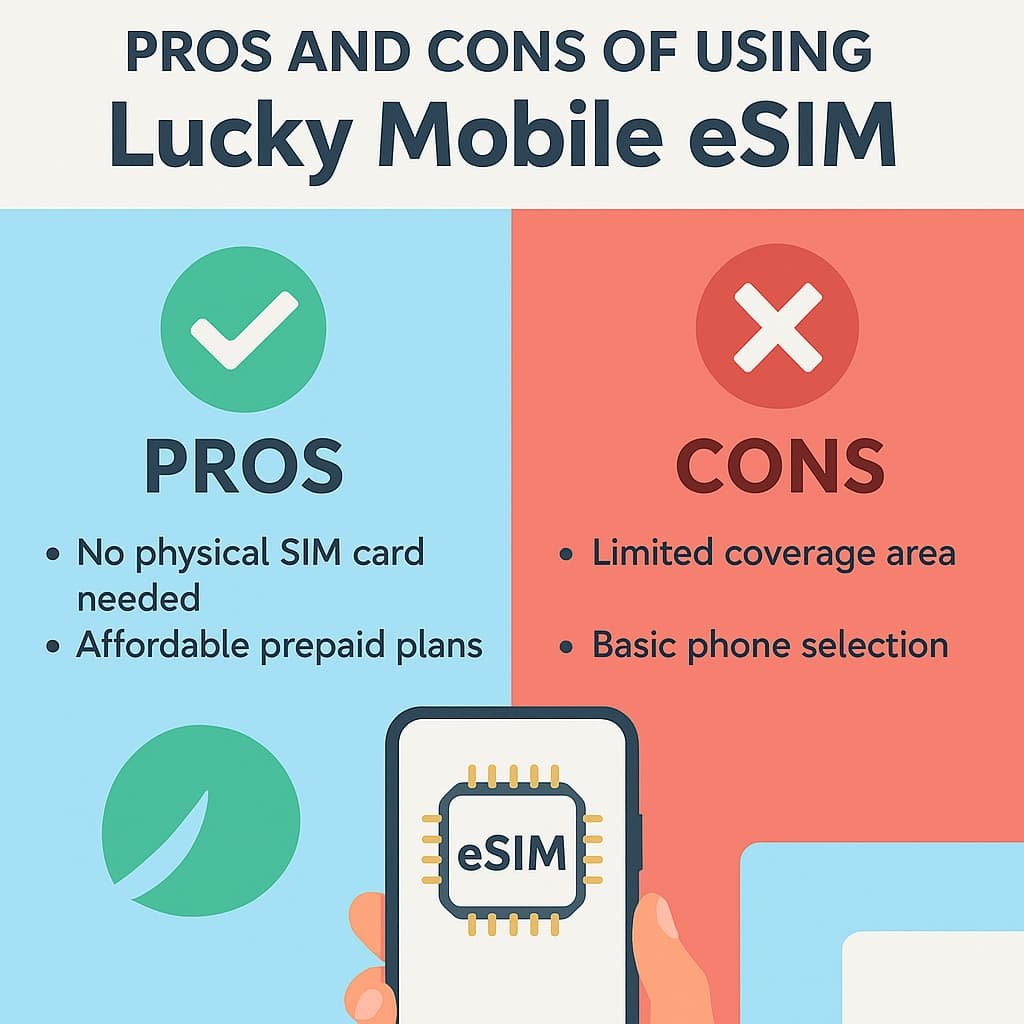
Pros
- Quick and easy digital activation
- Prepaid pricing with Bell-backed coverage
- Works with dual SIM setups
- Environmentally friendly alternative to SIM cards
Cons
- Prepaid only, no postpaid eSIM option
- LTE network only (no 5G support yet)
- QR codes are single-use
- Service is Canada-only (no roaming abroad)
Frequently Asked Questions About How to Activate Lucky Mobile eSIM in Canada
Can I activate Lucky Mobile eSIM online?
Yes. You can activate your Lucky Mobile eSIM online through the Lucky Mobile My Account app or via Self Serve on the website. Once you receive your QR code by email or SMS, simply scan it from your phone’s settings to start the setup. No need to visit a store unless you prefer in-person help.
Do I need to visit a Lucky Mobile store to get my eSIM?
Not necessarily. Most people can complete the activation online. However, you can visit an authorized Lucky Mobile retailer if you need a new QR code, assistance with scanning, or if your device doesn’t support self-activation.
How do I set up Lucky Mobile eSIM on iPhone?
Go to Settings > Cellular > Add eSIM and scan your Lucky Mobile QR code. If prompted, select Add Cellular Plan, label it “Lucky Mobile,” and restart your device once the setup finishes.
How do I set up Lucky Mobile eSIM on Android devices?
For Samsung phones, go to Settings > Connections > SIM Manager > Add eSIM > Scan QR Code.
For Google Pixel or Motorola devices, go to Settings > Network & Internet > SIMs > Download a SIM instead, then scan your QR code or enter the SM-DP+ address manually.
What if my Lucky Mobile eSIM QR code doesn’t work?
If the QR code fails to scan, ensure your phone is connected to Wi-Fi, increase your screen brightness, or print the QR code and try again. You can also enter the activation details manually using this address:
SM-DP+ Address: bmc.prod.ondemandconnectivity.com
If it still doesn’t work, request a new QR code from Lucky Mobile Support.
How do I use my Lucky Mobile eSIM in Canada after activation?
Once activated, your Lucky Mobile eSIM works exactly like a regular SIM card. You can make calls, send texts, and use data on Bell’s LTE network. To manage your account or top up, open the Lucky Mobile My Account app.
Does Lucky Mobile eSIM support both prepaid and postpaid plans?
Lucky Mobile is a prepaid-only carrier, so eSIM is available exclusively for prepaid plans. You can still switch between different prepaid options anytime through the app or your Self Serve account.
Can I transfer my Lucky Mobile eSIM to another phone?
Yes, but you’ll need a new QR code to reinstall your eSIM on a different device. Contact Lucky Mobile customer support to request a replacement code before switching phones.
Is there a cost to get a Lucky Mobile eSIM?
No, Lucky Mobile provides eSIMs free of charge for compatible devices. You only pay for your plan when activating or topping up your prepaid balance.
What should I do if my eSIM stops working?
Restart your device first, then check if your Lucky Mobile line is enabled under SIM Manager or Cellular Settings. If your plan appears inactive, contact Lucky Mobile support to have your eSIM re-provisioned or to request a new QR code.
Related Guides from Our eSIM Canada Series
- How to Activate Bell eSIM in Canada
- How to Activate Virgin Plus eSIM in Canada
- How to Activate Public Mobile eSIM in Canada
- How to Activate Chatr Mobile eSIM in Canada
- How to Activate Rogers eSIM in Canada
- How to Activate Koodo eSIM in Canada
- Best Canadian eSIM Plans for Tourists
- How to Activate TELUS eSIM in Canada
- How to Activate Freedom Mobile eSIM in Canada
- How to Activate Fido eSIM in Canada
- Best eSIM for Canada: Expert Picks & Phone Compatibility
Final Thoughts
Activating Lucky Mobile eSIM in Canada is one of the fastest ways to get connected. With prepaid plans, Bell-backed reliability, and instant QR activation, it’s a smart choice for anyone who wants affordable, hassle-free wireless service without waiting for a SIM card.
If you’re still deciding, compare Lucky Mobile with other carriers in our Compare Canadian eSIM Providers guide.
Ready to go? Scan the Lucky Mobile QR code above or request your eSIM online through the My Account app, and you’ll be set up and connected within minutes.