How to activate Public Mobile eSIM in Canada is easier than you might think. Setting it up is as simple as scanning a QR code and following a few quick prompts on your phone.
In this guide, I’ll walk you through the process step by step. Whether you’re ditching a physical SIM, setting up a new phone, or adding a second line for work or travel, activating your Public Mobile eSIM is one of the easiest upgrades you can make to your mobile setup.
If you’re unsure how eSIM works or want to compare providers before you start, check out our eSIM Canada: Best Providers, Setup & Guide for Travelers & Locals for a full overview.
With an eSIM, there’s no need to visit a store or wait for a SIM card to arrive. you can activate your Public Mobile service digitally in just a few minutes. Let’s get started!

Why Choose Public Mobile eSIM?
Here’s why thousands of Canadians are switching to Public Mobile eSIM:
- Quick, contactless activation with no need for a store visit
- Works on prepaid plans and supports dual SIM
- Compatible with most modern smartphones
- Perfect for locals, students, and travelers
- Manage your plan right from your Public Mobile account
With Public Mobile, you can skip the hassle of SIM swaps and enjoy seamless connectivity, all without leaving your couch.
Supported Devices for Public Mobile eSIM
Before you start, check that your phone is unlocked and supports eSIM. Here’s what works:
Apple iPhone
- iPhone 15, 14, 13, 12, 11
- iPhone XS, XS Max, XR
- iPhone SE (2nd gen and later)
Android Phone
- Google Pixel 4a, 5, 6, 7, 8 series
- Samsung Galaxy S20, S21, S22, S23, S24
- Samsung Galaxy Z Flip & Fold
- Motorola Razr 5G
- Huawei P40/P40 Pro (check variant)
Pro tip: If you see “Add eSIM” in your settings under Cellular or Network, you’re good to go. Otherwise, double-check with Public Mobile or your device manufacturer.
What You’ll Need Before You Begin
- An unlocked, eSIM-compatible smartphone
- Wi-Fi connection to download the eSIM profile
- Your Public Mobile eSIM QR code
- (Optional) Public Mobile account login
How to Get Your Public Mobile eSIM QR Code
Your eSIM QR code is what lets you activate your line. You can get it in one of these ways:
- Log in to your Public Mobile account and request an eSIM under your plan settings.
- Contact Public Mobile support, they can email you the QR code.
- Visit a participating retail partner — some can issue your QR code on the spot and help install it.
Once you have your QR code, keep it on a separate screen or print it for easy scanning.
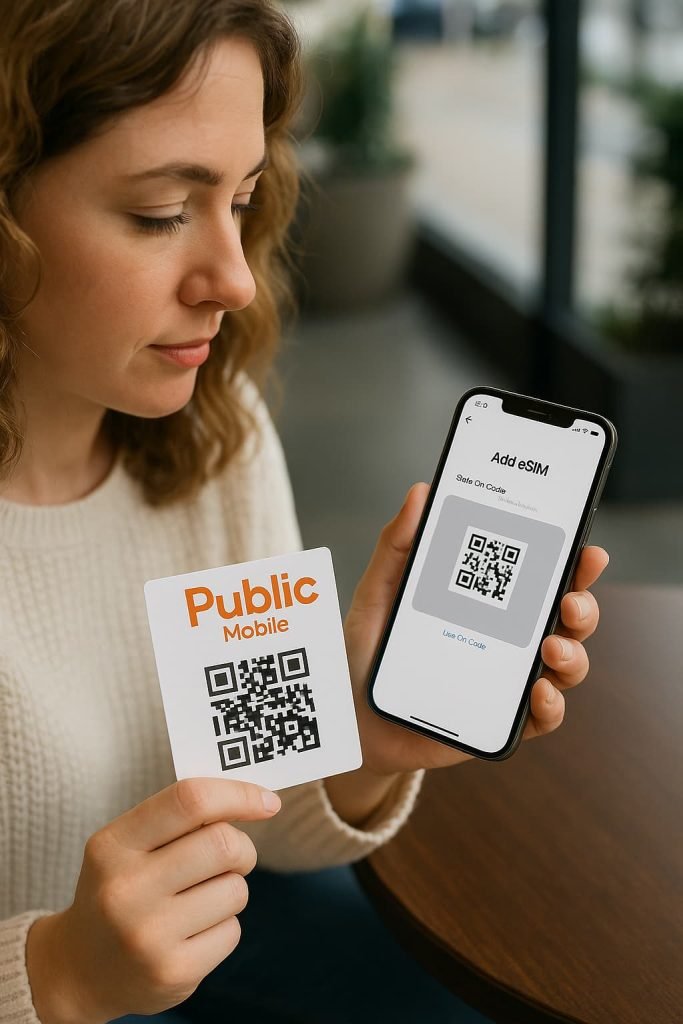
How to Activate Public Mobile eSIM in Canada on iPhone (Step-by-Step)
- Open the email or printout with your QR code.
- On your iPhone, go to Settings > Cellular > Add eSIM.
- Tap Use QR Code and scan the code.
- Label your line (e.g., “Public Mobile”) and turn on Data Roaming.
- Wait a few seconds for the connection to activate — if it doesn’t, restart your phone.
Pro Tip: If you already have another SIM or eSIM active, you can run both at once, which is ideal for work/personal or travel setups.
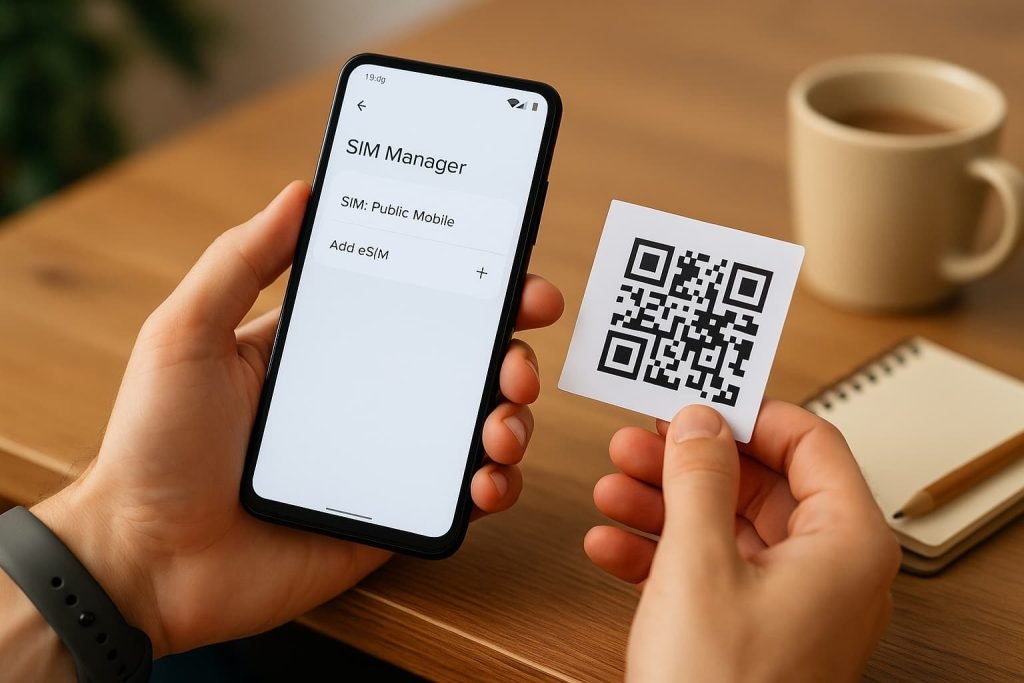
How to Activate Public Mobile eSIM in Canada on Android Phone (Step-by-Step)
- Get your QR code ready on another screen or paper.
- Open Settings > Network & Internet > SIMs (or Connections > SIM Manager).
- Tap Add eSIM > Use QR Code.
- Scan the code, label the line, and enable Mobile Data & Roaming.
- Restart if the connection doesn’t appear immediately.
Pro Tips for a Smooth Activation
Here are a few extra tips I’ve learned (and tested myself) to help you avoid hiccups and get the most out of your Public Mobile eSIM:
- Activate on Wi-Fi, not mobile data.
Even though this seems obvious, a weak connection can cause the setup to fail halfway through. Always make sure you’re on a solid Wi-Fi signal before you scan that QR code. - Save your QR code somewhere safe.
Screenshot it, save the email, and even print a copy. If you reset your phone or move to a new device, you’ll need that QR code again, and Public Mobile will have to send you a new one if you lose it. - Label your eSIM clearly.
If you’re running two lines (work/personal, home/travel), give your Public Mobile line a clear name like “Public Mobile Canada” so you don’t accidentally toggle the wrong one. - Check your APN settings.
Most of the time your phone configures this automatically, but if your data seems slow or inconsistent after activation, double-check the APN in your settings matches Public Mobile’s. - Restart your device after setup.
Even if it looks connected, a quick restart can help lock the line in properly. - Use dual SIM wisely.
If you’re also using another SIM or eSIM (like Airalo or Holafly for travel), set Public Mobile as your default line for calls and texts, and the other line for data. It’s a great way to save on roaming costs. - Keep your phone unlocked.
This one’s big: if your device is carrier-locked, no eSIM (including Public Mobile) will work. If you’re unsure, call your previous carrier and ask them to unlock it. In Canada, they’re required to do it for free.
Switching from SIM to Public Mobile eSIM
Already using Public Mobile on a physical SIM? Here’s how to switch:
- Log in to your account and request a SIM-to-eSIM transfer.
- You’ll get a new QR code by email.
- Scan it following the steps above.
- Once active, your SIM card is deactivated automatically, so there is no need to visit a store.
Troubleshooting Public Mobile eSIM
If things don’t go smoothly, here are some fixes:
QR Code won’t scan?
- Brighten your screen or print the QR code.
- Clean your camera lens and hold steady.
No signal after activation?
- Restart your device or toggle Airplane Mode.
- Make sure Public Mobile is set as your default line for data & calls.
eSIM already used?
- Contact Public Mobile to issue a new QR code.
Activation keeps failing?
- Reset your network settings:
iPhone: Settings > General > Transfer or Reset > Reset Network Settings
Android: Settings > System > Reset Options > Reset Wi-Fi, Mobile & Bluetooth
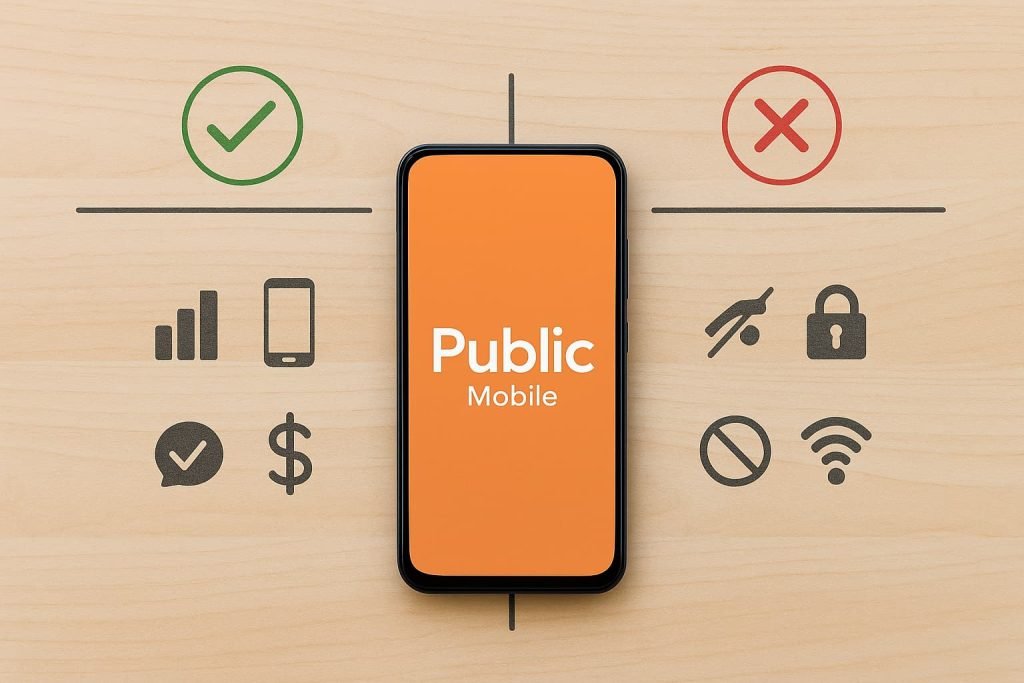
Pros and Cons of Public Mobile eSIM
Pros:
- Fast, digital activation
- Works with prepaid plans
- Supports dual SIM for two lines
- Compatible with most modern phones
Cons:
- Some older devices don’t support eSIM
- Requires Wi-Fi during activation
- You’ll need a new QR code if you reset or change phones
Frequently Asked Questions About Public Mobile eSIM in Canada
Do I need to unlock my phone to use a Public Mobile eSIM?
Yes, your phone must be unlocked. If it’s locked to another carrier, the eSIM won’t install. In Canada, carriers are required to unlock your phone for free, just contact them.
How do I know if my phone supports eSIM?
Go to Settings > About Phone and look for “eSIM,” “EID,” or “Digital SIM”. If any of those are listed, your phone likely supports eSIM.
Where do I get my Public Mobile eSIM QR code?
Once you choose an eSIM plan, Public Mobile will send a QR code to your email. You can also request it directly from your account dashboard under “My SIM” > “Activate eSIM.”
Can I switch from a physical SIM to a Public Mobile eSIM?
Yes. Just log in to your account and select “Change SIM,” then choose eSIM. Public Mobile will email you a QR code. Scan it, and your existing number and plan will transfer automatically.
I scanned the QR code but nothing happened. What should I do?
Try these steps:
Restart your phone
Make sure Wi-Fi is enabled
Double-check you scanned the correct QR code
Still stuck? Reach out to Public Mobile’s Community support or chatbot for help.
Can I use Public Mobile eSIM while traveling internationally?
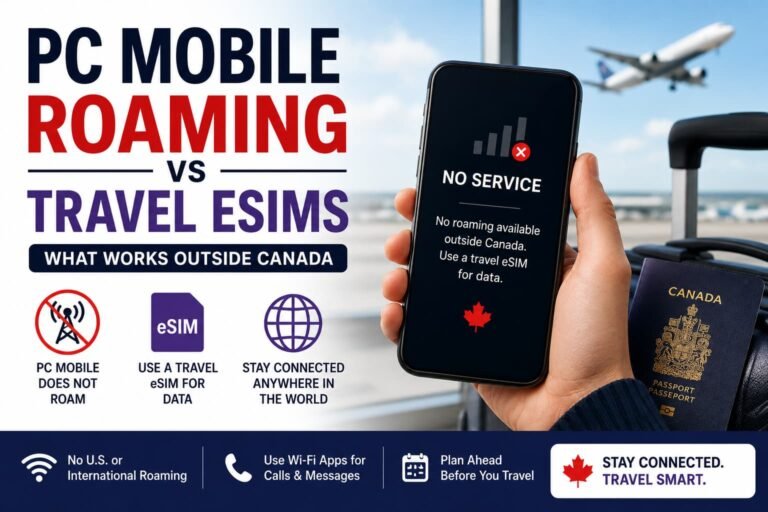
No, Public Mobile eSIM is for use within Canada only. They don’t support international roaming. If you’re planning to travel abroad, you’ll need a separate travel eSIM to stay connected.
We recommend providers like Airalo or Holafly, which offer affordable data plans in over 100 countries. Check out our eSIM Canada travel guide for more tips.
Can I install the Public Mobile eSIM on more than one phone?
No. Once a Public Mobile eSIM is activated on a phone, it’s tied to that device. If you get a new phone, you’ll need to request a new QR code to activate the eSIM again.
Is Public Mobile’s eSIM available for new customers only?
Nope. Both new and existing customers can switch to eSIM. If you’re already on Public Mobile with a physical SIM, you can switch to eSIM anytime through your account.
How long does activation take?
Less than 5 minutes in most cases. Just scan the QR code, wait a few seconds for activation, and you’re good to go.
More Guides from Our eSIM Canada Series:
- How to Activate Bell eSIM in Canada
- How to Activate Rogers eSIM in Canada
- How to Activate Fido eSIM in Canada
- How to Activate Freedom Mobile eSIM in Canada
- How to Activate TELUS eSIM in Canada
- How to Activate an eSIM on iPhone in Canada
- How to Activate an eSIM on Android in Canada
- Compare Canadian eSIM Providers
- Best Canadian eSIM Plans for Tourists
Final Thoughts on Public Mobile eSIM
Activating your Public Mobile eSIM in Canada is quick, simple, and gives you the freedom to manage your line completely online.
If you’re ready to leave physical SIMs behind, follow the steps above, and if you need more help choosing a provider or learning about eSIMs in general, check out our eSIM Canada: Best Providers, Setup & Guide for Travelers & Locals.