Want to activate eSIM on iPhone in Canada without dealing with physical SIM cards, store visits, or long activation delays? You’re in the right place. If you own an iPhone XS, XR, or any newer model, your device already includes Apple’s built-in eSIM support, which lets you download your cellular plan directly to your phone and get connected in just a few minutes.
In this guide, I’ll show you how to activate eSIM on iPhone in Canada using three proven methods: scanning a QR code from your carrier, automatic carrier activation, or Apple’s Quick Transfer feature. I’ll also cover iPhone-only features like dual eSIM support and multiple stored profiles, so you can manage your cellular plans the right way without guessing which option to use.
Whether you’re setting up a new line, switching carriers, or moving your number to a new iPhone, this step-by-step guide has you covered.

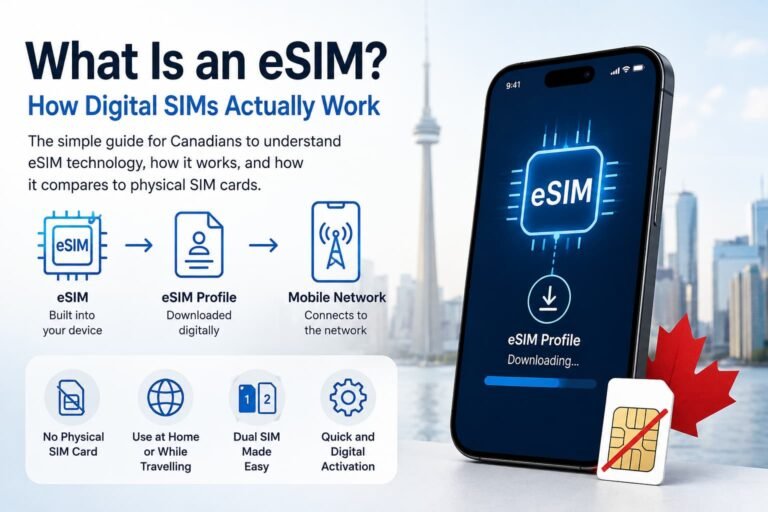
What Is an eSIM on an iPhone? How It Works in Canada
Before you start activating anything, it helps to understand what an eSIM actually is. On an iPhone, an eSIM is a digital version of a SIM card that lives inside your device. There is no plastic card to insert, no tray to open, and nothing to swap. Everything happens directly on your phone.
Your cellular plan is downloaded to the device through software, which means you can get connected without visiting a store or waiting for a physical SIM to arrive in the mail. You can set up an eSIM in a few minutes, switch carriers whenever you want, and manage multiple plans from the Settings menu without touching any hardware.
This is a big reason why Apple moved toward eSIM-only models in Canada. The whole process is faster, cleaner, and far more convenient than dealing with a traditional SIM card. Once you try it, you will never want to go back.
What You Need Before Activating eSIM on an iPhone in Canada
Before you activate your eSIM, make sure you have everything in place. A few quick checks will save you from activation errors and help your iPhone connect without delays.
• Compatible iPhone model
You’ll need an iPhone XS, iPhone XS Max, iPhone XR, or any newer model. All current Canadian iPhones support eSIM, and newer devices offer dual active eSIMs.
• Wi-Fi connection
Most activation methods require Wi-Fi. If you have an iPhone 14 or newer purchased in Canada or the U.S., you can complete eSIM activation without Wi-Fi during setup.
• Carrier eSIM support
Make sure your carrier offers eSIM plans in Canada. Major providers like Bell, Rogers, TELUS, and their sub-brands support eSIM.
• Device setup status
If it’s a new iPhone, you can activate the eSIM during the initial setup. If the device is already configured, you can add the eSIM later from the Settings menu.

How eSIM Activation Works on an iPhone in Canada
There are three ways to activate eSIM on an iPhone in Canada. The process is simple once you know which method your carrier supports. Before you begin, confirm that you have an iPhone XS, XR, or any newer model, and make sure your carrier offers eSIM service in Canada. Once that is in place, choose one of the options below and follow it step by step.
Option 1: Activate Using a QR Code
Most Canadian carriers provide a QR code for eSIM activation. Have it open on another device or printed out before you start.
- Go to Settings > Cellular > Add eSIM
- Tap Use QR Code
- Scan the QR code your carrier gave you
- Tap Add Cellular Plan
- Follow the prompts until your line is active
Quick Tip: If you are switching from a physical SIM, remove the old SIM card once your eSIM is active. Leaving both in place can cause call and data routing issues.
Option 2: Carrier eSIM Activation
Some carriers link the eSIM directly to your account. If that is the case, your iPhone will detect it as soon as it goes online.
- Turn on your iPhone
- Look for the prompt Carrier Cellular Plan Ready to Be Installed
- Tap Continue
- Wait for the plan to finish installing
- Test with a call or webpage
Note: No QR code is required for this method.
Option 3: eSIM Quick Transfer (iPhone to iPhone)
If you are upgrading from another iPhone, you can move your number without scanning a code.
- Place both iPhones next to each other
- Turn on Bluetooth on both devices
- Go to Settings > Cellular > Add eSIM
- Tap Transfer from Nearby iPhone
- Approve the transfer on the old phone
- Wait for the new phone to load the plan
Note: When you see signal bars on the new device, the transfer is complete. You can remove the old eSIM if you no longer need it.
Supported iPhone Models That Work With eSIM in Canada
Every iPhone released since 2018 supports eSIM technology, but not all models handle it the same way. Apple started adding eSIM support with the iPhone XS, iPhone XS Max, and iPhone XR. Since then, newer models have expanded features like dual active eSIMs, multiple stored profiles, and, in some regions, the complete removal of the physical SIM tray.
Below is a breakdown of iPhone models that work with eSIM in Canada:
iPhones That Support eSIM
| iPhone Model Series | eSIM Support | Physical SIM Tray |
|---|---|---|
| iPhone 17 series (2025) | Yes (dual active eSIMs) | No on North American models |
| iPhone Air (2025) | Yes (dual active eSIMs) | No on global models |
| iPhone 16 series (2024) | Yes (dual active eSIMs) | No on U.S. and some Canadian models |
| iPhone 15 series (2023) | Yes (dual active eSIMs) | No on U.S. models, tray may exist elsewhere |
| iPhone 14 series (2022) | Yes (dual active eSIMs) | No on U.S. models, tray on most international units |
| iPhone 13 series (2021) | Yes | Nano SIM tray included |
| iPhone 12 series (2020) | Yes | Nano SIM tray included |
| iPhone 11 series (2019) | Yes | Nano SIM tray included |
| iPhone SE (3rd Gen, 2022) | Yes | Nano SIM tray included |
| iPhone SE (2nd Gen, 2020) | Yes | Nano SIM tray included |
| iPhone XS, XS Max, XR (2018) | Yes | Nano SIM tray included |
All of the models listed above can activate an eSIM in Canada. Newer models, especially those without a SIM tray, are designed for eSIM only, which is why Apple continues to move toward digital-only connectivity.
iPhones That Do Not Support eSIM
These devices rely only on physical SIM cards and cannot use eSIM in Canada:
- iPhone X
- iPhone 8 and 8 Plus
- iPhone 7 and 7 Plus
- iPhone 6s and 6s Plus
- iPhone 6 and 6 Plus
- iPhone SE (1st Generation)
- Any iPhone model older than these
If you are using one of these devices, you will need to upgrade before activating an eSIM.
Regional Notes for Canadian Users
- iPhone 14 and newer models sold in the United States are eSIM only and do not include a physical SIM tray.
- Most Canadian-sold iPhones still support both eSIM and a physical nano SIM, although newer releases are shifting toward eSIM-only hardware.
- eSIM support varies by region, so if you purchased your iPhone outside Canada, check that eSIM is enabled for that model before activating.

How to Use Dual SIM and Multiple eSIM Profiles on an iPhone
One of the biggest advantages of using an iPhone with eSIM is the ability to run more than one cellular plan on the same device. This is useful if you want a separate line for work and personal use, if you travel often, or if you want to compare data plans without swapping physical SIM cards.
Newer iPhone models can store multiple eSIM profiles, and some models support two active eSIMs at the same time. Once your eSIM is installed, you can switch between plans in a few taps.
How Dual SIM Works on an iPhone
Your iPhone can use two lines at once. You can set one line for data and the other for voice calls or text messages. Both lines can remain active, and you can change which line handles data whenever you want.
To manage your lines:
- Go to Settings > Cellular
- Choose the plan you want to manage
- Select how the plan is used for calls, texts, or data
Switching Between eSIM Profiles
Your iPhone can store several eSIM profiles at the same time. Only one or two may be active depending on your model, but switching is simple.
- Go to Settings > Cellular
- Tap the plan you want to use
- Turn it on or make it the default line
This lets you move between carriers without scanning another QR code or reinstalling anything.
How Many eSIMs Can an iPhone Store?
- Most recent iPhones can store eight or more eSIM profiles
- iPhone 13 and newer models support two active eSIMs at once
- Older models support one active eSIM plus a physical SIM
If you travel often, you can save different eSIM plans for different countries and switch them on when needed.
Using One Line for Calls and Another for Data
If you want to keep your existing Canadian number for calls and use a separate plan for cheaper data, the iPhone handles this without any extra setup.
- Go to Settings > Cellular
- Tap Cellular Data
- Select which line should provide mobile data
Your call line remains active, and your data line handles internet traffic.
When to Remove Old eSIM Profiles
Remove old eSIMs only if you no longer plan to use them. Keeping multiple inactive profiles does not affect performance, but it can be confusing if you switch plans often.
How to Update Apple Carrier Settings After eSIM Activation
Once your eSIM is active, your iPhone may need to update its carrier settings. Carrier settings control how your device connects to the network, handles calls and texts, and uses mobile data. If these settings are outdated, you can run into problems like no service, missing 5G options, or calls failing during setup.
Updating carrier settings only takes a moment and does not affect your apps or personal data.
How to Check for Carrier Settings Updates
- Go to Settings
- Tap General
- Tap About
- Wait a few seconds
If an update is available, you will see a prompt that asks if you want to install the new carrier settings. Tap Update to apply it. If nothing appears, your device already has the latest settings.
Why Carrier Settings Matter
These updates improve network performance and ensure your iPhone works properly with your eSIM. They can:
- Fix connection issues
- Improve call quality
- Enable new network features like VoLTE or 5G
- Correct data routing problems that appear after activation
If your eSIM is active but you still see no signal, updating these settings is one of the fastest ways to fix the issue.
Note for Canadian Users
Some carriers push carrier updates automatically after you activate your eSIM. Your iPhone might restart or show a brief notification. This is normal and does not mean the activation failed.
iMessage and FaceTime Setup After eSIM Activation
After you activate your eSIM, your iPhone may need a moment to update the number it uses for iMessage and FaceTime. This step often gets overlooked, and it is the main reason people think something went wrong with their eSIM. If your messages start showing up as green bubbles, or FaceTime refuses to verify your number, this section will fix it.
Apple treats iMessage and FaceTime differently from the phone dialer. Even if your eSIM is active, these services need to register your new number before everything works as expected.
How to Make Sure iMessage Uses the Correct Number
- Go to Settings
- Tap Messages
- Tap Send & Receive
- Make sure your new eSIM phone number is checked
If your old SIM card was removed, the old number may still appear. You can deselect it and leave only the active number enabled.
How to Fix FaceTime After eSIM Activation
- Go to Settings
- Tap FaceTime
- Confirm that your new number is selected
- If it shows “Waiting for Activation,” toggle FaceTime off and back on
This forces Apple to register the number again. The process usually completes within a minute, but it can take longer if you are switching carriers.
If iMessage or FaceTime Still Do Not Activate
If activation is stuck for more than 10 minutes:
- Make sure your device has data or Wi-Fi
- Restart your iPhone
- Check Settings > General > About for any carrier updates
- Remove any inactive numbers under Send & Receive
Once the number updates, messages turn blue again and FaceTime works normally.
Why iPhone Users See These Issues
iMessage and FaceTime are tied to your Apple ID. When a new eSIM replaces the old SIM card, Apple needs to confirm the new number before it can be used. Once your iPhone finishes this process, everything behaves as it did before the switch.
Note: If you still see your old number in the iMessage or FaceTime settings, it does not always mean the eSIM setup failed. It may simply take a few minutes for Apple to remove the inactive number from your account.
Troubleshooting eSIM on iPhone in Canada
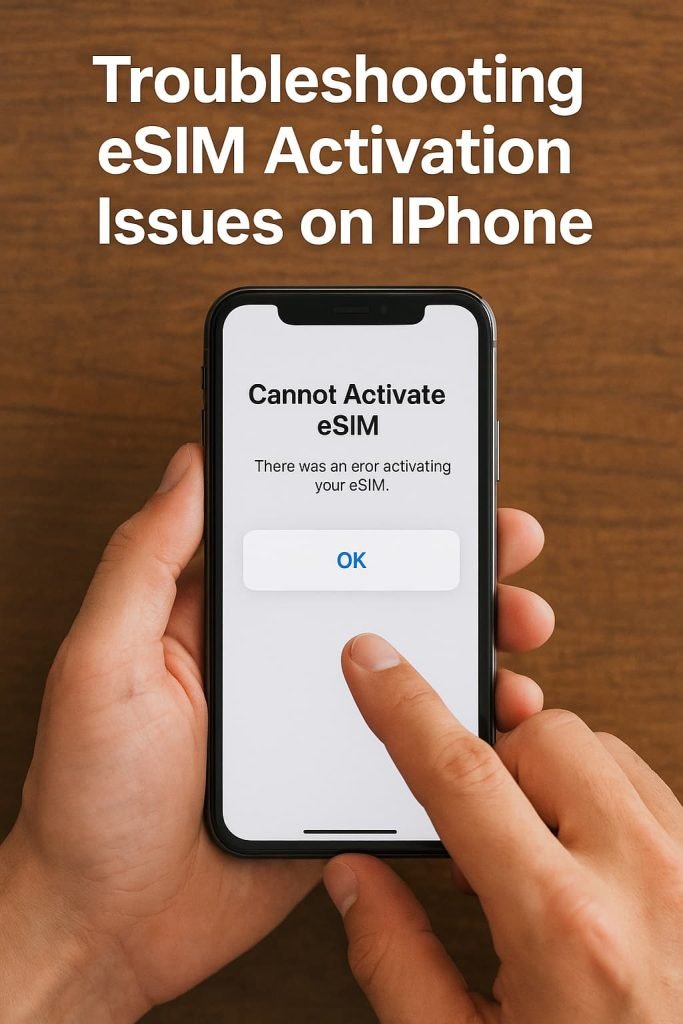
If you run into issues while trying to activate eSIM on iPhone in Canada, the problem is usually something simple. Most activation errors come down to outdated iOS software, missing carrier settings, or incorrect eSIM details. Work through the steps below before contacting support.
1. No Service After Activation
If your iPhone shows No Service after installing the eSIM:
- Restart your iPhone
- Go to Settings > Cellular
- Tap your eSIM plan
- Make sure the line is turned on
If you still cannot connect, update your carrier settings by going to Settings > General > About and wait to see if an update prompt appears.
2. “Add eSIM” Option Not Showing
If you do not see Add eSIM under Settings > Cellular, one of these is usually the cause:
- Your iPhone model does not support eSIM
- The device was purchased in a region that limits eSIM features
- iOS needs an update
Go to Settings > General > Software Update and install any available updates. iPhone XS, XR, and newer models support eSIM.
3. QR Code Not Scanning or Fails to Install
If the QR code refuses to scan or install:
- Confirm your Wi-Fi is on
- Make sure the QR code is not blurry or cropped
- Verify that the activation details match your Canadian carrier
If your carrier gave you an SM-DP+ address and activation code, you can enter it manually under Settings > Cellular > Add eSIM > Enter Details Manually.
4. Carrier Plan Not Installing
If you see Carrier Cellular Plan Ready to Be Installed but nothing happens:
- Tap the alert when it appears
- Go to Settings > Cellular
- Follow the installation prompts
If the plan still does not activate, contact your carrier. They may need to reset the eSIM or issue a new QR code.
5. Still Not Working? Reinstall the eSIM
If nothing else works:
- Go to Settings > Cellular
- Tap the eSIM plan
- Select Remove Cellular Plan
- Add the plan again using your QR code, Quick Transfer, or manual activation details
Most failed activations resolve after reinstalling the eSIM with fresh carrier credentials.
Quick Tip: Some carriers take a few minutes to provision a new line. If your iPhone shows service bars but calls or data do not work, wait a moment or toggle Airplane Mode off and on.
Need More Help? If you have already tried the steps above, your carrier may need to refresh the line on their end. You can also review Apple’s official support resources for additional guidance.
Choosing the Right Canadian eSIM Provider for iPhone
Now that you know how to activate eSIM on iPhone in Canada and manage multiple lines, it’s time to choose the right Canadian eSIM provider for your needs. Not all providers offer the same level of coverage, pricing, or features, so taking a moment to compare your options can make a real difference in how smoothly everything works.
1. Coverage and Network Reliability
Choose a provider that performs well in the areas where you plan to use your phone. Major carriers like Rogers, Bell, and Telus have strong national coverage, while regional or budget-friendly brands may be ideal if you do most of your calling and data use in specific provinces.
2. Data Plans and Pricing
Look closely at how much data you get for the cost. Some Canadian eSIM providers focus on affordable short-term plans, which are great for visitors and temporary users, while others offer monthly or yearly plans designed for locals and long-term residents.
3. Ease of Activation and Customer Support
A provider with clear setup instructions and responsive support can save you time and frustration during activation. Some providers also offer apps that guide you through the eSIM installation process from start to finish.
4. Added Features
Depending on how you travel or use your phone, extras—such as multi-country roaming options, unlimited social media data, or enhanced security features might be worth considering.
If you want a deeper side-by-side comparison of carriers and third-party providers, including pricing, coverage maps, and device compatibility, take a look at our dedicated guide that compares Canadian eSIM providers and helps you choose the right plan.
Tips for Using eSIM on Your iPhone in Canada
Once your eSIM is active, there are a few things you can do to avoid extra charges, stay connected, and get the most out of your iPhone while using an eSIM in Canada:
- Monitor your data usage
Streaming video, navigation apps, and social media can use data quickly. Check your usage under Settings > Cellular so your plan lasts as long as you expect. - Use Wi-Fi when available
Connect to secure Wi-Fi networks in places like hotels, cafés, and airports. This helps preserve your mobile data for when you really need it. - Label your eSIM profiles
If you have more than one eSIM installed, give each line a clear name such as Work, Travel, or Home to avoid confusion when switching between them. - Choose the right line for calls and data
Under Settings > Cellular, you can select which eSIM handles calls and which one handles data. This is especially useful if you keep your home number active while using a local Canadian data plan. - Keep your activation details somewhere safe
Store your QR code or carrier activation information in case you ever need to reinstall your eSIM. Having it on hand makes the process faster. - Watch for carrier updates and promotions
Canadian carriers frequently adjust their pricing or offer limited-time deals. Checking their apps or websites occasionally can help you save money. - Turn off data roaming when not required
If you leave your coverage area, go to Settings > Cellular and disable Data Roaming to avoid unexpected charges.
Frequently Asked Questions About Activating eSIM on iPhone in Canada
Which iPhone models support eSIM in Canada?
All iPhones from the iPhone XS, XS Max, and XR onward support eSIM in Canada. The specific features depend on the model. For example, iPhone 13 and newer models support dual active eSIMs, while earlier models allow one physical SIM and one eSIM. iPhones sold in mainland China sometimes use dual physical SIM trays and may not support eSIM at all, so always confirm your model if the device was purchased outside Canada.
Do all Canadian carriers support eSIM on iPhone?
Most Canadian carriers now support eSIM activation on iPhones, including Rogers, Bell, Telus, and their sub-brands. Some prepaid carriers require you to complete an identity check or request a QR code before activation. If you are using an iPhone purchased outside Canada, the carrier may need to verify compatibility before assigning an eSIM profile. Support is broad, but the activation experience varies by provider.
Can I activate an eSIM on my iPhone without Wi-Fi in Canada?
iPhone 14 and newer models can activate an eSIM without Wi-Fi in most cases, since they support on-device provisioning. Older models usually need Wi-Fi because the phone must contact Apple and your carrier to download activation files. If the phone cannot connect to either service, the installation will not complete and may show a “Waiting for activation” notice.
How do I transfer my physical SIM to an eSIM on my iPhone in Canada?
Many Canadian carriers allow you to convert a physical SIM to an eSIM through their app or customer portal. Once a QR code or activation option is issued, go to Settings > Cellular > Add eSIM. If the carrier offers Quick Transfer, the phone may detect your existing line automatically and prompt you to move it. Once the transfer is complete and the new line shows service, remove the physical SIM to avoid network conflicts.
Can I have multiple eSIMs active on my iPhone in Canada?
You can store multiple eSIM profiles on your iPhone. Only one line can be active at a time on older models, while iPhone 13 and newer devices allow two active eSIMs at once. This is useful if you want a local Canadian data plan and a separate home number for calls and messages. You can label each line and choose which one handles voice, SMS, or data usage.
What should I do if my eSIM doesn’t activate on my iPhone?
Start with a restart and check that your iPhone is unlocked. Make sure Wi-Fi is enabled during setup, since activation files are downloaded over the internet. If it still fails, delete the eSIM profile and reinstall it using the QR code or activation option from your carrier. If the issue continues, contact your carrier. Some carriers need to refresh your eSIM profile on their system before it can be installed again.
If the issue continues after reinstalling your eSIM, follow the steps in our dedicated troubleshooting guide: What to Do If eSIM Activation Fails in Canada.
Can I use an eSIM from another country while in Canada on my iPhone?
Yes, provided your iPhone is unlocked and the provider supports roaming in Canada. Some international eSIM brands offer Canada coverage that uses local partner networks like Rogers and Bell. Speeds and data limits vary, so always check whether your plan includes Canada before installing and activating the profile.
How do I activate eSIM on iPhone in Canada for the first time?
To activate eSIM on iPhone in Canada for the first time, go to Settings > Cellular > Add eSIM. You can scan a QR code from your provider, use carrier activation if a plan is already assigned to your phone, or use Quick Transfer to bring an eSIM from another iPhone. Make sure your phone has an active internet connection and is running the latest version of iOS to avoid activation errors.
Do iPhone models sold in Canada come with a physical SIM slot?
Most recent iPhone models sold in Canada support eSIM, but not all are eSIM-only. Canada kept physical SIM trays longer than the United States. Apple removed the SIM tray from U.S. iPhone 14 models, but Canadian versions still shipped with one through the iPhone 16 line. Starting with the iPhone 17 series, Apple removed the physical SIM tray in Canada as well, making those devices fully eSIM-only. This change means newer Canadian iPhones rely entirely on eSIM for activation. Always confirm your model number, because devices imported from the U.S. may be eSIM-only even if they appear identical.
Can I reinstall the same eSIM profile on my iPhone more than once?
Some Canadian carriers allow unlimited reinstalls, while others generate a one-time QR code that becomes invalid once used. If you erase your eSIM profile without saving the original details, your carrier may need to issue a new code before you can activate it again. This is why it is important to store your activation information somewhere safe before removing an eSIM.
Why does my eSIM show “Waiting for Activation” after setup?
This message appears when the iPhone has downloaded the eSIM profile but has not fully connected to your carrier’s network. It can happen if your phone was not on Wi-Fi during installation, the device clock is set incorrectly, or the carrier has not finished provisioning the line. Turning Airplane Mode on and off, restarting the device, or updating carrier settings usually resolves the issue.
Does eSIM affect call quality or data speeds on an iPhone in Canada?
No. eSIM uses the same network features as a physical SIM card. Your call quality, data speeds, and coverage depend entirely on your carrier, not whether the line uses eSIM or a physical SIM. If you notice reduced performance, it is almost always a carrier or coverage issue, not an eSIM limitation.
Can I switch eSIM plans when traveling outside Canada with my iPhone?
iPhones let you store multiple eSIM profiles and switch between them without removing anything from the device. This is useful if you want a local Canadian eSIM for regular use and a separate plan when traveling. Just note that iPhones purchased from certain regions may have different eSIM compatibility rules.
Are there any carriers in Canada that block eSIM transfers between devices?
Some Canadian carriers restrict eSIM transfers to prevent unauthorized device changes. In those cases, the eSIM cannot be moved to another iPhone using Quick Transfer or iCloud backup. You must request a new QR code from your carrier each time you change phones. Other carriers allow direct device-to-device transfers if the number and IMEI stay the same, as long as both devices are updated and unlocked. Always check your carrier’s transfer policy before resetting your phone or trading it in, since not all providers support seamless eSIM moves.
More Related Guides from Our eSIM Canada Series
If you need more help with your eSIM in Canada, these guides cover everything you’re likely to run into next.
Foundational Guide (Start Here)
Troubleshooting & eSIM Management
- What to Do If eSIM Activation Fails in Canada (Step-by-Step Fix)
- How to Fix eSIM Not Working in Canada (iPhone & Android)
- How to Reinstall or Reactivate an eSIM in Canada
- How to Remove or Delete an eSIM in Canada
- How to Switch eSIM Between Devices in Canada
Compare Plans & Providers
Other Activation Guides
- Activate eSIM on Android Canada: Step-by-Step Setup Guide
- How to Activate eSIM on Samsung Galaxy in Canada (Step-by-Step Guide)
- How to Activate eSIM on Google Pixel in Canada (Step-by-Step Guide)
- How to Activate eSIM on Motorola Phones in Canada
Final Thoughts
You now know how to activate eSIM on iPhone in Canada and manage everything from setup to troubleshooting and multiple lines. Whether you live here or you’re visiting, an eSIM gives you a quick and efficient way to get connected without dealing with physical SIM cards or waiting in a store.
Once your eSIM is active, take a moment to review your settings, label your lines if you’re using more than one, and keep your activation details somewhere safe in case you ever need to reinstall the profile.
As more Canadian carriers and devices continue to support eSIM, setups like this are only going to get easier. For now, you are ready to make the most of your iPhone with a connection that fits how people actually use their phones today.
Stay connected and keep things simple. That is the whole point of using an eSIM on your iPhone in Canada.