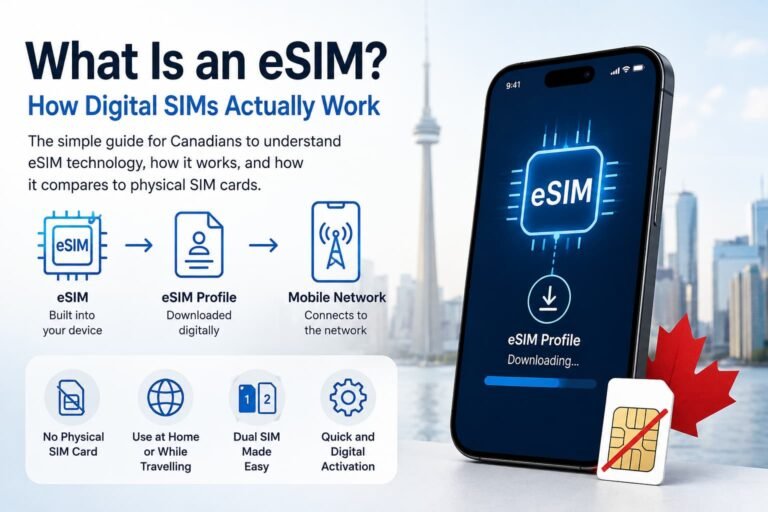
If you are upgrading your phone or moving your number over, figuring out how to activate Videotron eSIM in Canada should feel straightforward. Videotron is widely used across Quebec, and while the activation screens can look slightly different on iPhone, Samsung Galaxy, Google Pixel, and Motorola devices, the steps themselves are simple once you know where to tap.
This guide shows you exactly what to do, starting with scanning the QR code Videotron provides and downloading the eSIM profile. The instructions match the menus you will see on Canadian phones, so you can activate your line without guessing or restarting the process several times. If you are switching from a physical SIM, moving your eSIM to a new device, or need help fixing an activation issue later, there are links in this post that cover those situations as well.

How to Activate Videotron eSIM in Canada (Step-by-Step Overview)
This step-by-step guide shows you exactly how to activate Videotron eSIM in Canada without guessing your way through the menus. The whole process comes down to three things: a compatible phone, a valid QR code from Videotron, and knowing where to tap in your settings. Once you scan the code and install the eSIM profile, your phone connects to the Videotron network just like a regular SIM card, only without the plastic. The steps are nearly identical on iPhone, Samsung Galaxy, Google Pixel, and newer Motorola devices, so once you see the flow, the rest feels straightforward.
Videotron eSIM Support in Canada
Videotron supports eSIM on both prepaid and postpaid plans, including bring-your-own-device (BYOD) activations, mainly within Quebec and its extended coverage areas. You can activate your line using a QR code sent by email, or by entering manual SM-DP+ details provided by Videotron support.
Most Canadian iPhone, Samsung Galaxy, Google Pixel, and newer Motorola devices work with Videotron eSIM. Just keep in mind that phones purchased outside Canada may show the eSIM option in settings but still fail activation because some international variants have regional eSIM restrictions.
How Videotron Handles eSIM Activation in Canada
Videotron manages eSIM activation a little differently from national carriers like Rogers, Bell, and TELUS. Because most Videotron accounts are based in Quebec, the carrier sometimes verifies the IMEI on your device before issuing a QR code, especially when you bring your own phone. Some prepaid and BYOD activations may require additional validation through customer support or a store visit if the number was originally set up with a physical SIM. If your phone was purchased outside Canada or from another provider, Videotron may need to confirm device compatibility and refresh your line before the eSIM can be provisioned. These steps are normal for Videotron and ensure that the device registers correctly on their network.
For confirmed carrier details, visit the official Videotron eSIM support page.
What You Need Before Activating a Videotron eSIM
Before you start the activation process, make sure you have the items below. Having everything ready prevents delays and reduces the chances of the eSIM failing during installation.
- A compatible iPhone or Android device
- An active Videotron plan or a BYOD activation kit
- A Videotron eSIM QR code (sent by email or PDF)
- Wi-Fi access during setup
- Your Videotron account login if activating through your profile
- An unlocked device if you are switching from another provider

How to Activate Videotron eSIM in Canada on iPhone (Step-by-Step)
Below are the steps for installing a Videotron eSIM on any compatible iPhone. If you’re using an iPhone to set up your Videotron eSIM, the menu layout may vary slightly between iOS versions, but the activation process follows the same path on all recent models.
Step 1) Open the Videotron eSIM QR Code
Open the PDF or email containing your Videotron eSIM QR code on another device or computer. Keep the code visible because your iPhone will need to scan it directly.
Step 2) Open Settings on Your iPhone
Go to Settings > Cellular and tap Add eSIM or Add Cellular Plan.
Step 3) Scan the Videotron QR Code
Point your camera at the QR code. If it does not scan, choose Enter Details Manually and input the SM-DP+ address provided by Videotron.
Step 4) Download and Install the eSIM Profile
Tap Continue and allow the iPhone to download and install the eSIM profile.
Step 5) Turn On the Videotron Line
Select Turn On This Line and follow any on-screen instructions.
Step 6) Test Mobile Data and Voice Services
Load a webpage and place a test call to confirm activation.
Note: If you don’t have your QR code yet, you can request one directly through Videotron before completing the activation.
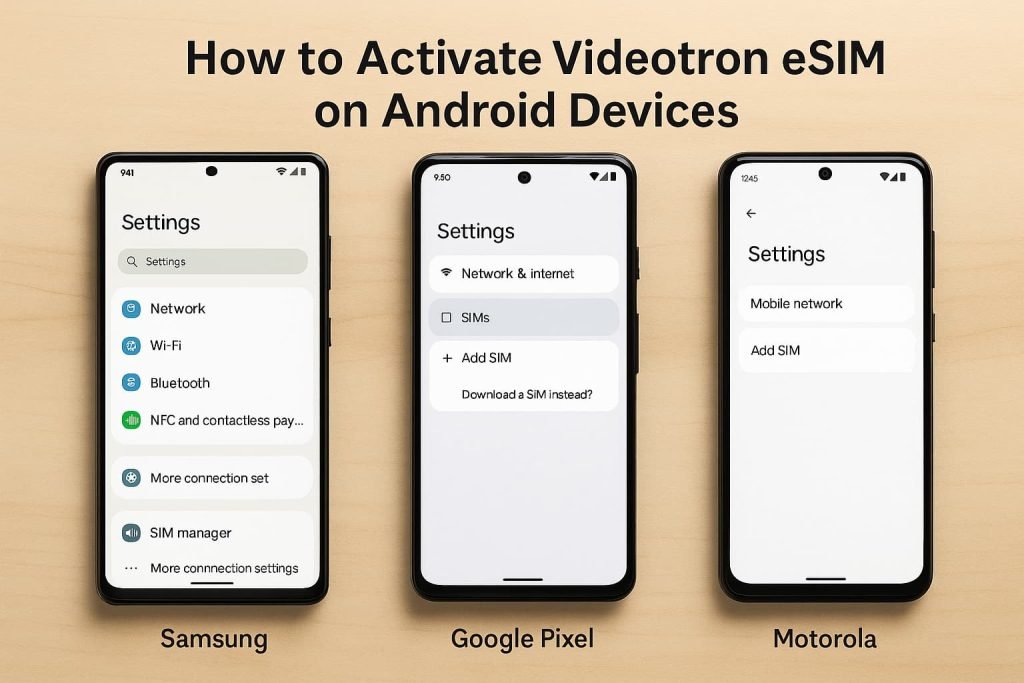
How to Activate Videotron eSIM in Canada on Android Devices (Step by Step)
Samsung
Here’s how to activate Videotron eSIM in Canada on Android devices without guessing which settings to tap. Once you know where to look, activating the eSIM on Samsung Galaxy, Google Pixel, or Motorola phones is simply a matter of following the right menu steps.
Step 1) Open Settings
Go to Settings > Connections > SIM Manager.
Step 2) Add eSIM
Tap Add eSIM or Add Mobile Plan.
Step 3) Scan the Videotron QR Code
Point your camera at the QR code. If scanning fails, choose Enter activation code and use the SM-DP+ details provided by Videotron.
Step 4) Download and Install the eSIM
Allow the device to download the profile. This may take up to 30 seconds.
Step 5) Turn On the Line
Enable the Videotron line in SIM Manager.
Step 6) Test Mobile Data and Calls
Open a webpage and place a test call.
Google Pixel
Follow these steps to activate a Videotron eSIM on Google Pixel devices. If you’re using a Google Pixel phone, the activation menu may look slightly different depending on your Android version, but the steps below apply to all recent models.
Step 1) Open Settings
Go to Settings > Network & Internet > SIMs.
Step 2) Add the Videotron eSIM
Tap Add SIM, then select Download a SIM instead.
Step 3) Scan the QR Code
Scan your Videotron QR code or choose Need help? Enter activation code to enter details manually.
Step 4) Install the eSIM Profile
Confirm the download and allow the Pixel to install the eSIM.
Step 5) Turn On the Videotron Line
Enable the Videotron line under SIM settings.
Step 6) Confirm Activation
Test mobile data and voice services.
Motorola
Here’s how to set up a Videotron eSIM on Motorola devices that support eSIM activation.
Step 1) Open Settings
Go to Settings > Network & Internet > Mobile Network.
Step 2) Add the eSIM
Select Add Carrier or Download a SIM, then scan the QR code.
Step 3) Confirm Installation
Allow the eSIM profile to install.
Step 4) Turn On the Videotron Line
Enable the line under Mobile Network settings.
Step 5) Test Data and Calls
Load a webpage and place a test call.
Need steps tailored to your phone? These brand-specific guides walk you through the exact menus on Samsung Galaxy, Google Pixel, and Motorola devices, so you tap the right screens without guessing.
- How to Activate eSIM on Samsung Galaxy in Canada
- How to Activate eSIM on Google Pixel in Canada
- How to Activate eSIM on Motorola Phones in Canada
Restrictions
Imported Huawei, Oppo, Vivo, and Xiaomi devices may show eSIM menus but cannot complete Canadian eSIM activation. Models purchased outside North America may have limited or disabled eSIM functionality, even if the eSIM option appears in settings.
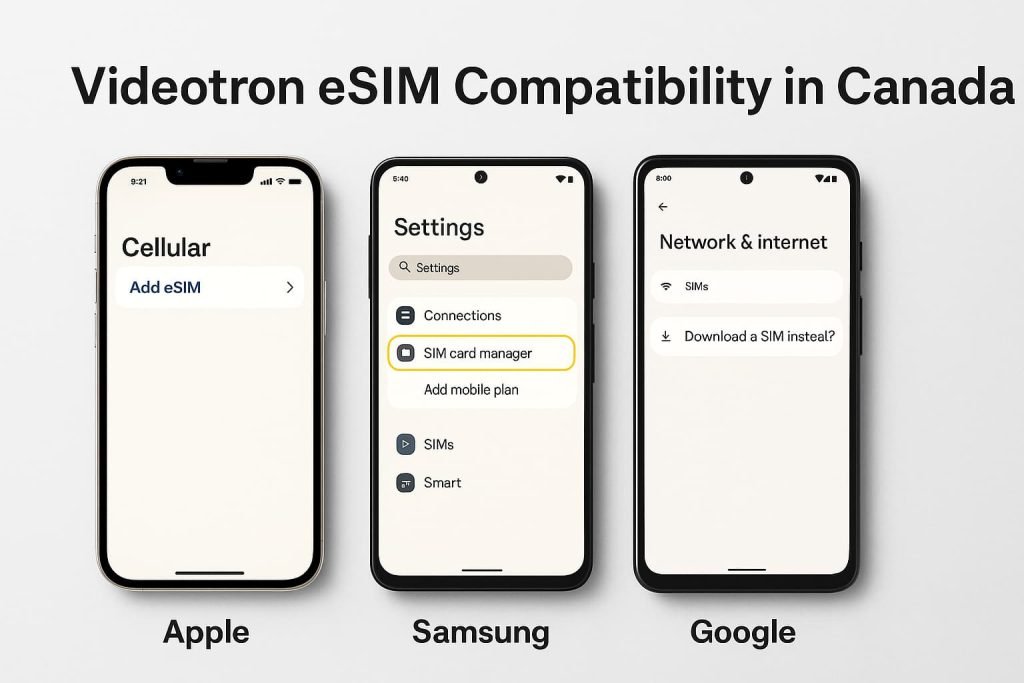
Videotron eSIM Compatibility in Canada
Below is an updated compatibility table covering the newest Apple, Samsung, Google, and Motorola models as of late 2025. All devices listed support eSIM activation on Videotron when using Canadian or North American variants.
Videotron eSIM Compatibility Table (2025)
| Brand | Supported Models | Notes |
|---|---|---|
| Apple | iPhone XR and newer, iPhone SE (2020, 2022, 2024), iPhone 12–16 series, iPhone 17, iPhone Air, iPhone 17 Pro, iPhone 17 Pro Max | All North American variants support eSIM. Imported iPhones may restrict eSIM depending on region. |
| Samsung | Galaxy S20–S24 series, Galaxy S25, S25+, S25 Ultra, S25 Edge, S25 FE, Galaxy Note 20, Z Fold7, Z Flip7, A54/A55/A56 and select A-series with eSIM | Some international Samsung variants disable eSIM. Use Canadian/US models for full support. |
| Google Pixel | Pixel 4–9 series, Pixel 9a (2025), Pixel 10, Pixel 10 Pro, Pixel 10 Pro XL | All North American Pixel models support eSIM and multiple SIM profiles. |
| Motorola | Motorola Razr (2020+), Razr Ultra 2025, Razr 2025, Motorola Edge eSIM models, Moto G 5G (2025), Moto G Power (2025) | Many Moto G variants sold outside North America do not support eSIM even if the menu appears. |
Pros and Cons of Using Videotron eSIM
Understanding the advantages and limitations of a Videotron eSIM can help you decide whether it fits your setup, especially if you’re bringing your own device or switching from a physical SIM.
Pros
- Instant activation with no need to pick up or wait for a physical SIM card.
- Prepaid and postpaid support makes it easy for new and existing customers to switch.
- Works with dual SIM setups on newer iPhone, Samsung, Google Pixel, and select Motorola devices.
- Keep your existing number when switching from a physical SIM.
- Eco‑friendly since there is no plastic SIM card involved.
- Strong coverage in Quebec with extended network access outside core Videotron areas.
Cons
- QR codes are single‑use, so each device switch requires a new code.
- Imported phones (especially certain Samsung, Xiaomi, Vivo, Huawei, and Oppo models) may display eSIM menus but fail activation.
- Coverage outside Quebec depends on partner networks, which may differ from Videotron’s native footprint.
- Locked devices cannot activate a Videotron eSIM until the SIM restriction is removed.
- Older models may not support eSIM, even if menus appear.
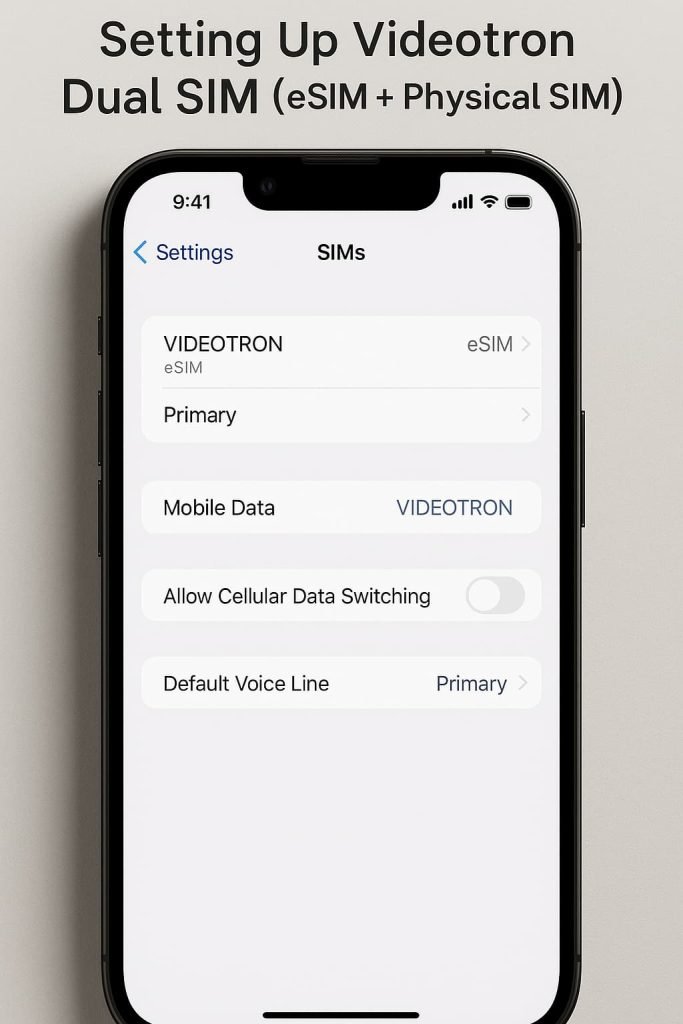
Setting Up Videotron Dual SIM (eSIM + Physical SIM)
If your phone supports dual SIM, you can use a Videotron eSIM alongside a physical SIM at the same time. Most newer iPhone, Samsung Galaxy, and Google Pixel models let you choose which SIM handles mobile data, calls, and messaging. This setup is helpful if you want to keep personal and work numbers on the same device, maintain a local Videotron line while adding a travel eSIM, or run two separate plans without swapping SIM cards.
When you finish installing the Videotron eSIM, open your device’s SIM settings to assign:
- Primary line for calls and messaging
- Data line for mobile internet
- Fallback SIM if one network loses coverage
You can change these preferences at any time without reinstalling the eSIM.
Pro Tips for Using Videotron eSIM in Canada
Before you activate Videotron eSIM, make sure the QR code is open on a second screen so your phone can scan it without switching apps.
- Keep the QR code open on a second screen.
Use a laptop, tablet, or a second phone to display the QR code. Scanning from the same device you are activating will not work, and switching back and forth between apps can cause errors. - Check that your device is unlocked and compatible.
Confirm that your iPhone, Samsung, Pixel, or Motorola model supports eSIM and is not locked to another carrier. If it is locked, contact your previous provider before starting the Videotron activation. - Update your software first.
Install the latest iOS or Android update before activating the eSIM. Many eSIM menu issues disappear once the device is on a current version. - Use Wi-Fi during activation.
Make sure the phone is on a stable Wi-Fi connection when you scan the QR code or enter SM-DP+ details. Relying on mobile data during the download can cause the profile to hang or fail. - Take your time on the SIM selection screens.
When the device asks which line to use for data and which to use for calls, read each option carefully. Choosing the wrong default line can make it look like the eSIM did not activate when it is actually just not selected. - Restart after everything looks correct.
Even if the line shows as active, a quick restart often finalizes the registration with the Videotron network and clears out “No service” glitches. - Keep the QR email until you confirm service.
Do not delete the original email containing the QR code until you can place calls and use data normally. If something goes wrong, you may need to reference that message when speaking with Videotron support.
Videotron eSIM Troubleshooting Guide
Troubleshooting an eSIM issue with Videotron usually comes down to a few predictable causes. The steps below reflect the most common activation and network problems seen on Canadian iPhone, Samsung, Google Pixel, and Motorola models. Each section explains why the issue happens and what you can do to fix it.
QR Code Not Scanning
If your phone cannot read the Videotron QR code, the problem is often lighting, screen clarity, or the camera focus.
- Increase the brightness of the screen displaying the QR code.
- If you are scanning from another phone, enlarge the QR code to full screen.
- Print the QR code if glare or reflections make scanning difficult.
- Clean the camera lens and hold the phone steady for a few seconds.
- Restart your device and try scanning again.
- If the QR code still fails, request a new one from Videotron. Some codes expire or become invalid after failed activations.
eSIM Downloads but Does Not Activate
Sometimes the eSIM profile installs correctly but the line does not register with the network.
- Make sure Wi-Fi is enabled during activation. Cellular data alone may not work.
- Toggle Airplane Mode on and off to force the device to reconnect to the network.
- Restart the phone. Many devices finalize activation only after rebooting.
- Confirm your Videotron plan is active in your account dashboard.
- For Samsung users, ensure SIM Manager shows the eSIM profile as enabled.
- For iPhone users, go to Settings > Cellular and confirm the Videotron line is turned on.
“Cannot Activate eSIM” Error
This message usually means the activation code associated with your QR code is no longer valid.
- Request a fresh QR code from Videotron. QR codes cannot be reused after a failed attempt.
- Check that your device has internet access during the installation.
- Make sure your phone is not running VPN or private DNS settings that might block the SM-DP+ server.
- If you are using a Pixel or Samsung, try manual activation by entering the SM-DP+ address provided by Videotron support.
No Service After Activation
If the eSIM is installed but you have no signal, the device may not have registered on the Videotron network.
- Confirm the Videotron line is set as the preferred SIM for data and calls.
- Check that LTE or 5G is enabled in your mobile network settings.
- Verify that APN settings loaded automatically. If they did not, restart the device.
- Toggle Airplane Mode and try connecting again.
- Move to an area with stronger coverage, especially if you are at the edge of Videotron’s Quebec service area.
- If the issue continues, contact Videotron to refresh your line.
Device Locked
Videotron eSIM activation requires an unlocked device.
- If your device shows a SIM restriction message, contact your previous carrier to remove the lock.
- Even if the device shows the eSIM menu, it will not register on the network until unlocked.
Frequently Asked Questions About How to Activate Videotron eSIM in Canada
If you still need help with the activation process, this section answers the most common questions Videotron users have when setting up an eSIM in Canada. It explains what to do if a QR code does not scan, how device transfers work, and how to fix activation problems that prevent the line from connecting.
Can I activate a Videotron eSIM without a QR code?
No. Videotron requires either the official QR code sent by email or the activation code provided through customer support. The QR code links your device to Videotron’s SM-DP+ server, so the eSIM profile cannot download without it. If you lost your code, Videotron can generate a new one through your account or by phone.
Can I reuse my Videotron eSIM QR code?
Videotron QR codes are single use. Once the eSIM profile has been installed on a device, the code is permanently tied to that activation. If you switch to another phone, you must request a new QR code before completing the transfer.
Does Videotron support eSIM on prepaid plans?
Yes. Videotron prepaid customers can activate an eSIM using the same QR code process as postpaid users. The activation steps are identical, and prepaid lines support full LTE and 5G access where available.
Why is my iPhone missing the Add eSIM option?
Older iPhone models, outdated iOS versions, or regional variants may not display the Add eSIM menu. Update your software, confirm your iPhone supports eSIM, and make sure it is a Canadian or North American model. Imported devices may show the menu but fail during activation.
Can I transfer my Videotron eSIM to a new phone?
Yes, but Videotron requires a new QR code for every transfer. The eSIM cannot be copied or reused, and deleting it from your old phone does not free it for reinstallation. Once you have your new QR code, follow the same installation steps on your new device.
Does Videotron support dual SIM with eSIM?
Yes. Most recent iPhone, Samsung, and Google Pixel models can run a Videotron eSIM and a second SIM at the same time. You can choose which line handles data, voice, and messaging based on your needs.
Why do I have no service after activation?
This usually means the eSIM installed correctly but the network connection did not initialize. Restart your phone, toggle Airplane Mode, or reset mobile data settings. If the issue continues, Videotron may need to refresh your line on their side.
Can I switch from a physical SIM to a Videotron eSIM?
Yes. Videotron will replace your physical SIM with an eSIM by issuing a new QR code. Once the eSIM is installed and active, your physical SIM will no longer be required.
Does Videotron support 5G on eSIM?
If your device supports Videotron’s 5G bands, you will have access to the network using an eSIM. This applies to both prepaid and postpaid plans.
Why does my phone show “Incompatible eSIM” during setup?
Imported Huawei, Xiaomi, Oppo, and Vivo models often show the eSIM menu but cannot complete Canadian eSIM activations. These devices may support eSIM in other regions but not on Canadian carriers.
Can I activate my Videotron eSIM outside Canada?
Yes. You can complete the eSIM installation from any country as long as you have Wi-Fi access. However, service will only work in countries where Videotron supports roaming.
What happens if I delete my Videotron eSIM?
Deleting the eSIM removes the profile from your phone but does not cancel your line. You will need a new QR code to reinstall it. Videotron can issue a new one automatically through your account or by contacting customer service.
How long does Videotron eSIM activation take?
Most installations complete in under 60 seconds once the QR code is scanned. Some Android devices may take slightly longer if the phone needs to restart mobile services after activation.
Can I use Videotron eSIM on Motorola devices?
Yes, but only on specific models that support Canadian eSIM activation, such as the newer Motorola Edge and Moto Razr models. Many Moto G variants do not support eSIM, even if the menu appears.
How often can I switch devices with a Videotron eSIM?
You can switch as often as you need, but every transfer requires a new QR code. Videotron does not limit the number of requests, but each activation must use a fresh code.
More Related Guides from Our eSIM Canada Series
Here are additional eSIM guides from our Canada Series that can help you with setup, troubleshooting, and device transfers:
- How to Activate Bell eSIM in Canada (Step-by-Step Guide)
- How to Activate Rogers eSIM in Canada (Step-by-Step Guide)
- How to Activate TELUS eSIM in Canada (Step-by-Step Guide)
- How to Activate Fido eSIM in Canada (Step-by-Step Guide)
- How to Activate Freedom Mobile eSIM in Canada (Step-by-Step Guide)
- How to Fix eSIM Not Working in Canada (Step-by-Step Fix)
- How to Reinstall or Reactivate an eSIM in Canada (Step-by-Step Guide)
- How to Remove or Delete an eSIM in Canada (Step-by-Step Guide)
- How to Activate eSIM on Android in Canada
- How to Activate eSIM on iPhone in Canada
- How to Switch eSIM Between Devices in Canada
- Compare Canadian eSIM Providers: The Ultimate 2025 Guide
Final Thoughts
Setting up a Videotron eSIM in Canada is straightforward when you have the QR code and a compatible device. The steps in this guide reflect the menus you’ll see on Canadian iPhone and Android models, which means the activation screens look familiar, especially if you’re in Quebec where most Videotron users are. If something doesn’t connect right away, the troubleshooting section points you to the fixes that resolve most issues without waiting on customer support.
For a broader look at how eSIM works across Canadian carriers, including plan options, compatibility notes, and travel recommendations, see: eSIM Canada: Best Providers, Setup and Guide for Travelers and Locals