If you’ve accidentally deleted your eSIM, reset your phone, or switched to a new device, don’t worry. Knowing how to reinstall or reactivate an eSIM in Canada is simple when you follow the right steps. Whether you’re using an iPhone or Android phone, this guide walks you through how to restore your digital SIM, request a replacement QR code, and fix activation issues quickly.
If you ever need to remove an eSIM before reinstalling, check out our step-by-step guide on how to remove or delete an eSIM in Canada. It explains when to delete a profile safely and how to avoid losing your number. You can also learn what to do if your activation doesn’t go through in our detailed post, what to do if eSIM activation fails in Canada.

Why You Might Need to Reinstall or Reactivate eSIM in Canada
Here are some common reasons why you may need to reinstall or reactivate eSIM in Canada:
- You deleted your eSIM profile by mistake.
- You upgraded or switched to a new phone.
- Your device was factory reset and erased your eSIM.
- You’re fixing a failed eSIM activation or network issue.
- Your carrier requested you to reinstall the eSIM.
Some users also need to reactivate a deleted eSIM in Canada after switching carriers or restoring from a backup. Reinstalling or reactivating your eSIM simply means downloading your carrier’s plan again, usually by scanning a new QR code or following prompts in your carrier’s app.
If you’re setting up an eSIM for the first time, our iPhone eSIM activation guide walks you through every step of the process from scanning your QR code to activating data.

How to Reinstall or Reactivate eSIM in Canada on iPhone
Reinstalling your eSIM on an iPhone takes just a few minutes. Here’s how:
- Open Settings > Cellular (or Mobile Data).
- Tap Add eSIM or Add Cellular Plan.
- Choose Use QR Code or Transfer from Nearby iPhone if your carrier supports it.
- Scan your new QR code or follow the on-screen instructions to add your plan.
- Wait for activation to finish, then check under Cellular Plans to confirm it’s active.
If your eSIM was removed during a reset, you can restore your eSIM profile manually by scanning your replacement QR code or using the digital SIM setup option in Settings.
How to Reinstall or Reactivate eSIM in Canada on Android Phones
The process varies slightly depending on your phone model, but here’s the general method:
- Go to Settings > Network & Internet > SIMs (or Connections > SIM Manager).
- Tap Add eSIM or Download a SIM instead.
- Select Use QR Code and scan your new eSIM activation code.
- Confirm when prompted and wait for your carrier to activate the plan.
- Restart your phone if the network doesn’t appear right away.
If your phone doesn’t detect your plan, go to eSIM settings and tap Download carrier eSIM profile to reload it. You can also run a quick mobile network reset if your signal still doesn’t appear.
This method works for most Android models, including Samsung Galaxy, Google Pixel, Motorola Razr, and OnePlus.
If you want more help setting up your Android device, check out our Android eSIM activation guide for Canada, which covers device-specific instructions and troubleshooting.
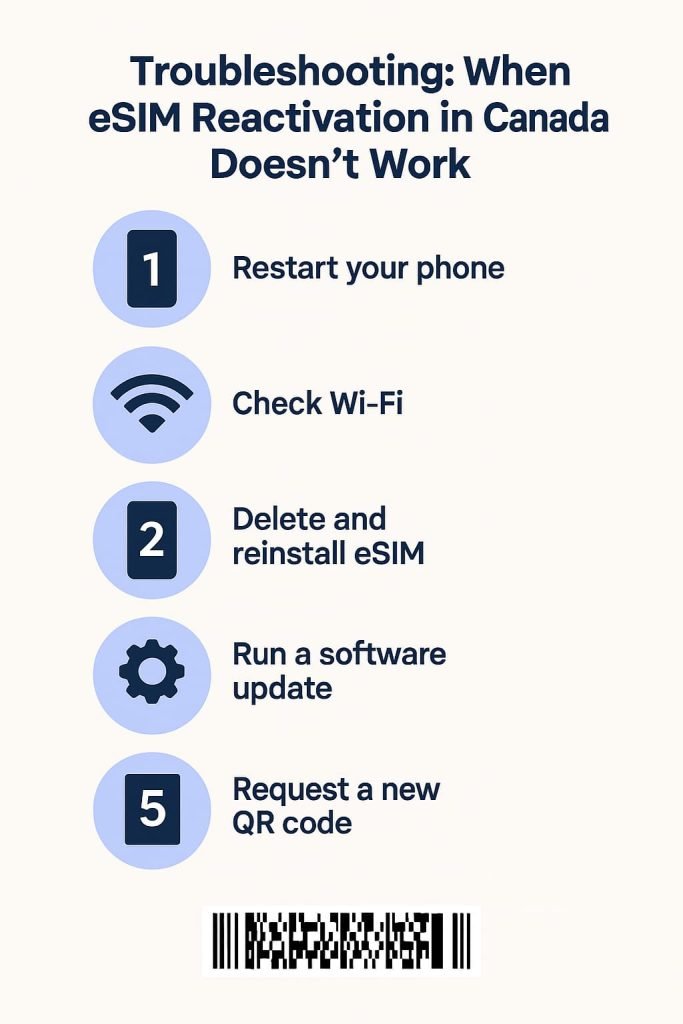
Troubleshooting: When eSIM Reactivation in Canada Doesn’t Work
If your eSIM still isn’t working after reinstalling, try these quick fixes before contacting your carrier:
- Restart your phone. A simple restart refreshes your carrier settings.
- Check Wi-Fi connection. Use a stable Wi-Fi network during reactivation.
- Delete and re-add the eSIM. Sometimes reinstallation fixes a corrupted profile.
- Run a software update. Outdated firmware can block eSIM activation.
- Request a new QR code. If your QR code was already used, you’ll need a fresh one.
If nothing works, log into your carrier’s self-serve app or account portal and start the eSIM reactivation process. You can also ask customer support to reissue your eSIM QR code in Canada, which usually takes just a few minutes.
If you’re using a travel eSIM provider like Airalo or Holafly, the process is just as easy. Simply log in to your app, go to your purchased plans, and download a fresh eSIM profile or QR code. These apps make reactivation simple, especially if you travel often.
For iPhone Users (Compatible Models)
You can reinstall or reactivate an eSIM on all iPhone models that support eSIM technology, including:
- iPhone XR, XS, XS Max
- iPhone 11, 11 Pro, 11 Pro Max
- iPhone 12, 12 Mini, 12 Pro, 12 Pro Max
- iPhone 13, 13 Mini, 13 Pro, 13 Pro Max
- iPhone 14 and 15 series (eSIM only in the U.S., dual SIM in Canada)
- iPhone 16, 16 Plus, 16 Pro, and 16 Pro Max (dual SIM support — physical + eSIM in Canada)
- iPhone 17, 17 Plus, 17 Pro, and 17 Pro Max (released September 2025 — eSIM only in Canada and the U.S.)
Tip: Dual eSIM support starts from iPhone 13 models, allowing two active eSIMs at once.
For Android Users (Compatible Models)
Most modern Android phones sold in Canada support eSIM technology, including:
- Samsung Galaxy S20, S21, S22, S23, S24, and S25 series (including Ultra and FE models)
- Google Pixel 4 through Pixel 9 series, including Pixel Fold and Pixel 9 Pro XL
- Motorola Razr (2020 and newer) and Motorola Edge series (Edge 40 and Edge 50)
- OnePlus 11, 12, and 12R models
- Xiaomi 13 and 14 series (select carrier support in Canada)
- ASUS Zenfone 10 and ROG Phone 8 series
- Huawei P40 and P50 series (limited carrier support)
Tip:
Samsung phones usually manage eSIMs under Settings > Connections > SIM Manager,
while Google Pixel uses Network & Internet > SIMs.
Motorola and OnePlus devices may list it under Mobile Network > Advanced > Carrier.
If your eSIM still isn’t working after reinstalling, try these quick fixes before contacting your carrier:
- Restart your phone. A simple restart refreshes your carrier settings.
- Check Wi-Fi connection. Use a stable Wi-Fi network during reactivation.
- Delete and re-add the eSIM. Sometimes reinstallation fixes a corrupted profile.
- Run a software update. Outdated firmware can block eSIM activation.
- Request a new QR code. If your QR code was already used, you’ll need a fresh one.
If nothing works, log into your carrier’s self-serve app or account portal and start the eSIM reactivation process. You can also ask customer support to reissue your eSIM QR code in Canada, which usually takes just a few minutes.
If you’re using a travel eSIM provider like Airalo or Holafly, the process is just as easy. Simply log in to your app, go to your purchased plans, and download a fresh eSIM profile or QR code. These apps make reactivation simple, especially if you travel often.

Carrier Reactivation Options in Canada
Each carrier handles eSIM reactivation slightly differently. Here’s a quick summary of what to expect:
| Carrier | How to Reactivate | Notes |
|---|---|---|
| Bell | Log in to your MyBell account to request a replacement QR code. | Instant reactivation available. |
| Rogers | Use the MyRogers app or account dashboard to reissue your eSIM. | You can reuse your same number. |
| TELUS | Visit MyTELUS and choose Replace eSIM under plan settings. | No need to contact support. |
| Fido | Open the Fido app or log in online to download a new eSIM profile. | Works with the same account. |
| Virgin Plus | Request a new eSIM through your Virgin Plus account. | Replacement codes issued instantly. |
| Freedom Mobile | Contact Freedom Support for a replacement QR code. | Manual reactivation required. |
| Public Mobile | Use the app or website to request a new eSIM. | May take up to 15 minutes. |
| Koodo | Go to Koodo Self Serve → Replace eSIM. | Quick setup using QR code. |
| Lucky Mobile | Request a new eSIM via customer service. | Requires reactivation process. |
| Chatr | Use your account or contact support for a new eSIM. | Manual setup required. |
| PC Mobile | Visit My Account to re-download your eSIM. | Plan remains active until replaced. |
Some carriers, especially prepaid ones like Freedom or Lucky Mobile, might take up to 24 hours for your plan and data to fully sync after reactivation. If it takes longer, restart your phone and confirm that your eSIM appears under network settings.
Many carriers now allow you to reissue your eSIM QR code directly through their apps. If your plan doesn’t show after reinstalling, open your account dashboard and start the eSIM reactivation process to refresh your connection.
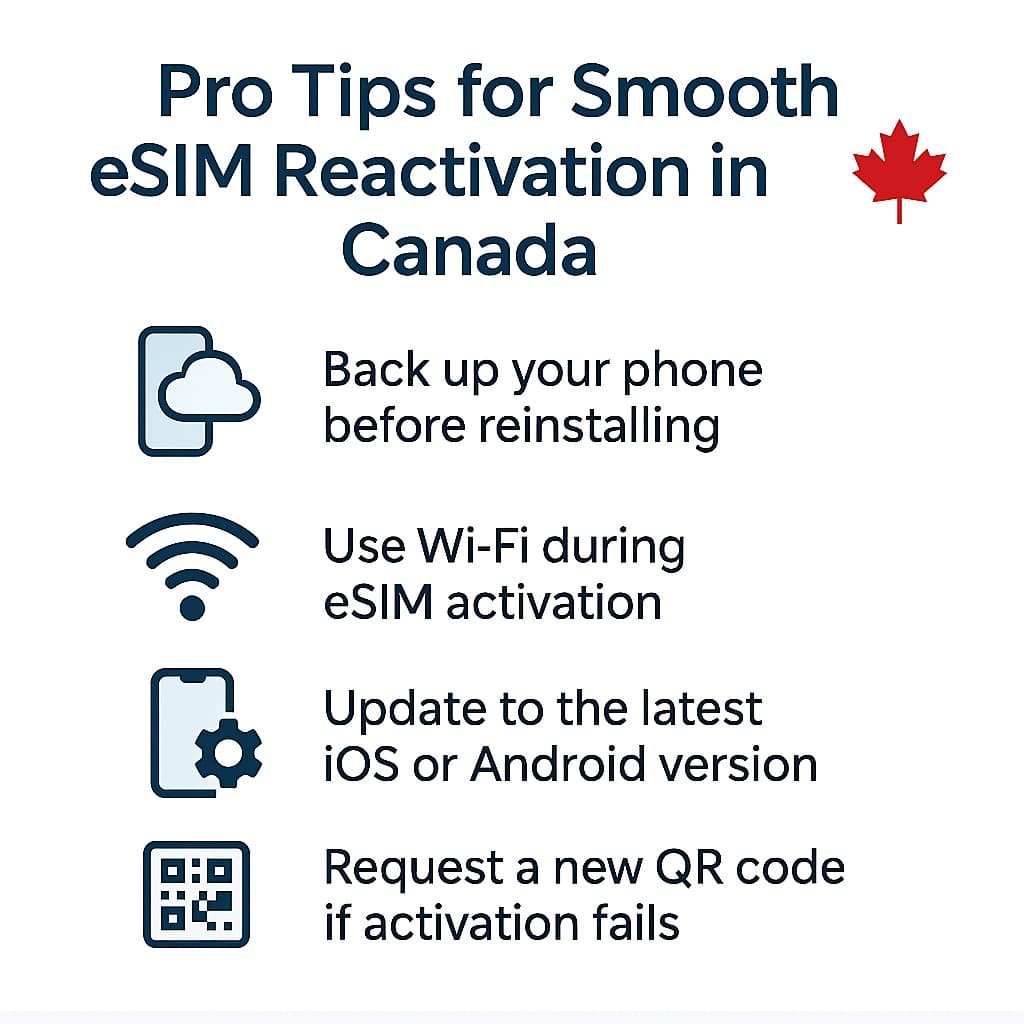
Pro Tips for Smooth eSIM Reactivation in Canada
Smoothly managing your eSIM reinstallation makes a big difference. These steps will help you avoid common issues and get your phone reconnected in minutes.
Before You Start
Before reactivating your eSIM, take a few quick precautions to protect your data and make the process smoother:
- Back up your phone to keep your settings and carrier information safe.
- Make sure your device is unlocked and updated to the latest software version. Older iOS or Android versions can hide eSIM options.
- Use Wi-Fi instead of mobile data. A stable Wi-Fi connection makes downloading your new eSIM faster and more reliable.
- Request your new QR code early. Deleted eSIMs cannot be reused, so log in to your carrier account or app to get a replacement code before you start.
- Have your IMEI or EID ready. You may need these numbers when requesting a replacement eSIM. You can find them under Settings → About Phone.
During Reactivation
Once you start reinstalling your eSIM, take your time and double-check each step:
- Select the correct plan if you have more than one eSIM saved. Removing or reinstalling the wrong one can cause connection issues.
- Keep your screen on while setting up the eSIM to prevent the installation from freezing or timing out.
- Scan carefully. If your camera does not read the QR code, you can enter the SM-DP+ address manually from your carrier’s instructions.
- Wait until setup is complete before deleting any old or inactive eSIM profiles. Removing other plans mid installation can interrupt activation.
After Setup
Once your eSIM is active again, a few final steps will make sure everything is working properly:
- Restart your phone to refresh the network and carrier settings.
- Label your line with your carrier’s name, like “Rogers Canada” or “Bell eSIM,” to make it easier to manage multiple profiles.
- Test your service right away. Make a call or browse the web to confirm your data and voice are working correctly.
- Remove inactive or duplicate eSIMs to prevent future conflicts.
- Keep your phone’s software up to date. System updates often improve eSIM stability and fix carrier-related bugs.
Following these steps makes it easy to reinstall or reactivate eSIM in Canada safely and without errors.
Frequently Asked Questions About How to Reinstall or Reactivate eSIM in Canada
Can I reinstall an eSIM after deleting it?
Yes. Once deleted, an eSIM can’t be reused. You’ll need a new eSIM QR code from your carrier. Most Canadian providers, including Bell, Rogers, and TELUS, let you generate a replacement instantly through their self-serve app or online account.
Can I reactivate my eSIM without scanning a QR code?
Some carriers offer in app activation, like TELUS or Koodo, but most still require a QR code for reinstallation. It is always safest to request a new one from your provider.
What should I do if my eSIM does not activate after reinstalling?
Restart your phone and make sure Wi-Fi is on. If that doesn’t fix it, delete the eSIM and reinstall using a fresh QR code from your carrier. For more detailed troubleshooting, see our post on what to do if eSIM activation fails in Canada.
How do I reactivate my eSIM after a factory reset?
After a factory reset, log in to your carrier account and request a replacement eSIM QR code. Then follow the same steps to restore your eSIM profile in Canada. This ensures your number and plan reconnect properly.
Will reinstalling my eSIM erase my number or plan?
No. Your number and plan remain active with your carrier, not your phone. Once you reinstall the eSIM, everything, including your data and voice plan, syncs automatically.
Can I reinstall an eSIM on a new phone?
Yes, as long as your new device supports eSIM. Request a new QR code from your carrier, scan it, and your plan will transfer instantly.
How long does eSIM reactivation take in Canada?
Most major carriers complete reactivation in minutes. Prepaid services like Freedom Mobile, Lucky Mobile, or Public Mobile might take 10 to 15 minutes for data and number sync.
Should I delete inactive or old eSIM profiles?
Yes. Removing old or inactive profiles helps avoid conflicts and makes it easier to manage multiple eSIMs on your phone.
Do I need Wi-Fi to reinstall my eSIM?
Yes. Always connect to Wi-Fi before reinstalling or reactivating an eSIM. Most carriers in Canada require a secure Wi-Fi connection to download the eSIM profile successfully.
Can I reuse the same QR code to reinstall my eSIM?
No. Each eSIM QR code is one-time use only. If you delete or reset your phone, request a new QR code from your carrier before reinstalling your eSIM.
Why can’t I reinstall my eSIM on my phone?
If your phone says “eSIM can’t be added” or “invalid QR code,” it usually means the old code has expired. Request a new activation QR code from your carrier. Also, ensure your device’s software is updated to the latest version.
Can I reactivate my eSIM when switching from Android to iPhone or vice versa?
Yes. Delete the old profile from your previous phone, then log in to your carrier account and request a new eSIM for your new device. If you’re switching platforms, follow our guide on transferring your eSIM between phones in Canada for a smooth setup.
Can I have two eSIMs active at the same time in Canada?
Yes, most modern devices allow dual eSIM or eSIM plus physical SIM setups. For example, iPhone 13 and newer models can run two eSIMs at once, while many Samsung Galaxy and Pixel phones support multiple eSIM profiles (one active at a time).
Does reinstalling an eSIM cost money in Canada?
Usually no. Major carriers like Rogers, Bell, and TELUS let you reissue or reactivate your eSIM for free. Some smaller prepaid carriers might charge a small administrative fee for new QR codes.
What should I do if my eSIM keeps disconnecting after reactivation?
Check for carrier updates under Settings > About Phone. If the issue persists, delete and reinstall the eSIM profile, then contact your carrier to ensure your IMEI and EID are correctly linked to your account.
Can I reinstall an eSIM while traveling outside Canada?
Yes, but you’ll need Wi-Fi. Some carriers restrict QR-code activation abroad, so it’s best to reactivate before you travel. If you’re already abroad, you can use travel eSIMs like Airalo or Holafly for temporary connectivity.
How do I know if my phone supports eSIM reactivation in Canada?
Go to your device settings and look for Add eSIM or Download SIM instead. If these options appear, your phone supports eSIM. You can also check your carrier’s support page or our eSIM Canada: Best Providers and Setup Guide for a full compatibility list.
More Related Guides from Our eSIM Canada Series
- eSIM Canada: Best Providers, Setup & Guide for Travelers & Locals
- Compare Canadian eSIM Providers: The Ultimate 2025 Guide to Finding the Right Plan
- Best eSIM for Canada: Expert Picks & Phone Compatibility
- How to Remove or Delete an eSIM in Canada (Step-by-Step Guide)
- What to Do If eSIM Activation Fails in Canada
- How to Transfer Your eSIM Between Phones in Canada
- How to Activate eSIM on iPhone in Canada
- Activate eSIM on Android Canada: Step-by-Step Setup Guide
- How to Activate Bell eSIM in Canada
- How to Activate Rogers eSIM in Canada
- How to Activate Fido eSIM in Canada
- How to Activate Freedom Mobile eSIM in Canada
- How to Activate TELUS eSIM in Canada
Final Thoughts
Reinstalling or reactivating eSIM in Canada is pretty straightforward once you know what to do. Whether you deleted it by mistake or just switched phones, your carrier’s online tools make it easy to get back up and running.
If you ever need to reinstall or reactivate eSIM in Canada again, just follow these steps or check your carrier’s app for quick setup options.
Not sure when or why you might need to remove one? Take a look at How to Remove or Delete an eSIM in Canada. It walks you through the process and helps you avoid losing your number or plan.
For more insights on finding reliable eSIM plans, check out the Best eSIM for Canada Guide to compare the top options for both locals and travelers.
Keep your eSIMs organized, stay updated with your carrier’s app, and you’ll have no trouble managing your digital setup whenever you switch devices or plans.