Setting up an eSIM on a Motorola phone in Canada is easier than it looks once you know where to find the right options in the settings. Whether you’re using a Razr, an Edge model, or one of the newer Moto G devices, the overall process is similar across most Motorola phones.
Motorola eSIM support in Canada has expanded quickly, especially across the Razr and Edge series, with some recent Moto G models now offering eSIM capability as well. This guide walks you through every setup method available for Canadian users, including QR code installation, carrier app setup, and manual SM-DP+ activation. You’ll also find transfer steps, troubleshooting tips, a full compatibility list, and details on which Canadian carriers support Motorola eSIM activation.
If you need help with other devices or want to compare options, you can read:
- eSIM Canada: Best Providers, Setup and Guide for Travelers and Locals
- Activate eSIM on Android Canada: Step-by-Step Setup Guide
- How to Activate eSIM on Samsung Galaxy in Canada
- How to Activate eSIM on Google Pixel in Canada

Motorola Phones That Support eSIM in Canada
Motorola supports eSIM across its Razr, Edge, ThinkPhone, and selected Moto G models. Some international models have eSIM capability, but certain Canadian variants may be limited to physical SIM only.
Razr Series
- Motorola Razr (2019)
- Motorola Razr 5G
- Motorola Razr 2022
- Motorola Razr 40
- Motorola Razr 40 Ultra (Razr+)
- Motorola Razr 50
- Motorola Razr 50 Ultra
- Motorola Razr 60
- Motorola Razr 60 Ultra
- Motorola Razr (2025)
- Motorola Razr+ (2025)
- Motorola Razr Ultra (2025)
Edge Series
- Motorola Edge 2022
- Motorola Edge 2023
- Motorola Edge 2024
- Motorola Edge 2025
- Motorola Edge+
- Motorola Edge 40
- Motorola Edge 40 Pro
- Motorola Edge 40 Neo
- Motorola Edge 50
- Motorola Edge 50 Pro
- Motorola Edge 50 Fusion
- Motorola Edge 50 Ultra
- Motorola Edge 60
- Motorola Edge 60 Pro
- Motorola Edge 60 Fusion
- Motorola Edge 60 Stylus
Moto G Series
- Moto G (2024 to 2025 families with eSIM)
- Moto G Power (2024 to 2025)
- Moto G Power 5G
- Moto G Stylus 5G (2024 to 2025)
- Moto G34 5G
- Moto G35 5G
- Moto G52j 5G
- Moto G53 5G
- Moto G54 5G
- Moto G55
- Moto G75
- Moto G84
- Moto G85
- Moto G86
ThinkPhone
- Motorola ThinkPhone 25
Other Motorola Models
- Motorola One 5G Ace (select variants)
- Motorola One Action eSIM model
- Motorola One Vision eSIM model
Device Compatibility Table
| Motorola Series | Supported Devices | Notes |
|---|---|---|
| Razr Series | Razr 2019 to Razr 2025 | Full eSIM support on Canadian carriers |
| Edge Series | Edge 2022 to Edge 2025, Edge+, Edge 40, Edge 50, Edge 60 families | Most Canadian variants support eSIM |
| Moto G Series | G 2024 to 2025 with eSIM, G Power 5G, G Stylus 5G, G34 to G86 | Support varies by carrier and region |
| ThinkPhone | ThinkPhone 25 | Full eSIM support |
| Other Models | One 5G Ace and regional variants | Regional restrictions may apply |
For official device specifications, software updates, and region-specific details, you can also visit the official Motorola Support page.

Important Notes About Motorola eSIM Support in Canada
- Carrier-locked devices may restrict eSIM activation.
- Some Moto G models sold in Canada are physical SIM only.
- International models may disable eSIM depending on region.
- A Wi-Fi connection is required to download the eSIM profile.
- Most Canadian carriers require a new QR code each time you switch devices.
What You Need Before You Set Up an eSIM on Motorola
- An unlocked Motorola device that supports eSIM.
- A Canadian eSIM plan or QR code from your carrier.
- Wi-Fi connectivity during download.
- The latest Android software installed.
- Ability to view your EID number using *#06#.
- Battery level above 20 percent.
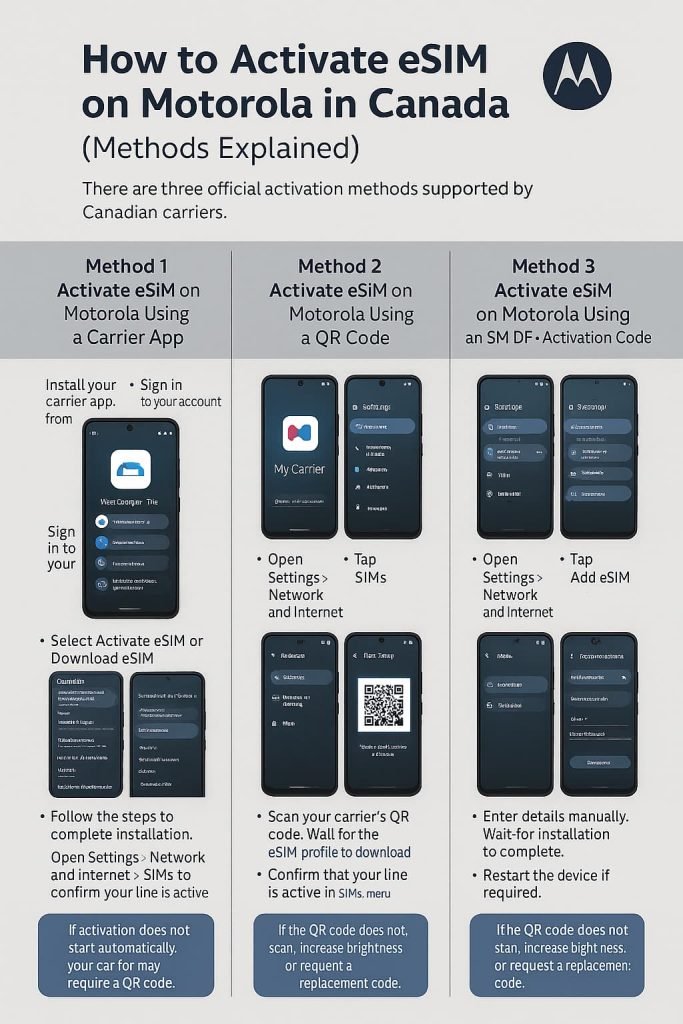
How to Activate eSIM on Motorola in Canada (Methods Explained)
There are three official activation methods supported by Canadian carriers.
Method 1: Activate eSIM on Motorola Using a Carrier App
- Install your carrier app from Google Play.
- Sign in to your account.
- Select Activate eSIM or Download eSIM.
- Confirm your Motorola phone model.
- Follow the steps to complete installation.
- Open Settings > Network and Internet > SIMs to confirm your line is active.
If activation does not start automatically, your carrier may require a QR code.
Method 2: Activate eSIM on Motorola Using a QR Code
- Open Settings.
- Tap Network and Internet.
- Tap SIMs.
- Tap Add eSIM or Download a new SIM.
- Select Scan QR code.
- Scan your carrier’s QR code.
- Wait for the eSIM profile to download.
- Confirm that your line is active in the SIMs menu.
If the QR code does not scan, increase brightness or request a replacement code.
Method 3: Activate eSIM on Motorola Using an SM DP+ Activation Code
- Open Settings.
- Go to Network and Internet.
- Tap SIMs.
- Tap Add eSIM.
- Select Enter details manually.
- Enter the SM DP+ server and activation code exactly as provided.
- Wait for installation to complete.
- Restart the device if required.

How to Transfer an eSIM to a New Motorola Device in Canada
Direct Transfer During Setup
Some newer Motorola and Android models support direct SIM transfer.
- Turn on your new Motorola phone.
- During setup, choose Copy apps and data.
- Select Transfer SIM.
- Confirm the transfer on your old phone.
- Wait for the eSIM to activate on your new phone.
Carrier-Assisted Transfer
If the direct transfer option does not appear:
- Contact your carrier and request a new QR code.
- Remove the eSIM from your old device.
- Install the new eSIM using the QR code.
- Restart your phone and confirm network connection.
Using Dual SIM on Motorola Phones in Canada
Most Motorola phones with eSIM allow:
- One physical SIM
- One eSIM
To manage SIMs:
- Open Settings.
- Tap Network and Internet.
- Tap SIMs.
- Choose default lines for calls, SMS, and data.
- Turn individual lines on or off as needed.
Canadian Carriers That Support eSIM on Motorola Phones
- Bell
- Rogers
- Telus
- Fido
- Virgin Plus
- Koodo
- Public Mobile
- Chatr
- Freedom Mobile
- Videotron
- SaskTel
- Eastlink
- Lucky Mobile
- PC Mobile
- Fizz
Carrier support may vary by device model and plan type.
Troubleshooting eSIM on Motorola Phones in Canada
Add eSIM Option Missing
- Device may not support eSIM.
- Software version may be outdated.
- Model may be a non eSIM regional variant.
QR Code Will Not Scan
- Increase brightness on the code’s screen.
- Clean the camera lens.
- Request a replacement QR code.
Stuck on eSIM Activating Screen
- Restart your phone.
- Toggle Airplane mode.
- Reconnect to Wi-Fi.
No Service After Activation
- APN settings may be incorrect.
- IMS registration may have failed.
- Reset APN to default.
5G Not Working
- Confirm your plan supports 5G.
- Update APN settings.
eSIM Disappeared After Update
- Remove the eSIM.
- Reinstall using a new QR code.
Dual SIM Conflicts
- Turn off the physical SIM temporarily.
- Set your eSIM as the default line.
How to Remove or Reset an eSIM on Motorola Phones
- Open Settings.
- Tap Network and Internet.
- Tap SIMs.
- Select the eSIM you want to remove.
- Tap Delete or Remove.
- Confirm when prompted.
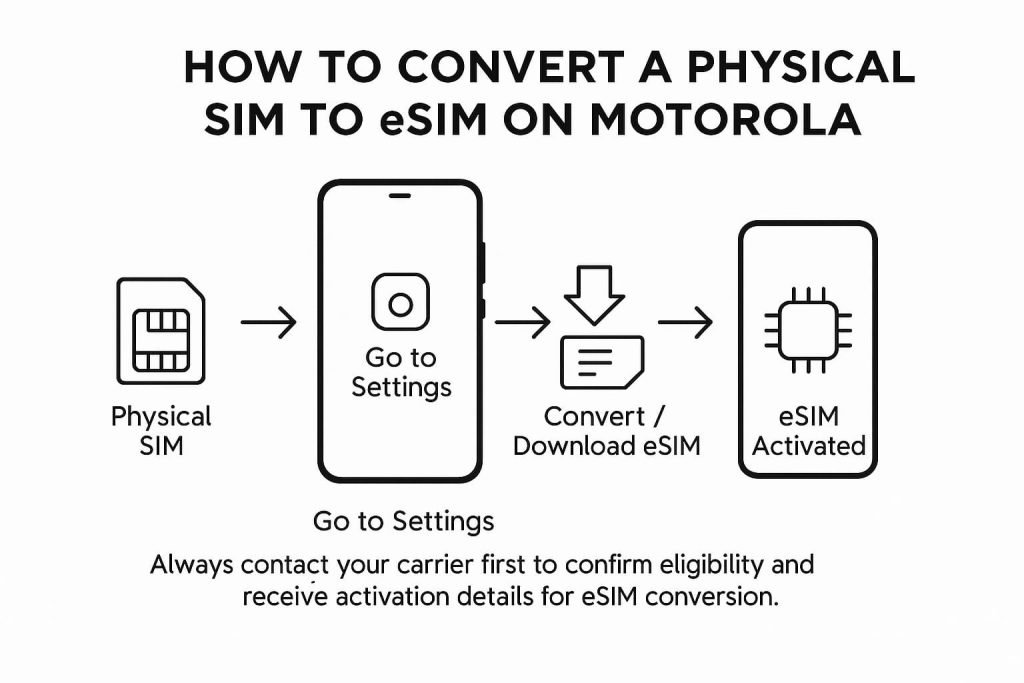
How to Convert a Physical SIM to eSIM on Motorola
Some carriers support converting a physical SIM to eSIM through device settings.
- Open Settings.
- Go to Network and Internet.
- Open SIMs.
- Select the physical SIM.
- Tap Convert to eSIM.
If the option does not appear, your carrier may require issuing a new eSIM QR code.
Frequently Asked Questions About How to Activate eSIM on Motorola in Canada
This section gives you straightforward answers to the questions Motorola users in Canada ask the most.
Does my specific Motorola phone support eSIM?
eSIM support varies by Motorola series and by region. Most Razr and Edge models include full eSIM capability in Canada, while only certain Moto G models offer it depending on the variant sold. The fastest way to check is by opening Settings > Network and Internet > SIMs and looking for Add eSIM. You can also dial *#06# and confirm that your phone displays an EID, which is required for eSIM activation. If you need the complete list of supported Razr, Edge, and Moto G models, see the compatibility section earlier in this guide.
How do I activate a Motorola eSIM using a QR code?
Open Settings > Network and Internet > SIMs > Add eSIM > Scan QR code and use the camera to scan the code your carrier sent you. Wait for the installation to finish and make sure your phone stays connected to Wi-Fi while the profile downloads. QR code activation is the most reliable method for Motorola devices, especially for Canadian carriers like Bell, Rogers, and Telus. For a full walkthrough of all activation methods, see the activation section earlier in this guide.
What if the Motorola QR code will not scan?
QR scanning issues can happen if the code is blurry, low-brightness, or displayed on another phone. Increase the brightness on the screen showing the code, clean the camera lens, and make sure the entire code fits within the frame. If scanning still fails, choose Enter details manually and type in the SM-DP+ server address and activation code from your carrier.
Can I activate my Motorola eSIM manually without scanning?
Yes. Many carriers let you activate an eSIM using a manual SM-DP+ address and activation code. Go to Settings > Network and Internet > SIMs > Add eSIM, then choose Enter details manually. Enter the server address and activation code exactly as provided. This method is useful when QR codes fail or when you’re activating business or enterprise eSIM plans.
Can Motorola phones use a physical SIM and an eSIM at the same time?
Most Motorola models that support eSIM also support dual SIM with one physical SIM and one eSIM active together. You can manage both lines in Settings > Network and Internet > SIMs by selecting which SIM handles calls, messages, and mobile data. This is ideal if you want to keep your Canadian number active while using a travel eSIM or a second work number.
How do I transfer my Motorola eSIM to a new phone?
Some newer Motorola and Android models offer eSIM transfer during device setup. When setting up the new phone, choose Copy apps and data, then look for Transfer SIM on-screen. Keep your old phone nearby and follow the prompts. If the direct transfer option does not appear, your carrier will need to issue a new QR code. For complete transfer steps, see the transfer section above or read How to Switch eSIM Between Devices in Canada.
What should I do if Motorola eSIM activation fails or gets stuck on “Activating”?
Start by restarting the phone, reconnecting to Wi-Fi, and checking that the eSIM profile shows as installed under SIMs. If the status stays stuck on Activating, your carrier may need to refresh provisioning. This is common when switching devices. Request a new QR code or activation code from your carrier, then reinstall the eSIM. Additional fixes are listed in the troubleshooting section and in What to Do If eSIM Activation Fails in Canada
Why do I have no service after installing my Motorola eSIM?
No service typically means your phone has not completed IMS or APN registration. Open Mobile network settings, reset your APN to default, and restart the device. Make sure VoLTE is enabled if your carrier requires it. If the network still does not register, contact your carrier to refresh your line or re-issue the eSIM profile. This issue is more common on international Motorola variants.
Does my Canadian carrier support eSIM on Motorola?
Most major Canadian carriers support eSIM on Motorola, including Bell, Rogers, Telus, Fido, Virgin Plus, Koodo, Public Mobile, Chatr, Freedom Mobile, Videotron, and Lucky Mobile. Support may vary depending on your exact Motorola model and whether the device was purchased in Canada or imported. If you’re unsure, check the compatibility list in this guide or contact your carrier.
Why is Add eSIM missing on my Motorola phone?
If the Add eSIM option is missing, the phone may not support eSIM, may be a regional model that disables eSIM, or may need a software update. Go to Settings > System > Software update and install any available updates. Dial *#06# to check for an EID. If no EID is present, that device variant does not support eSIM. This is common with some Moto G and Moto E models.
Can I reinstall or reactivate an eSIM on my Motorola phone?
Yes. Go to Settings > Network and Internet > SIMs, remove the current eSIM profile, and reinstall it using a new QR code or activation code. Carriers treat each eSIM profile as single-use, so a fresh code is required. For a full reinstall walkthrough, read How to Reinstall or Reactivate an eSIM in Canada.
Will my Motorola eSIM work while traveling outside Canada?
Yes. Most carriers allow eSIM downloads over Wi-Fi, even when you’re abroad. Motorola also lets you keep your Canadian number active while installing a travel eSIM for data. If your eSIM fails to activate outside Canada, some carriers may require you to perform the download while connected to a Canadian network.
Can I convert my physical SIM card to an eSIM on Motorola?
Some carriers support converting a physical SIM into an eSIM directly inside Motorola’s SIM settings. Look for Convert to eSIM under the physical SIM menu. If the option does not appear, your carrier can issue a new eSIM QR code or activation code. Conversion availability depends on your plan and carrier technology.
Why is 5G missing on my Motorola eSIM?
This usually happens if your plan doesn’t include 5G, if APN settings are outdated, or if your Motorola device variant does not support 5G bands used in Canada. Verify that Network mode is set to 5G, reset APN settings, and restart the phone. If 5G still doesn’t appear, ask your carrier to refresh provisioning.
What should I do if I delete my Motorola eSIM by accident?
Each eSIM profile is single-use, so deleted profiles cannot be recovered or reinstalled. Contact your carrier and request a new QR code or activation code, then install the new profile under Settings > Network and Internet > SIMs. This is the standard process across Canadian carriers.
Related Guides from the eSIM Canada Series
- Activate eSIM on Android Canada: Step-by-Step Setup Guide
- How to Activate eSIM on iPhone in Canada
- How to Switch eSIM Between Devices in Canada
- How to Reinstall or Reactivate an eSIM in Canada
- How to Remove or Delete an eSIM in Canada
- eSIM Canada: Best Providers, Setup and Guide for Travelers and Locals
- How to Fix eSIM Not Working in Canada
- What to Do If eSIM Activation Fails in Canada
- Compare Canadian eSIM Providers: The Ultimate Guide
Final Thoughts
Setting up an eSIM on a Motorola phone in Canada is straightforward once you have your carrier’s QR code or activation details ready. The steps are consistent across most Razr, Edge, and Moto G models, so Motorola eSIM setup should only take a few minutes on supported devices.
If anything does not activate on the first try, the troubleshooting section covers the most common issues Canadian users experience. Most carriers will also issue a new QR code if needed, making it easy to move your line to a new device.
Take your time with each step, make sure your phone is updated, and confirm your carrier supports your specific model. Whether you’re upgrading, switching carriers, or setting up eSIM for the first time, this guide gives you everything you need to get your Motorola phone connected.
If you need help with other devices or want to explore more eSIM options in Canada, the related guides in the eSIM Canada Series are a good place to continue. This way, you can keep your service running smoothly whether you are upgrading, traveling, or setting up an eSIM for the first time.