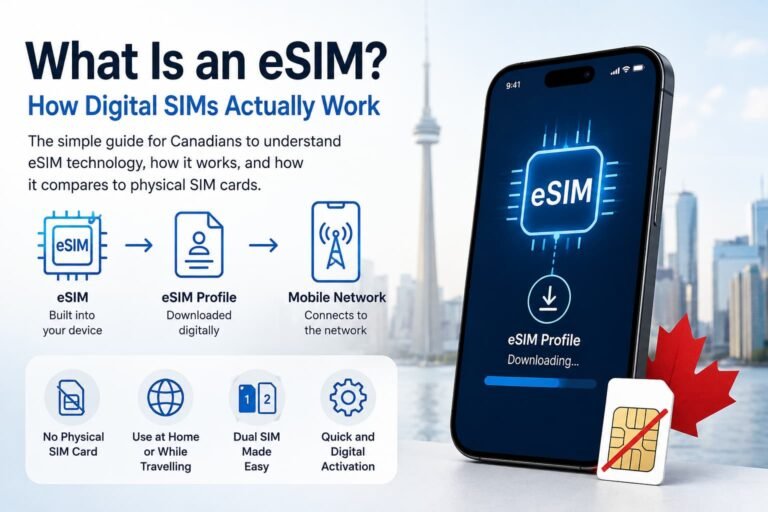
Good eSIM troubleshooting starts by recognizing that an eSIM that will not install is a different problem from one that shows No Service. Both are different again from an eSIM that connects to a mobile network but has no internet.
That distinction matters because eSIM troubleshooting gets much easier once you identify where the connection is failing. The problem could be your phone, the eSIM profile, activation, the mobile network, your data settings or the plan itself.
You also do not want to jump straight to deleting the eSIM. A restart or settings change is easy to reverse. Removing an eSIM profile can create another problem if your carrier or travel eSIM provider does not let you reuse the original activation details.
The best place to start is with the symptom you can actually see.

Start Here: What Is Your eSIM Doing?
Use this table to narrow down the problem before changing settings.
| What you see | Likely problem area | What to check next |
|---|---|---|
| Add eSIM is missing | Device or carrier compatibility | Confirm the phone, model and carrier support eSIM |
| QR code will not scan | Installation or eSIM profile | Check the QR code, installation method and provider instructions |
| eSIM is stuck on Activating | Activation or provisioning | Check internet access, carrier activation and account status |
| eSIM shows No Service | Network registration | Check whether the line is enabled and can register on a network |
| Signal bars appear but internet does not work | Mobile-data routing | Check the selected data line, roaming, APN and plan status |
| Travel eSIM does not work after arrival | Roaming, network or plan | Check destination coverage, data roaming and network selection |
| Data works but calls or texts do not | Plan type or line selection | Confirm whether the eSIM actually includes calls and SMS |
| Personal Hotspot will not work | Tethering, APN or plan restriction | Check the plan and hotspot settings |
| eSIM disappeared | Software or profile issue | Check SIM settings before reinstalling anything |
| eSIM will not move to a new phone | Transfer or provisioning | Check whether your carrier supports eSIM transfer |
| Connection works but is slow | Network or performance | Check signal, network type, congestion and provider limitations |
| Data stopped unexpectedly | Allowance or plan validity | Check remaining data and whether the plan has expired |
You do not need to work through every branch. Once you recognize your symptom, focus on that part of the connection.
Check These Basics Before Troubleshooting Further
A few simple checks are worth doing before changing APN settings, resetting network settings or removing an eSIM.
First, confirm that the eSIM line is actually turned on. This is particularly important on a Dual SIM phone where your Canadian SIM and a travel eSIM may both be installed.
Next, check that:
- Airplane Mode is off
- mobile data is enabled when you are troubleshooting a data problem
- the correct SIM is selected for mobile data
- your eSIM plan is active and has not expired
- your phone has been restarted
- your phone’s software is reasonably current
- you are somewhere the carrier or travel eSIM can actually provide service
For a travel eSIM, also confirm that you have arrived in a destination covered by the plan. Some travel eSIMs will install successfully in Canada but will not connect to their supported partner network until you reach your destination.
These checks are deliberately basic. If the symptom remains, the next step is to determine which part of the eSIM connection is failing.

eSIM Installation and Activation Problems
Installation and activation are related, but they are not the same thing.
Installing an eSIM puts the required profile on your phone. Activation is the process that makes the mobile service usable. An eSIM can therefore appear in your phone’s SIM settings without being fully activated on the carrier or provider side.
Signs of an activation problem can include:
- the eSIM remaining on Activating
- an activation error
- the carrier not recognizing the line
- the profile appearing on the phone without usable service
- activation failing while transferring a line to another phone
If you have a Canadian mobile plan and activation itself is failing, use our complete guide to What to Do If eSIM Activation Fails in Canada.
Avoid repeatedly deleting and reinstalling the profile while troubleshooting an activation problem. If the carrier has not provisioned the line correctly, changing the profile on your phone may not solve the underlying issue.
eSIM QR Code and Profile Problems
QR codes are one way to install an eSIM, but they are not universal. Depending on the carrier, provider and phone, an eSIM may also be installed through an app, carrier transfer, direct setup or manual activation details.
If a QR code does not work, first determine what is actually happening.
A phone that cannot read the QR code at all is a different problem from a code that scans but returns an activation error. An error saying that a code is invalid or has already been used may require the provider or carrier to confirm whether the activation details can be used again.
Do not assume that every eSIM QR code is reusable. The rules depend on how the carrier or provider issues the profile.
If the profile was previously installed and has since been removed, follow our guide to reinstalling or reactivating an eSIM in Canada rather than repeatedly scanning the original code.
What if the Add eSIM option is missing?
That points more toward the phone, software, carrier or regional model than the QR code itself.
A phone model can support eSIM generally without supporting every carrier, regional variant or network configuration. You can also use our eSIM Compatibility Checker to confirm whether your phone supports eSIM.
If the phone is supposed to support eSIM but you cannot get it working, see Phone Supports eSIM But Not Working in Canada? Here’s What to Check.
No Service, Signal and Network Problems
No Service usually means the problem is occurring before normal mobile-data routing.
Your phone has an eSIM profile, but the line is not successfully registering on a usable mobile network.
Start by checking that the eSIM line is enabled. Then restart the phone and give it another opportunity to register.
If you have just activated or transferred a Canadian eSIM, confirm that the carrier considers the line active. A profile appearing on the phone does not necessarily prove that provisioning has completed correctly.
Network availability matters too. A compatible eSIM cannot create coverage where its underlying network does not have usable service.
For a complete Canadian diagnostic process, see How to Fix eSIM Not Working in Canada.
No Service is not the same as no internet
This is one of the most useful distinctions in eSIM troubleshooting.
If the phone has No Service, focus first on whether the line can register on a mobile network.
If the phone shows LTE, 5G or normal signal bars but websites and apps will not load, the eSIM may already be connected to the network. The problem is more likely to involve mobile-data routing, the selected data line, data roaming, APN settings or the plan itself.
Treat those as two separate problems.
eSIM Connected but Mobile Data Does Not Work
Seeing signal bars does not guarantee that your phone is using the eSIM for mobile data.
This becomes particularly important with Dual SIM.
You might have:
- a Canadian SIM for your normal phone number
- a travel eSIM for data
- both lines enabled at the same time
Your phone still needs to know which one should provide mobile data.
Check that mobile data is enabled and that the correct eSIM is selected as the data line.
On a Google Pixel, for example, current Android settings place SIM controls under Settings > Network & internet > SIMs, where the mobile-data line and other network settings can be managed.
Samsung Galaxy phones use Settings > Connections > SIM manager for SIM management, although available settings and wording can vary by device, carrier and software version.
If the correct line is already selected, the next areas to investigate are data roaming, APN settings, remaining data and provider-side service.

Travel eSIM Problems Abroad
Travel eSIM troubleshooting has an extra complication: the eSIM normally relies on a partner network in the country you are visiting.
A profile can be installed correctly and still fail to provide data after arrival.
When that happens, check four things before assuming the eSIM itself is defective:
- The destination is covered by your plan. A regional eSIM may include dozens of countries, but that does not mean every nearby country is included.
- The travel eSIM is enabled.
- The travel eSIM is selected for mobile data.
- Data roaming is enabled on the travel eSIM when the provider requires it.
That last point can sound counterintuitive. Travellers are often told to turn roaming off to avoid charges. That advice generally applies to the Canadian line you do not want roaming internationally.
A travel eSIM may work differently because it can use roaming agreements to connect through a local partner network. In that situation, the travel line may need data roaming enabled.
Important: Don’t Enable Roaming on the Wrong Line
Do not simply enable roaming on every line. If you are keeping a Rogers, Bell, TELUS or another Canadian SIM active alongside a travel eSIM, make sure you understand which line you are changing. Enabling roaming on the wrong line can potentially trigger Canadian carrier roaming charges.
What if the travel eSIM worked in one country but not the next?
Check the plan’s country list first.
If the second country is covered, the phone may need time to register with a new partner network after crossing the border. Restarting the phone or briefly toggling Airplane Mode can force a new network search.
If it still does not connect, check whether automatic network selection has found a supported network and follow the travel eSIM provider’s network instructions.
Do not manually select an arbitrary network just because its name appears on the screen. Your eSIM may only have roaming access through specific partner networks.
eSIM Problems on iPhone, Samsung Galaxy and Google Pixel
The underlying diagnostic process is similar across modern phones:
Is the profile installed? Is the line enabled? Can it register on a network? Is it selected for data? Does the plan actually have service?
The main differences are where those controls appear and which eSIM features the device and carrier support.
eSIM Troubleshooting on iPhone
On an iPhone, start in the cellular settings and confirm that the affected line appears and is turned on.
If you have more than one line, pay particular attention to which line is being used for cellular data.
For a Canadian carrier eSIM, also consider whether the phone is carrier locked, whether the mobile plan is active and whether the carrier has completed activation. Apple’s current eSIM troubleshooting guidance recommends checking plan status, carrier settings and whether the line appears under Cellular, then restarting the iPhone before contacting the carrier if the problem continues.
eSIM Troubleshooting on Samsung Galaxy
Samsung Galaxy phones generally manage installed SIMs through Settings > Connections > SIM manager.
Samsung Canada’s current eSIM guidance confirms that supported Galaxy devices can add eSIMs through carrier-supported setup, QR codes and manual activation information. The available methods can vary by carrier, country and device.
For mobile-data problems, also check the Galaxy mobile-network and data settings rather than assuming the profile needs to be reinstalled.
Samsung Canada notes that data-roaming controls can vary by carrier, which is another reason not to rely on one exact menu sequence across every Galaxy model.
eSIM Troubleshooting on Google Pixel
Current Pixel phones place mobile-network controls under Settings > Network & internet > SIMs, where you can manage the SIM and mobile-network settings.
That area lets you check whether mobile data is enabled, choose the data SIM and, depending on the phone and carrier, manage roaming, network selection and APN information.
Google also notes that eSIM support depends on both the Pixel model and carrier. If an eSIM setup or transfer continues to fail, Google’s Pixel eSIM guidance recommends working with the carrier when necessary to complete activation or resolve compatibility issues.
eSIM Transfer, Reinstallation and Profile Management
Changing phones creates a different class of eSIM problem.
A physical SIM can usually be moved by taking the card out of one phone and putting it into another. An eSIM transfer depends on the devices and carrier.
Some carriers and phones support direct eSIM transfer. Others require carrier activation, a replacement profile or another setup process.
If you are moving an existing line, see our guide to How to Transfer Your eSIM Between Phones in Canada.
For situations where the normal transfer process is not working, see How to Switch eSIM Between Devices in Canada.
Should you remove the old eSIM first?
Usually, do not make deletion your first troubleshooting step.
If you are moving to a new phone, confirm that the new line is working before removing the old profile whenever your carrier’s transfer process allows it.
Google’s current Pixel transfer guidance, for example, notes that an existing SIM or eSIM may continue working if an attempted transfer is unsuccessful.
If you specifically need to remove a profile, follow How to Remove or Delete an eSIM in Canada so you understand what happens before deleting it.
eSIM Performance and Data-Usage Problems
Not every eSIM problem results in a complete loss of service.
Sometimes the connection works, but something about it is wrong.
Slow eSIM data
Slow data can come from signal quality, congestion, the local network, network technology, provider routing or plan restrictions.
Do not assume that seeing a 5G icon guarantees fast data. Even when 5G is available, actual performance can vary with the network, signal conditions and device compatibility. Google’s Pixel documentation specifically notes that the 5G indicator does not necessarily mean the phone is actively receiving 5G service at that moment.
If performance suddenly changes, compare your signal and location before changing the eSIM profile.
eSIM using too much data
First determine which SIM is actually carrying your mobile data.
With two active lines, it is easy to assume the travel eSIM is being used when the phone is routing data differently.
Then check your phone’s per-app data usage and your eSIM provider’s remaining allowance where available.
Samsung Galaxy devices, for example, provide mobile-data usage information under Settings > Connections > Data usage.
Hotspot not working
A working mobile-data connection does not automatically mean tethering will work.
Hotspot support can depend on the eSIM plan, provider, APN configuration and phone. Confirm that your plan permits hotspot use before spending time changing phone settings.
Battery drain after adding an eSIM
An eSIM itself should not automatically cause severe battery drain, but mobile connectivity can affect power use.
Poor signal, repeated network searching, Dual SIM operation and heavy mobile-data use can all contribute. If battery drain started at the same time as an eSIM problem, check whether one of your active lines is struggling to maintain service.

When to Contact Your Carrier or eSIM Provider
There is a point where more phone troubleshooting stops being useful.
Contact your Canadian carrier or travel eSIM provider when:
- activation remains stuck or repeatedly fails
- the carrier says the eSIM is inactive
- an activation code appears invalid or already used
- your account or plan is active but the line cannot register
- a transferred eSIM cannot be activated on the new phone
- the provider needs to issue new activation details
- a supported destination has no usable partner network
- your plan allowance or expiry status appears incorrect
Before contacting support, collect the information they are likely to need.
That can include your phone model, operating-system version, destination, error message, whether the eSIM appears in SIM settings, whether it shows signal, and what troubleshooting you have already tried.
For a Canadian carrier, you may also be asked for an IMEI or EID. Google, for example, identifies the EID as an identifier used for eSIM and notes that carriers may require device identifiers during setup.
Do not post QR codes, full activation codes or other private account information publicly while asking for help.
eSIM Troubleshooting FAQs
Why is my eSIM not working even though it is installed?
An installed profile only confirms that the eSIM has been added to the phone. It does not prove that activation, network registration and mobile-data routing are all working.
Check whether the line is enabled and whether it has signal. If it shows No Service, investigate activation and network registration first. If it has signal but no internet, check the selected data line, mobile data, roaming requirements, APN and plan status.
How can I tell whether the problem is my phone, eSIM or mobile network?
Start with what the phone can see.
If the phone does not offer an eSIM option at all, device compatibility, software, carrier support or the phone’s regional model may be involved. If the profile installs but will not activate, the problem may involve provisioning or the carrier account. If it activates but shows No Service, look at network registration and coverage. If it has signal but no internet, focus on mobile-data settings and the plan.
The symptom tells you which layer to investigate instead of making you change every setting on the phone.
Should I delete and reinstall an eSIM when it stops working?
Deleting the eSIM should not normally be the first troubleshooting step.
Try reversible checks first, including confirming that the line is enabled, checking mobile-data selection and restarting the phone. If you eventually determine that reinstallation is necessary, confirm that you can reactivate the line before deleting the profile. Some activation details cannot simply be reused.
Why does my eSIM have signal but no internet?
Signal usually indicates that the phone has registered on a mobile network, which narrows down the problem.
Check whether the eSIM is selected for mobile data, whether mobile data is enabled and, for a travel eSIM, whether the provider requires data roaming. APN settings, exhausted data, an expired plan or a provider-side problem can also prevent internet access even when signal bars are visible.
Can an eSIM stop working after a phone update?
Software updates can sometimes coincide with mobile-network or SIM-setting problems, but an update does not automatically mean the eSIM profile has been deleted.
Check whether the eSIM still appears in the phone’s SIM settings, whether the line is enabled and whether the correct line remains selected for mobile data. Restart the phone and check for any additional carrier or system updates before considering profile removal.
When should I contact my carrier or travel eSIM provider?
Contact the carrier or provider when the phone-level checks are complete but activation, provisioning, account status or network access still appears to be failing.
Support becomes especially important when you need replacement activation details, the provider must reprovision the line, a transfer cannot be completed, or your account shows a service state that does not match what appears on the phone.
Related Guides
Fix a Specific eSIM Problem
- How to Fix eSIM Not Working in Canada
- What to Do If eSIM Activation Fails in Canada
- Phone Supports eSIM But Not Working in Canada? Here’s What to Check
- How to Reinstall or Reactivate an eSIM in Canada
Manage or Move Your eSIM
- How to Transfer Your eSIM Between Phones in Canada
- How to Switch eSIM Between Devices in Canada
- How to Remove or Delete an eSIM in Canada
Final Thoughts
The fastest way to troubleshoot an eSIM is not to change every setting you can find. Start with the symptom.
An eSIM that will not install, one stuck on Activating, a line showing No Service and a line with signal but no internet are four different problems. Identifying which one you have immediately narrows down what needs to be checked.
Start with reversible changes such as confirming the line is enabled, checking the mobile-data line and restarting the phone. For travel eSIMs, pay particular attention to destination coverage, data roaming and network registration.
Most importantly, do not delete a working or partially working eSIM profile simply because something has gone wrong. Diagnose the problem first, then reinstall or replace the profile only when there is a reason to do so.