Google Pixel phones are known for their clean, pure Android experience, and that simplicity also extends to eSIM setup once you know how the process works in Canada. Learning how to activate eSIM on Google Pixel in Canada is straightforward, but there are a few details that make the Pixel experience different from Samsung devices and other Android brands. Canadian carriers handle eSIM activation in slightly different ways, and Pixel models from the Pixel 3 up to the latest Pixel 10 all have their own compatibility notes, especially the US variants that rely on eSIM only.
This guide walks you through every activation method available on Google Pixel devices in Canada. You will see how to activate your eSIM using a carrier app, how to scan a QR code, and how to enter a manual SM DP Plus activation code when your carrier requires it. Each method is explained clearly so you can get your Pixel connected without delays or confusion.
Along the way, you will also learn how to confirm whether your Pixel model supports eSIM, what to do if the “Download a SIM” option is missing in settings, and how to avoid common issues that can appear during activation. This includes troubleshooting for imported devices, software related problems, and carrier specific requirements that may affect your setup.
If you need help with other devices, here are the related guides:
- Activate eSIM on Android Canada
- How to Activate eSIM on Samsung Galaxy in Canada
- eSIM Canada: Best Providers, Setup and Guide for Travelers and Locals

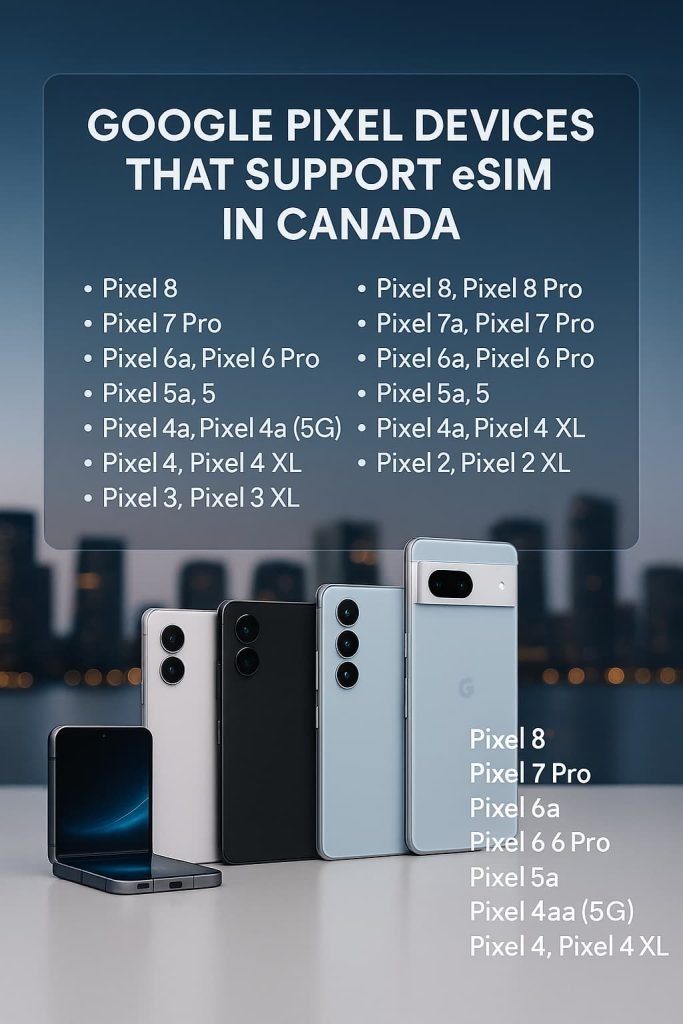
Google Pixel Devices That Support eSIM in Canada
Every Google Pixel phone from the Pixel 3 onward supports eSIM, although a few regional models have restrictions. The newest devices, including the Pixel 10, Pixel 10 Pro, Pixel 10 Pro XL, and Pixel 10 Fold, all include full eSIM support. U.S. versions of the Pixel 10 series are eSIM only and do not include a physical SIM tray.
The list below covers all Google Pixel smartphones that support eSIM in Canada. Regional limitations still apply for certain older models, especially units purchased in Japan, Taiwan, or Australia.
Pixel 10 Series
- Pixel 10
- Pixel 10 Pro
- Pixel 10 Pro XL
- Pixel 10 Fold (U.S. models are eSIM only)
Pixel 9 Series
- Pixel 9
- Pixel 9 Pro
- Pixel 9 Pro XL
- Pixel 9a
- Pixel 9 Pro Fold
Pixel 8 Series
- Pixel 8
- Pixel 8 Pro
- Pixel 8a
Pixel 7 Series
- Pixel 7
- Pixel 7 Pro
- Pixel 7a (dual eSIM depends on region)
Pixel 6 Series
- Pixel 6
- Pixel 6 Pro
- Pixel 6a
Pixel 5 Series
- Pixel 5
- Pixel 5a
Pixel 4 Series
- Pixel 4
- Pixel 4 XL
- Pixel 4a
- Pixel 4a 5G
Pixel 3 Series
- Pixel 3
- Pixel 3 XL (AU, TW, JP models do not support eSIM)
- Pixel 3a
- Pixel 3a XL (Verizon locked models may block eSIM)
Pixel 2 Series
- Pixel 2 (Google Fi variants only)
- Pixel 2 XL (Google Fi variants only)
Not Supported
- Pixel (2016)
Google Pixel eSIM Compatibility Table
| Pixel Model | eSIM Support | Notes |
|---|---|---|
| Pixel (2016) | No | No eSIM hardware |
| Pixel 2 / 2 XL | Limited | Only Google Fi variants support eSIM |
| Pixel 3 / 3 XL | Yes | AU, TW, and JP models do not support eSIM |
| Pixel 3a / 3a XL | Yes | Verizon models may block eSIM until unlocked |
| Pixel 4 / 4 XL | Yes | Full support in Canada |
| Pixel 4a / 4a 5G | Yes | Dual SIM supported |
| Pixel 5 / 5a | Yes | Works with all major Canadian carriers |
| Pixel 6 / 6 Pro / 6a | Yes | Dual SIM (physical plus eSIM) |
| Pixel 7 / 7 Pro / 7a | Yes | Some regions support dual eSIM |
| Pixel 8 / 8 Pro / 8a | Yes | Supports dual SIM and eSIM |
| Pixel 9 / 9 Pro / 9 Pro XL / 9a | Yes | Fully compatible |
| Pixel 10 / 10 Pro / 10 Pro XL | Yes | U.S. models are eSIM only |
| Pixel Fold / Pixel 10 Fold | Yes | Full eSIM support |
For full device specifications and model details, you can visit the Google Pixel official site.
Do Pixel Watches and Pixel Tablets Support eSIM in Canada?
Google Pixel Watch models and the Google Pixel Tablet handle connectivity differently, so it helps to know which devices include eSIM support and which are Wi-Fi only. Below is a clear breakdown of which Pixel devices support eSIM in Canada.
Google Pixel Watch eSIM Support (All Generations)
Every generation of the Google Pixel Watch comes in two versions:
- A Bluetooth/Wi-Fi model
- An LTE (Cellular) model that includes eSIM support
Only the LTE versions support eSIM activation and can connect to a mobile network without your phone nearby. Activation is done through the Google Pixel Watch app, and you will need a smartwatch plan from a carrier that supports wearable activation in Canada.
Pixel Watch Models That Support eSIM
The following LTE versions include eSIM hardware:
- Google Pixel Watch (1st Gen) LTE
- Google Pixel Watch 2 LTE
- Google Pixel Watch 3 LTE
- Google Pixel Watch 4 LTE
- Any newer LTE-enabled Pixel Watch models
Pixel Watch Models Without eSIM
These models do not support eSIM and rely on your phone for connectivity:
- Google Pixel Watch (1st Gen) Bluetooth/Wi-Fi
- Google Pixel Watch 2 Bluetooth/Wi-Fi
- Google Pixel Watch 3 Bluetooth/Wi-Fi
- Google Pixel Watch 4 Bluetooth/Wi-Fi
Google Pixel Tablet
The Google Pixel Tablet does not support eSIM or physical SIM cards. It is Wi-Fi only and cannot use a mobile data plan in Canada.
Important Notes About Pixel eSIM Support in Canada
Before activating your eSIM, keep these Pixel specific details in mind:
- Japan Pixel models do not support eSIM. The hardware is disabled.
- Verizon locked Pixel 3a and Pixel 4 models block eSIM until unlocked.
- Pixel 10 U.S. models have no SIM tray and depend entirely on eSIM.
- Google Fi Pixel models may use different eSIM provisioning.
- Dual eSIM support varies by region and carrier for Pixel 7 and newer.
- If Download a SIM is missing, it is usually a firmware or region issue.
- Some Canadian carriers require new QR codes every time you transfer your number.
What You Need Before You Activate an eSIM on Google Pixel in Canada
Before you start the activation process, make sure your Pixel meets the requirements below:
- Your Pixel is unlocked
- You have a Canadian eSIM plan or QR code
- You are connected to Wi-Fi
- Your Pixel is running the latest Android version
- You can see your EID number (dial *#06#)
- Your battery is above 20 percent
If you need the setup steps for another device, you can check:
How to Activate an eSIM in Canada (iPhone Users)
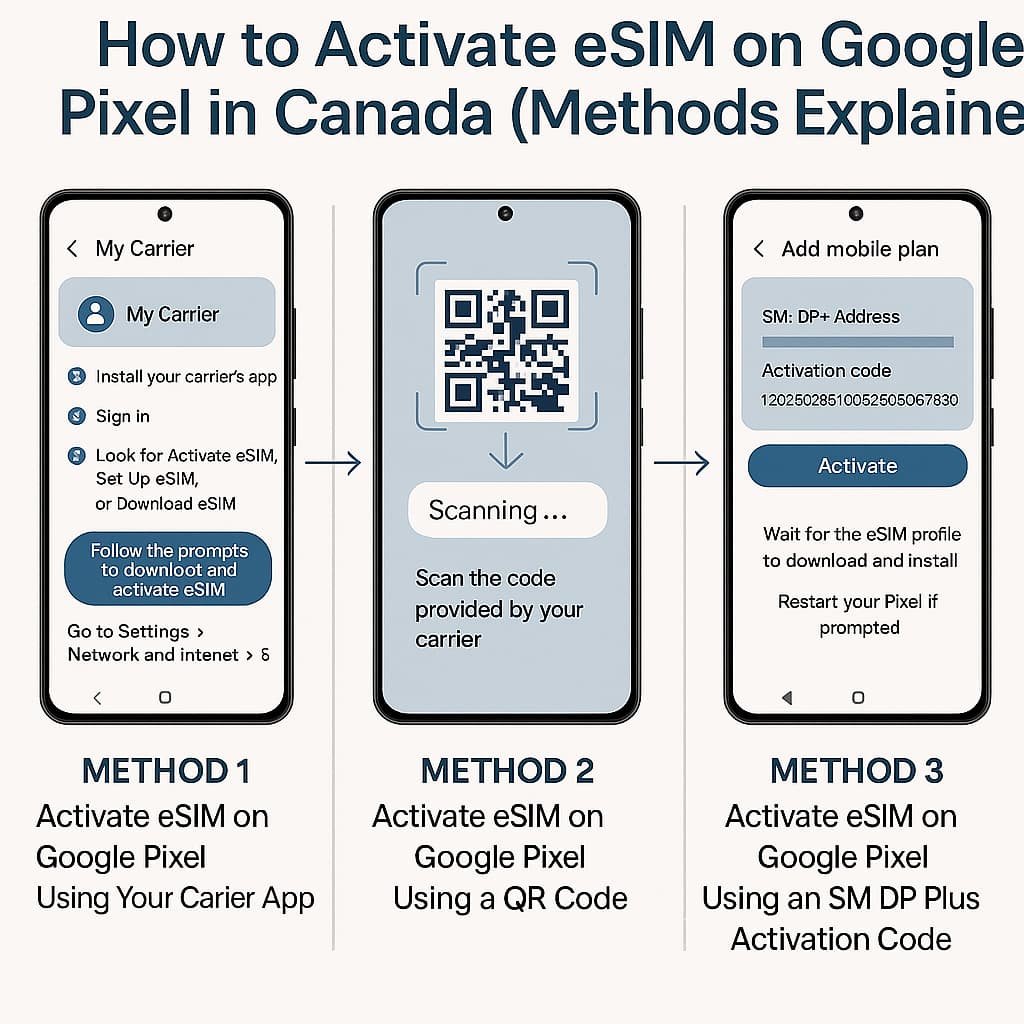
How to Activate eSIM on Google Pixel in Canada (Methods Explained)
You can activate an eSIM on your Google Pixel using the following methods:
- A carrier app
- A QR code
- A manual SM DP Plus activation code
All steps use the Pixel interface:
Go to Settings > Network and internet > SIMs
Method 1: Activate eSIM on Google Pixel Using Your Carrier App
Most Canadian carriers now support Pixel eSIM activation directly through their apps, including Bell, Virgin Plus, Rogers, Fido, Telus, Koodo, Public Mobile, Chatr, Freedom Mobile, SaskTel, Videotron, Lucky Mobile, Eastlink, and PC Mobile.
Steps
- Install your carrier’s app.
- Sign in using your account or phone number.
- Look for Activate eSIM, Set Up eSIM, or Download eSIM.
- Confirm your device model.
- Follow the prompts to download and activate the eSIM.
- Go to Settings > Network and internet > SIMs
If activation does not start, your carrier may require a QR code instead.
You can also follow detailed carrier guides such as:
Bell eSIM Activation
Rogers eSIM Activation
TELUS eSIM Activation
Method 2: Activate eSIM on Google Pixel Using a QR Code
QR code activation is one of the most reliable ways to set up an eSIM on any compatible Google Pixel model. It works across all major Canadian carriers and is often the fastest option when you are switching from a physical SIM, moving your number to a new device, or setting up your Pixel for the first time.
Steps
- Go to Settings > Network and internet > SIMs
- Tap Add eSIM
- Choose Scan QR code
- Scan the code provided by your carrier
- Wait for the profile to download
- Return to SIMs to confirm the line is active
If scanning fails, increase screen brightness or request a fresh QR code.
Method 3: Activate eSIM on Google Pixel Using an SM DP Plus Activation Code
Some Canadian carriers provide an SM DP Plus activation code instead of a QR code, especially for business accounts, enterprise plans, corporate lines, and certain BYOD activations. This method is also useful when your QR code fails, has expired, or when your carrier requires manual eSIM provisioning.
Steps
- Go to Settings > Network and internet > SIMs
- Tap Add eSIM
- Choose Enter details manually
- Enter the SM DP Plus address provided by your carrier
- Enter the activation code associated with your eSIM
- Wait for the eSIM profile to download and install
- Restart your Pixel if the activation does not complete automatically
If the SM DP Plus code fails to activate, it may be expired or incorrectly entered. Contact your carrier and request a fresh activation code.
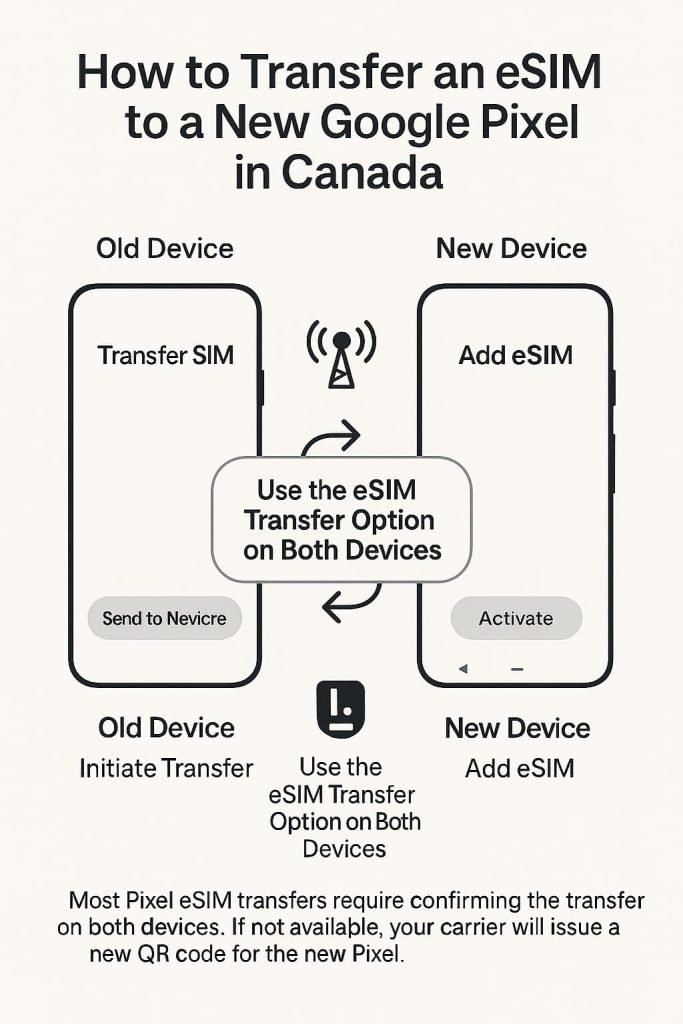
How to Transfer an eSIM to a New Google Pixel in Canada
Moving your eSIM to a new Google Pixel is simple once you understand how your Canadian carrier handles transfers. Some carriers support device‑to‑device transfer during setup, while others require a new QR code or an SM DP Plus activation code. Below are the three main methods.
1. Transfer eSIM During Pixel Setup
This option appears automatically when setting up a newer Google Pixel. It is the easiest way to move your eSIM if your carrier supports direct transfer.
- Turn on your new Pixel.
- When prompted, choose Copy apps and data.
- Select Transfer SIM.
- Follow the on‑screen steps until activation completes.
If this option does not appear, your carrier likely requires a QR code or manual activation code.
2. Carrier Reissue (New QR Code Required)
Some Canadian carriers always require a fresh QR code when transferring to a new device, even if your old eSIM is still active. These include:
- Rogers
- Fido
- Freedom Mobile
- Public Mobile
- Chatr
Your old eSIM will stop working once the new QR code is activated on your new Pixel.
3. Manual SM DP Plus Re‑activation
This method is useful if:
- Your QR code fails to scan
- Your QR code has expired
- You were issued an SM DP Plus activation code (common for business or enterprise lines)
Enter the details manually using Add eSIM under Settings.
For full walkthroughs of all transfer methods, you can read:
How to Switch eSIM Between Devices in Canada
How to Transfer Your eSIM Between Phones in Canada
Using Dual SIM on Google Pixel in Canada
Google Pixel phones give you flexible dual SIM options, which is helpful if you want to keep a personal and work number active at the same time, use a travel eSIM, or test different data plans. Dual SIM support depends on your model and your carrier, so this section explains how it works on Pixels in Canada.
What Dual SIM Options Are Available on Pixel?
- Physical SIM plus eSIM. This setup works on most Pixel models.
- Dual eSIM. Available on Pixel 7 and newer models, depending on carrier support.
How to Manage SIMs on Google Pixel
- Go to Settings > Network and internet > SIMs.
- Select which SIM you want to use as the default for calls, SMS, and mobile data.
- Toggle a SIM on or off if you only want one line active.
This section helps you choose the right setup, whether you’re using Pixel for work, travel, or multiple carriers.
Canadian Carriers That Support eSIM on Google Pixel
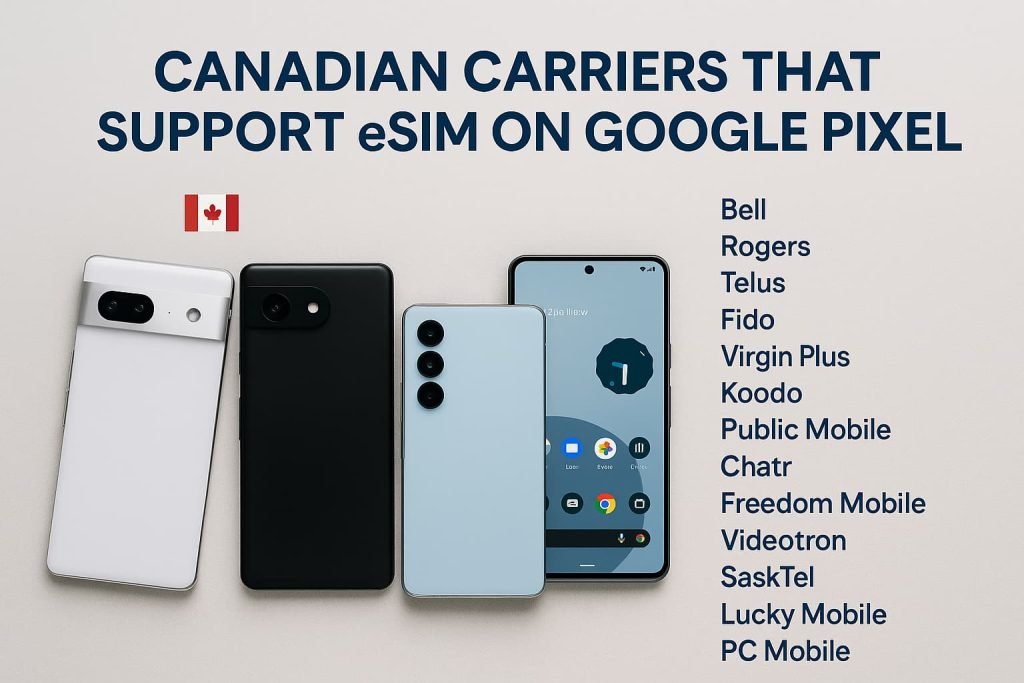
All major Canadian carriers support eSIM on Google Pixel devices, including the national networks and their flanker brands. Activation works on both prepaid and postpaid plans, though some carriers may require a fresh QR code each time you switch phones. Coverage, 5G availability, and transfer rules can vary slightly between providers, but every carrier listed below supports Pixel eSIM activation across their active networks.
Supported carriers include:
- Bell
- Rogers
- Telus
- Fido
- Virgin Plus
- Koodo
- Public Mobile
- Chatr
- Freedom Mobile
- Videotron
- SaskTel
- Eastlink
- Lucky Mobile
- PC Mobile
To compare plans, features, supported devices, and eSIM transfer policies across carriers, you can read:
Compare Canadian eSIM Providers: The Ultimate 2025 Guide
Troubleshooting eSIM on Google Pixel in Canada
Troubleshooting eSIM issues on Google Pixel in Canada usually comes down to a few common problems: missing activation options, software conflicts, region‑restricted devices, or carrier provisioning delays. This section gives you clear steps to fix the most frequent issues without adding extra complexity.
1. Download a SIM Missing
Why it happens: Region‑restricted models (such as Japanese Pixel versions), Verizon‑locked devices, or outdated Android software.
How to fix it:
- Update Android to the latest version
- Check your Pixel model number to confirm eSIM support
- Make sure your device is unlocked
- Restart your phone after updating
For deeper fixes, you can read: How to Fix eSIM Not Working in Canada.
2. Pixel eSIM Stuck on Activating
Why it happens: Carrier provisioning delay or incomplete activation.
How to fix it:
- Restart your phone
- Toggle airplane mode
- Delete the eSIM and reinstall it using a fresh QR code
- Contact your carrier to verify activation
If the activation continues to fail, visit: What to Do If eSIM Activation Fails in Canada.
3. No Service After Installing the eSIM
Why it happens: IMS registration failure or APN issues.
How to fix it:
- Enable VoLTE and Wi‑Fi Calling
- Reset APN settings
- Update the Carrier Services app
- Restart your Pixel
4. QR Code Does Not Scan
Why it happens: Low brightness, expired QR code, or damaged print.
How to fix it:
- Increase screen brightness
- Scan under brighter lighting
- Request a new QR code from your carrier
5. eSIM Disappeared After a Software Update
Why it happens: Corrupted eSIM profile.
How to fix it:
- Delete the eSIM profile under SIMs
- Reinstall using a new QR code or activation code
6. Dual SIM Not Working
Why it happens: Physical SIM taking priority or carrier restrictions.
How to fix it:
- Turn off the physical SIM temporarily
- Check if your carrier supports dual eSIM on Pixel models
7. Imported Pixel Not Working With eSIM
Why it happens: eSIM hardware disabled (common on Japan models).
How to fix it:
- Unfortunately this cannot be fixed; eSIM will not function on hardware‑restricted models.
Frequently Asked Questions About How to Activate eSIM on Google Pixel in Canada
Before we get into the questions, here’s a quick overview. These FAQs cover the issues most people run into when setting up or managing eSIM on a Google Pixel in Canada. This includes activation methods, missing options in settings, compatibility notes, transfer problems, and what to do if your eSIM doesn’t activate on the first try.
How do I activate eSIM on Google Pixel in Canada?
You can activate your Pixel eSIM using a carrier app, a QR code, or a manual SM-DP+ activation code. Just open Settings > Network and internet > SIMs > Add eSIM and choose the method your carrier supports.
For step-by-step instructions, see the activation methods in the main guide.
Why is “Download a SIM” missing on my Pixel?
This usually happens with Japan-model Pixels, Verizon-locked Pixel 3a/4 units, or devices running outdated software. Update Android, make sure your phone is unlocked, and confirm your model number.
If the option is still missing, see How to Fix eSIM Not Working in Canada.
Which Google Pixel models support eSIM in Canada?
All Pixel models from the Pixel 3 and newer support eSIM, except AU/TW/JP variants of the Pixel 3 and some Verizon-locked Pixel 3a/4 models.
The Pixel 10 series is eSIM-only and works on all Canadian carriers once unlocked.
Do U.S. Pixel 10 models work with Canadian carriers?
Yes. U.S. Pixel 10 models are fully compatible in Canada because they use eSIM only. As long as your phone is unlocked, you can activate it on Bell, Rogers, Telus, and all major MVNOs.
Can I activate a Google Pixel eSIM outside Canada?
Yes. Most Canadian carriers allow Wi-Fi activation overseas. Some prepaid plans may require a Canadian IP address or access to the carrier app, so check your plan first.
Why is my Google Pixel eSIM stuck on “Activating”?
This usually means your carrier hasn’t finished provisioning the line. Restart your Pixel, toggle airplane mode, or request a new QR code.
For deeper fixes, see What to Do If eSIM Activation Fails in Canada.
Why do I have no service after installing my Pixel eSIM?
Your APN or IMS settings might not have updated. Reset your APN, update Carrier Services, or enable VoLTE and Wi-Fi Calling.
If the issue continues, see How to Reinstall or Reactivate an eSIM in Canada.
Why is 5G not working on my Pixel eSIM in Canada?
Your mobile plan may not include 5G, or your APN settings are outdated. Reset your network settings or contact your carrier to make sure 5G is enabled.
Why won’t my Pixel scan the eSIM QR code?
Low brightness, smudged or dirty camera lenses, or expired QR codes can all prevent your Pixel from scanning the eSIM code. Increase your screen brightness, wipe the camera lens, or request a fresh QR code from your carrier.
Why did my Pixel eSIM disappear after a software update?
Software updates can occasionally corrupt the eSIM profile. Remove the eSIM and reinstall it using either a QR code or your SM-DP+ activation details.
Can I convert my physical SIM to an eSIM on Google Pixel?
Yes, many carriers support in-phone conversion. Go to Settings > Network and internet > SIMs and choose Convert to eSIM.
If you don’t see the option, your carrier must issue a QR code.
Can I transfer my eSIM from one Pixel to another?
Yes. Newer Pixel models support eSIM transfer during setup. Some carriers, however, require a new QR code each time you switch phones.
For full steps, see: How to Switch eSIM Between Devices in Canada.
Why do dual SIM settings not appear on my Pixel?
Dual eSIM depends on both your Pixel model and your carrier. Pixel 7 and newer support two eSIMs, but not all Canadian carriers allow dual eSIM on their network.
Will deleting my Pixel eSIM cancel my mobile plan?
No. Removing your eSIM profile only deletes it from your device. Your mobile plan stays active until you contact your carrier.
For removal steps, see: How to Remove or Delete an eSIM in Canada.
Can imported Pixel models use eSIM in Canada?
Most imported Pixels work in Canada, except Japan-model Pixel devices, which have eSIM disabled in hardware.
If you’re unsure, compare your model with the compatibility table in this guide.
More Related Guides from Our eSIM Canada Series
- Activate eSIM on Android Canada
- How to Activate eSIM on iPhone in Canada
- How to Activate eSIM on Samsung Galaxy in Canada
- How to Switch eSIM Between Devices in Canada (iPhone & Android Guide)
- What to Do If eSIM Activation Fails in Canada (Step-by-Step Fix)
- How to Fix eSIM Not Working in Canada (iPhone & Android)
- How to Reinstall or Reactivate an eSIM in Canada
- How to Remove or Delete an eSIM in Canada
- Compare Canadian eSIM Providers: The Ultimate Guide
- How to Transfer Your eSIM Between Phones in Canada (Step-by-Step Guide)
- eSIM Canada: Best Providers, Setup & Guide for Travelers & Locals
Final Thoughts
Activating eSIM on Google Pixel in Canada is straightforward once you understand how Canadian carriers handle SIM downloads, activation codes, transfers, and region restrictions. This guide explained how to activate eSIM on Google Pixel in Canada using three supported methods, along with Pixel-specific troubleshooting steps and compatibility details.
If you run into activation issues, especially with imported Pixel models or older devices, use the expanded troubleshooting table to diagnose problems such as IMS registration failure, Download a SIM missing, or Pixel eSIM stuck on Activating. If you are upgrading, switching carriers, or reinstalling your mobile plan, the related guides in the eSIM Canada Series will help you move through each step with confidence.
For comparison shopping, setup guides, and activation help for other devices, explore the full eSIM Canada resource hub on our site.