If you are switching to Fizz, upgrading your phone, or setting up a new mobile plan, learning how to activate Fizz eSIM in Canada can save you from waiting for a physical SIM card.
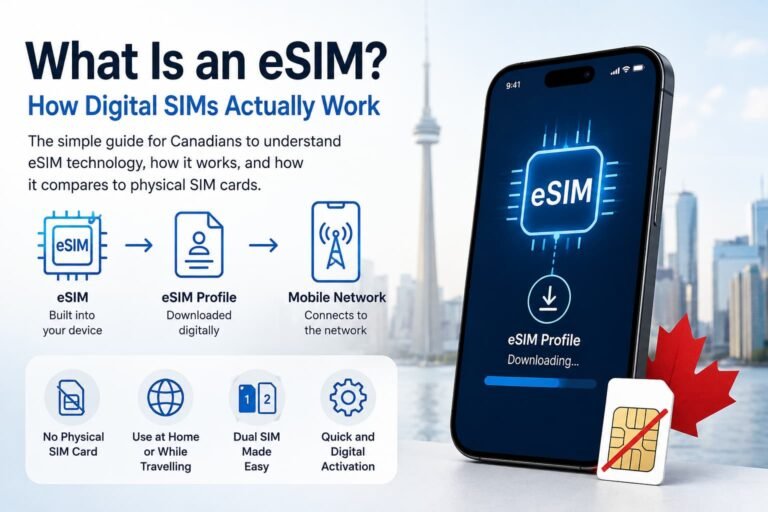
Fizz now lets eligible customers order and activate an eSIM directly through Fizz.ca, which makes the setup faster if your phone supports eSIM. Instead of inserting a plastic SIM card, you download a digital SIM profile onto your iPhone or Android phone and connect to the Fizz mobile network.
The main thing to remember is that Fizz is a self-serve provider. That means your Fizz account, email access, payment verification, and internet connection matter just as much as the phone settings.
This guide walks you through how Fizz eSIM activation works in Canada, what you need before starting, how to activate Fizz eSIM on iPhone, Samsung Galaxy, Google Pixel, and other Android phones, plus what to do if your eSIM does not activate properly.
Quick Answer: How to Activate Fizz eSIM in Canada
To activate Fizz eSIM in Canada, sign in to your Fizz account, start a mobile plan or change the SIM associated with your existing plan, choose the eSIM option if your phone is compatible, then follow the on-screen instructions to install the eSIM profile on your device.
You need a compatible unlocked phone, internet access, and access to your Fizz account. For a new mobile plan, Fizz says ordering and activating an eSIM happens at the same time through Fizz.ca. Existing users can manage SIM changes through their account under the mobile plan settings.
Fizz eSIM setup is not the same as Apple eSIM Quick Transfer or automatic carrier push activation. In most cases, you should expect to use the Fizz account flow, an eSIM installation screen, a QR code, or manual activation details provided by Fizz.
The exact screens may vary by phone, but the general process is the same: choose eSIM through Fizz, install the eSIM profile, turn on the Fizz line, and test calls, texts, and mobile data.
Fizz eSIM Support in Canada
Fizz supports eSIM for compatible mobile devices in Canada, and the eSIM can be ordered and activated online.
This is useful if you want to activate service quickly, avoid waiting for a physical SIM card, or use a phone that no longer has a physical SIM tray. Fizz also says on its SIM card and eSIM page that its eSIM is free and can be ordered and activated the same day.
Fizz eSIM is available for new customers and existing customers, but the path is different. New customers choose eSIM during plan setup, while existing users switch through the SIM change flow inside their Fizz account.
Before you start, make sure your phone supports eSIM and works with the Fizz mobile network. If your phone does not support eSIM, you can still use a physical Fizz SIM card.
How Fizz Handles eSIM Activation in Canada
Fizz handles eSIM activation online through your Fizz account.
For a new mobile plan, you create or sign in to your Fizz account, add a mobile plan, validate your address, and choose the eSIM option when available. Fizz’s official eSIM installation and activation guide explains that ordering and activating an eSIM is done at the same time directly on Fizz.ca.
For an existing Fizz mobile plan, the SIM associated with your plan can be changed from your account. Go to My plans, choose Manage plan, then Change my SIM. From there, you can choose eSIM or order a physical SIM card depending on your situation.
Existing customers may need to complete a security validation step before the SIM change is approved. Keep your payment method details handy and keep your old SIM active until the new Fizz eSIM works.
Fizz activation is different from some traditional carriers because the process is designed to be self-serve and account-based. You do not normally need to visit a store to activate the eSIM, but you do need internet access and a compatible device.
Important Fizz eSIM Notes Before You Start
Fizz is a self-serve mobile provider, so most eSIM setup steps happen through your online account instead of at a store.
That means your Fizz account access matters. Before starting, make sure you can sign in, receive account emails, and complete any account confirmation steps.
Fizz also works differently from traditional carriers because the eSIM option is tied to the plan setup or SIM change flow. If you are an existing customer, do not start by deleting your current SIM profile. Start inside your Fizz account and use the Change my SIM option.
If you are activating on a new phone, keep your old phone available until the new eSIM is working. That way, you still have access to your account, email, and any confirmation steps if something does not activate properly.
If Fizz gives you a QR code or installation screen, complete the installation promptly. Some eSIM setup flows use time-sensitive activation windows, and waiting too long can cause errors or force you to restart the process through your account.
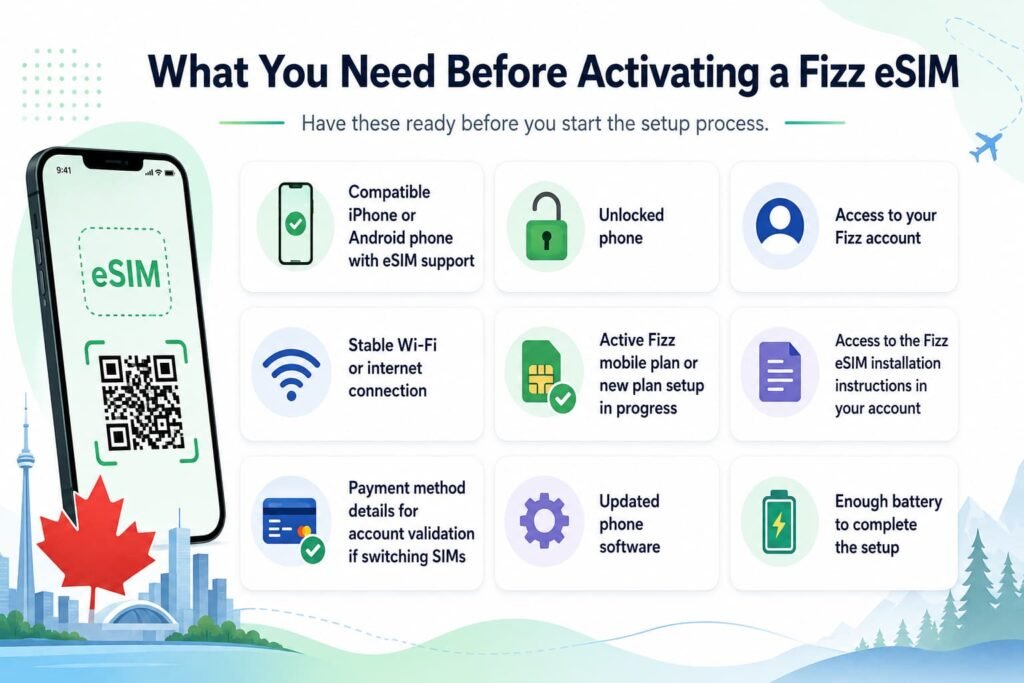
What You Need Before Activating a Fizz eSIM
Before you start the setup process, have everything ready so the activation does not fail halfway through.
You will need:
- a compatible iPhone or Android phone that supports eSIM
- an unlocked phone
- access to your Fizz account
- a stable Wi-Fi connection or internet access
- an active Fizz mobile plan or a new plan setup in progress
- access to the Fizz eSIM installation instructions in your account
- your payment method details for account validation if switching SIMs
- updated phone software
- enough battery to complete the setup
If you are switching from a physical SIM or moving to a new phone, do not delete your old SIM or remove service from your old device until the Fizz eSIM is fully active on the new phone.
If you are bringing your own device, check compatibility before starting. Some phones show an eSIM menu but may still fail activation if the model is not supported, imported, locked, or not compatible with the Fizz network.
How to Get a Fizz eSIM
Fizz gives eligible users the option to choose eSIM during the mobile plan setup or SIM change process.
For a new Fizz mobile plan, sign in or create your account, add a mobile plan, validate your address, and select eSIM when the choice appears.
For an existing Fizz plan, sign in to your account and go to My plans > Manage plan > Change my SIM. From there, choose the eSIM option if it is available for your account and device.
If your phone is not eSIM compatible, choose a physical SIM card instead. Fizz physical SIM cards can be ordered online or picked up from participating partner stores.
Fizz eSIM Compatibility in Canada
Most newer iPhone, Samsung Galaxy, Google Pixel, and select Motorola phones support eSIM, but compatibility still depends on the exact model and region.
A phone can show an eSIM option in settings and still fail activation if it is an imported variant, locked to another carrier, or not supported properly on Canadian networks.
A quick hardware check is to dial *#06# and look for an EID number. If your phone shows an EID, it has eSIM hardware. That still does not guarantee Fizz activation, but it is a good first compatibility check.
| Brand | Common eSIM-Compatible Models | Notes |
|---|---|---|
| Apple iPhone | iPhone XR, XS, 11, 12, 13, 14, 15, 16, 17 series, iPhone SE 2020 and newer | North American models usually support eSIM well |
| Samsung Galaxy | Galaxy S20 and newer, Note 20, Z Flip and Z Fold models, select newer A-series models | Some international or budget variants may not support eSIM |
| Google Pixel | Pixel 4 and newer, including Pixel 6, 7, 8, 9, and newer models | North American Pixel models usually support eSIM |
| Motorola | Newer Razr and select Edge models | Some Moto G models vary by region |
| Other Android brands | Select Huawei, Oppo, OnePlus, Xiaomi, Vivo models | Imported devices may show eSIM menus but fail Canadian carrier activation |
If you are unsure, open your phone settings and look for an option such as Add eSIM, Download SIM, SIM Manager, or Add mobile plan. You can also use the eSIM Compatibility Checker before starting.
Imported Android phones need extra caution. Some international Samsung, Xiaomi, Oppo, Vivo, Huawei, and other grey-market models may download an eSIM profile but still fail voice calling if the device is not fully compatible with Fizz network settings and VoLTE support.
How to Activate Fizz eSIM in Canada on iPhone
Follow these steps if you are activating a Fizz eSIM on a compatible iPhone. For a broader device walkthrough, you can also use the How to Activate an eSIM on iPhone in Canada guide alongside these Fizz-specific steps.
Step 1) Sign in to Your Fizz Account
Open Fizz.ca and sign in to your account. If you are a new customer, start by creating your account and choosing a mobile plan.
Step 2) Choose the eSIM Option
During the plan setup or SIM change process, choose eSIM if it is available for your account and device.
Step 3) Keep the Fizz eSIM Instructions Open
Fizz will guide you through the installation process. Keep the instructions visible and make sure your iPhone is connected to Wi-Fi.
Step 4) Open iPhone Cellular Settings
On your iPhone, go to Settings > Cellular and tap Add eSIM. On some iPhones, the menu may appear as Settings > Mobile Data > Add eSIM.
Step 5) Install the Fizz eSIM Profile
Follow the Fizz on-screen instructions. If a QR code or activation screen is provided, scan it or complete the setup as directed by Fizz.
Scan the QR code from the iPhone eSIM setup menu, not from a regular camera app or third-party QR scanner. The QR code needs to be opened through the native cellular setup screen so the eSIM profile downloads properly.
Step 6) Label the Fizz Line
After installation, label the line as Fizz, Fizz Mobile, or Personal so you can recognize it later.
Step 7) Choose Your Default Line
Select the Fizz line for calls, messages, and mobile data if this is your main Canadian plan.
Step 8) Test Your Fizz Service
Place a test call, send a message, and open a webpage using mobile data. If the phone does not connect right away, restart it or toggle Airplane Mode on and off.
How to Activate Fizz eSIM in Canada on Samsung Galaxy
Samsung phones use the SIM Manager menu for eSIM setup. For a deeper Samsung-specific walkthrough, use the How to Activate eSIM on Samsung Galaxy in Canada guide alongside these Fizz steps.
Step 1) Sign in to Fizz
Open your Fizz account and start the eSIM setup through your mobile plan or SIM change option.
Step 2) Open Samsung SIM Manager
Go to Settings > Connections > SIM Manager.
Step 3) Tap Add eSIM
Tap Add eSIM or Add mobile plan, depending on your Samsung model and One UI version.
Step 4) Follow the Fizz Installation Instructions
Use the setup method shown by Fizz. If a QR code is provided, scan it. If manual details are provided, enter them exactly as shown.
If manual SM-DP+ details are provided, copy them carefully. Extra spaces, missing characters, or an expired setup screen can cause the installation to fail.
Step 5) Turn On the Fizz eSIM
Once the eSIM installs, make sure the Fizz line is turned on in SIM Manager.
Step 6) Set Fizz as Your Preferred Line
Choose Fizz for mobile data, calls, and texts if this is your main line.
Step 7) Test Data and Calls
Open a webpage and place a test call. If service does not connect, restart your phone and check that the Fizz eSIM is enabled.
How to Activate Fizz eSIM in Canada on Google Pixel
Google Pixel phones use the SIMs section inside Network & Internet settings. For a deeper Pixel-specific walkthrough, use the How to Activate eSIM on Google Pixel in Canada guide alongside these Fizz steps.
Step 1) Open Your Fizz Account
Sign in to Fizz.ca and begin the eSIM activation or SIM change process.
Step 2) Open Pixel SIM Settings
Go to Settings > Network & Internet > SIMs.
Step 3) Add a New eSIM
Tap Add SIM, then choose Download a SIM instead if that option appears.
Step 4) Install the Fizz eSIM
Follow the Fizz instructions to scan the QR code or enter activation details manually if provided.
Step 5) Turn On the Fizz Line
After the profile downloads, enable the Fizz line under SIM settings.
Step 6) Choose Fizz for Mobile Data
Set Fizz as your preferred mobile data line if this is your primary Canadian plan.
Step 7) Confirm Activation
Test mobile data, place a call, and send a message to confirm the eSIM is working.
How to Activate Fizz eSIM in Canada on Other Android Phones
Other Android phones can vary by brand, but the setup usually follows the same pattern. For a broader Android setup walkthrough, you can also use the Activate eSIM on Android Canada guide alongside these Fizz-specific steps.
Look for one of these settings paths:
- Settings > Network & Internet > SIMs
- Settings > Connections > SIM Manager
- Settings > Mobile Network > Add eSIM
- Settings > Cellular Network > Add mobile plan
Once you find the eSIM setup menu, follow the Fizz instructions to install the profile. If your phone does not show an Add eSIM or Download SIM option, your device may not support eSIM, or the feature may be disabled on that model.
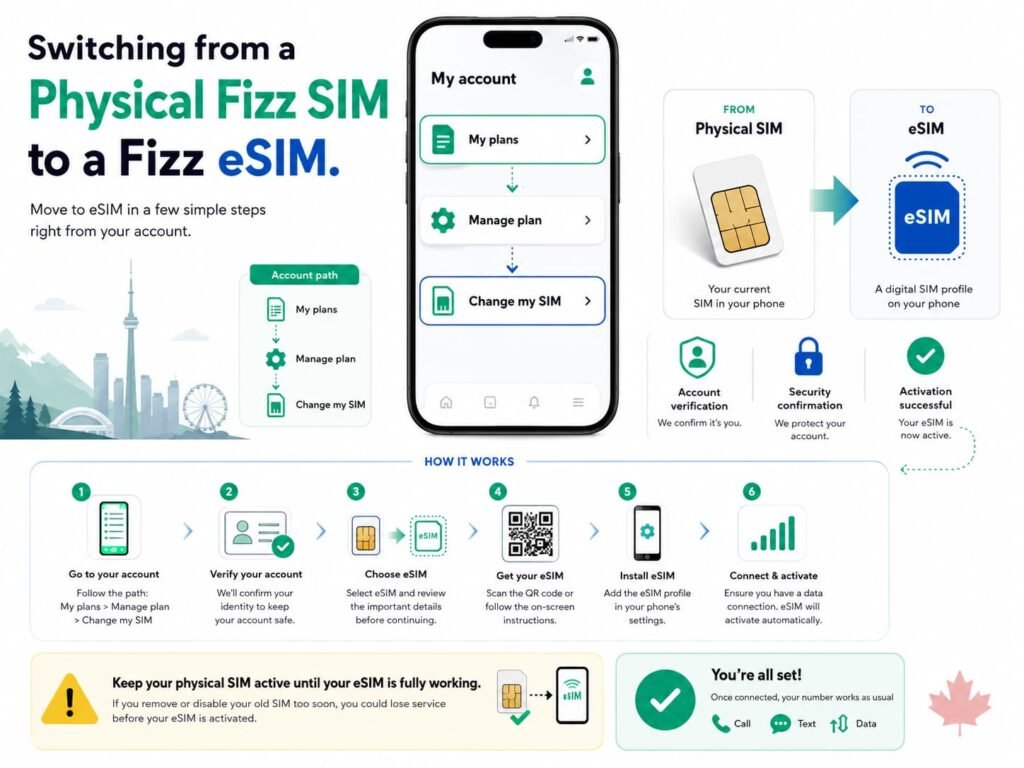
Switching from a Physical Fizz SIM to a Fizz eSIM
If you already have a Fizz physical SIM and want to switch to eSIM, the process starts inside your Fizz account.
Go to My plans > Manage plan > Change my SIM. From there, choose the eSIM option if it is available. Follow the account instructions to associate the eSIM with your current mobile plan.
For existing users, Fizz’s official change SIM support page explains how to change the SIM associated with your mobile plan.
Keep your physical SIM active until the new Fizz eSIM is fully working. In some SIM change flows, your old line may be needed for account verification, security confirmation, or recovery if the eSIM setup does not complete correctly.
Once the eSIM is active, your old physical SIM may stop working. Do not remove or delete anything until the new eSIM connects successfully and your number works on the phone.
If the eSIM activation fails during a SIM change, contact Fizz support before deleting profiles or trying random resets.
Can You Transfer a Fizz eSIM to a New Phone?
Fizz eSIM transfers may require you to change the SIM associated with your plan through your Fizz account rather than simply moving the existing eSIM profile from one phone to another.
If you are upgrading to a new iPhone, Samsung, Google Pixel, or Motorola phone, sign in to your Fizz account and go to My plans > Manage plan > Change my SIM. Choose the eSIM option and follow the current Fizz instructions.
Do not delete the eSIM from your old phone until the new phone is ready and you understand the transfer steps. If the old profile is removed too early, you may need support to get the line working again.
Fizz eSIM profiles and QR codes should be treated as single-use. If a QR code has already been installed or the setup failed halfway through, you may need to generate a new eSIM profile or contact Fizz support instead of trying to reuse the same code.
Using Fizz eSIM with a Travel eSIM
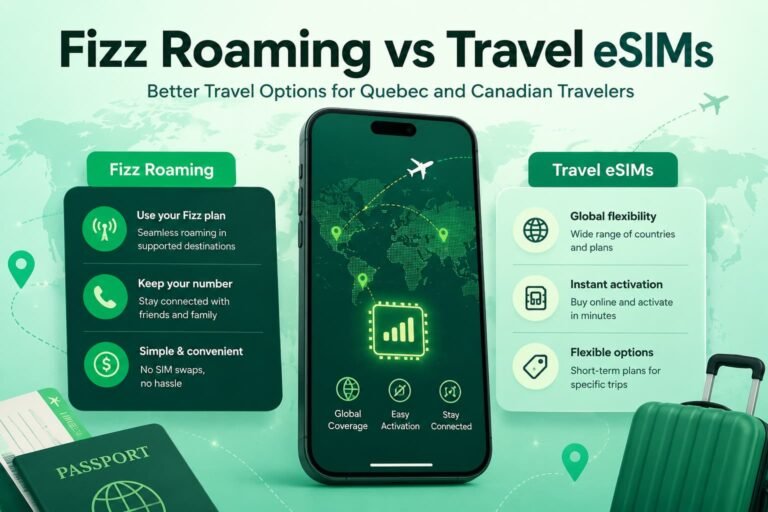
If your phone supports dual SIM, you can use a Fizz eSIM as your Canadian line and a travel eSIM as your data line when travelling.
This setup is useful if you want to keep your Fizz number active while using a separate travel eSIM for mobile data abroad.
Before travelling, check whether your phone supports multiple eSIM profiles and whether your travel eSIM provider supports the countries you are visiting. You should also confirm how Fizz roaming, travel add-ons, or wallet-based travel usage work for your destination before relying on the Fizz line outside Canada.
When using a travel eSIM abroad, set the travel eSIM as your mobile data line. Keep data roaming off on the Fizz line unless you intentionally plan to use Fizz travel options, and turn data roaming on only for the travel eSIM if your travel eSIM provider requires it.
A common setup is:
- Fizz eSIM for your Canadian number
- travel eSIM for international data
- Fizz line kept on only if needed
- travel eSIM selected for mobile data abroad
- data switching turned off to avoid confusion
Fizz eSIM Troubleshooting Guide
Fizz eSIM problems usually fall into a few clear categories: the phone is not fully compatible, the Fizz account flow did not finish, the QR code or eSIM profile was already used, the browser page did not load correctly, or the device has not registered on the network yet.
Because Fizz is mostly self-serve, troubleshooting starts with your account and your phone settings. Before deleting the eSIM or requesting a new one, check your Wi-Fi connection, confirm the Fizz line is enabled, make sure you completed the setup inside your Fizz account, and restart the phone to force a fresh network connection.
Fizz eSIM QR Code or Installation Screen Is Not Working
If the eSIM setup screen does not work, start with the basics.
- Make sure your phone is connected to Wi-Fi.
- Increase screen brightness if scanning a QR code.
- Open the QR code on a second device if needed.
- Restart your phone and try again.
- Update your phone software.
- Check that your phone supports eSIM.
- Confirm that the eSIM option was selected in your Fizz account.
If the Fizz account page still does not let you complete the installation, contact Fizz support.
Fizz eSIM Downloads but Does Not Activate
Sometimes the eSIM profile installs but the line does not connect to the network right away.
Try these steps:
- Restart the phone.
- Toggle Airplane Mode on and off.
- Confirm the Fizz line is turned on.
- Make sure Fizz is selected for mobile data.
- Check that your mobile plan is active in your Fizz account.
- Move to an area with stronger signal.
- Turn off VPN temporarily during activation.
If the eSIM still does not activate, Fizz may need to refresh or review the line from the account side.
Fizz Account or Activation Page Is Not Letting You Continue
If your Fizz account does not show the eSIM option or the activation page will not move forward, the issue may be related to account status, device eligibility, address validation, browser caching, payment validation, or the SIM change flow.
Sign out and sign back in, confirm your mobile plan is active, check that your address is validated, and make sure you are using the correct plan under My plans.
If the page is stuck, try using a desktop browser instead of a mobile browser. You can also clear your browser cache, try private browsing, or force Desktop Site mode on your phone browser.
If you are an existing customer, use My plans > Manage plan > Change my SIM instead of trying to start a brand-new activation.
Fizz eSIM Shows No Service After Activation
A No Service message can happen if the eSIM profile is installed but the device has not fully registered on the network.
Check that the Fizz eSIM is enabled in your phone settings. Then restart the phone, toggle Airplane Mode, and confirm that the correct line is selected for calls, texts, and mobile data.
If you are porting a number or switching from a physical SIM, check your Fizz account again after installing the eSIM. Some users may need to return to the Fizz activation flow and complete the final confirmation step before the line fully registers.
If you are outside the Fizz coverage area or using a device that is not fully compatible, the phone may fail to connect properly. Imported or unsupported devices are more likely to show this problem.
Fizz eSIM Says Cannot Activate or Profile Already Used
If you see a message like Cannot Activate eSIM, Invalid eSIM, or Profile Already Used, do not keep retrying the same setup repeatedly.
The eSIM profile may already be tied to a previous installation attempt, the installation window may have expired, or the account may need a new setup flow. Sign in to your Fizz account and check the current eSIM status. If the problem continues, contact Fizz support.
Do not delete a partially installed eSIM profile unless Fizz support tells you to. Deleting it too early can make recovery harder if the account still thinks the profile was already used.
Fizz eSIM Option Missing on iPhone or Android
If your phone does not show an eSIM setup option, your device may not support eSIM, the software may be outdated, or the model may be a regional variant without eSIM support.
Update your phone first. Then check your settings again for Add eSIM, Download SIM, Add mobile plan, or SIM Manager.
You can also dial *#06# and check whether an EID appears. If there is no EID, the phone likely does not have eSIM hardware.
If the option is still missing, use a physical Fizz SIM card instead.
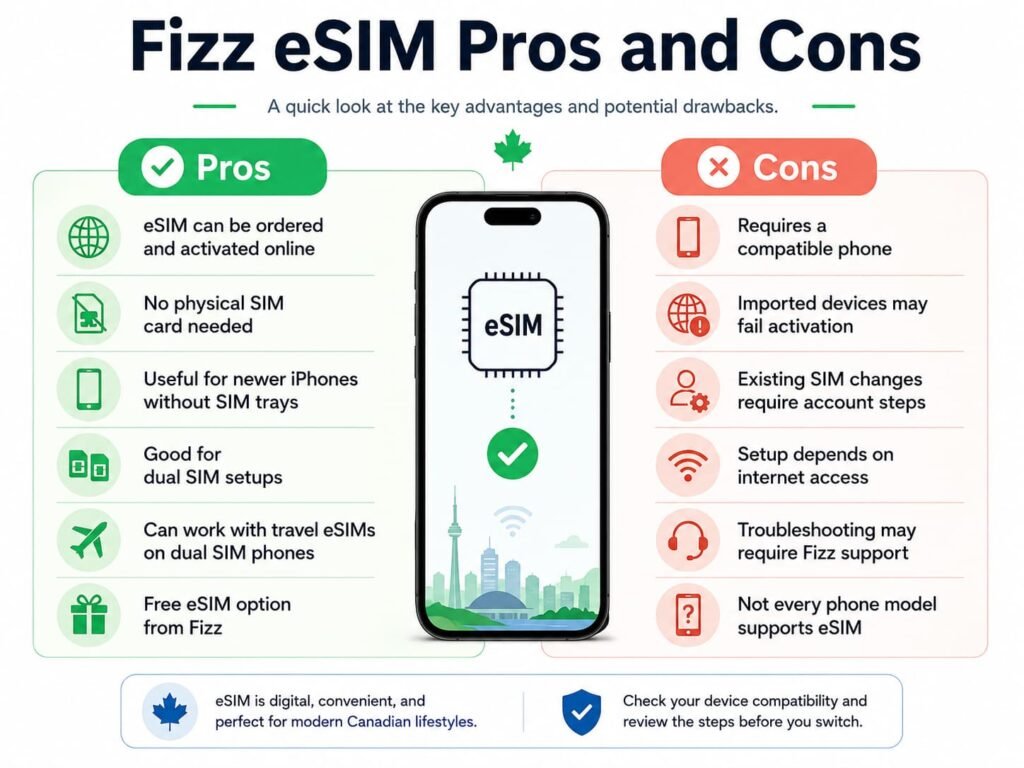
Fizz eSIM Pros and Cons
| Pros | Cons |
|---|---|
| eSIM can be ordered and activated online | Requires a compatible phone |
| No physical SIM card needed | Imported devices may fail activation |
| Useful for newer iPhones without SIM trays | Existing SIM changes require account steps |
| Good for dual SIM setups | Setup depends on internet access |
| Can work with travel eSIMs on dual SIM phones | Troubleshooting may require Fizz support |
| Free eSIM option from Fizz | Not every phone model supports eSIM |
Frequently Asked Questions About How to Activate Fizz eSIM in Canada
Does Fizz support eSIM in Canada?
Fizz supports eSIM for compatible phones, and Fizz says its eSIM can be ordered and activated online.
You still need a compatible unlocked phone, internet access, and access to your Fizz account before starting the setup process.
How do I activate Fizz eSIM in Canada?
To activate Fizz eSIM in Canada, sign in to your Fizz account, add a mobile plan or change the SIM associated with your existing plan, choose the eSIM option, and follow the on-screen setup instructions.
Once the eSIM profile is installed, turn on the Fizz line and test calls, messages, and mobile data. If the line does not connect right away, restart your phone or toggle Airplane Mode before trying more advanced fixes.
Is Fizz eSIM free?
Fizz says its eSIM is free and can be ordered and activated the same day.
You still need an active mobile plan and a compatible phone. If your phone does not support eSIM, you can use a physical SIM card instead.
Can I activate Fizz eSIM without a physical SIM card?
If your phone supports eSIM and the eSIM option is available through your Fizz account, you can activate without inserting a physical SIM card.
This is helpful for newer phones that no longer include a physical SIM tray or for users who prefer a digital SIM setup.
Can I switch from a Fizz physical SIM to eSIM?
Existing users can start from My plans > Manage plan > Change my SIM and choose the eSIM option if available.
Follow the account instructions carefully. Once the eSIM is active, your physical SIM may no longer work for that line, so do not remove or delete anything until the Fizz eSIM is working properly.
Can I transfer my Fizz eSIM to a new phone?
You may need to change the SIM associated with your mobile plan through your Fizz account rather than simply transferring the eSIM directly from one phone to another.
Before deleting the eSIM from your old phone, sign in to your Fizz account and follow the current Change my SIM instructions. Keep your old phone available until the new phone is active.
Do not assume Apple eSIM Quick Transfer or Android device-to-device eSIM transfer will work with Fizz. Use the Fizz account flow first.
Why is the Fizz eSIM option not showing in my account?
The eSIM option may not show if your device, account, plan status, browser session, payment validation, or activation flow does not meet the current Fizz requirements.
If you are an existing customer, go to My plans > Manage plan > Change my SIM and check whether eSIM is available there. If it still does not appear, confirm your phone supports eSIM and try again from a desktop browser or Desktop Site mode before ordering or deleting anything.
Why is my Fizz eSIM not activating?
Fizz eSIM activation can fail because of weak Wi-Fi, an incompatible device, outdated software, an account issue, a locked phone, an expired setup screen, or a profile that did not install properly.
Restart your phone, update the software, confirm the Fizz line is enabled, and check your account. If it still fails, contact Fizz support before deleting the eSIM or repeating the same setup steps too many times.
Why does my phone show No Service after activating Fizz eSIM?
No Service can appear if the eSIM installed but the phone has not registered on the network yet.
Restart the phone, toggle Airplane Mode, make sure the Fizz line is turned on, and confirm Fizz is selected for calls, texts, and mobile data. If your phone is imported, locked, or outside the supported coverage area, activation may also fail.
Can I use Fizz eSIM with a travel eSIM?
If your phone supports dual SIM or multiple eSIM profiles, you can use Fizz as your Canadian line and a travel eSIM for international data.
Before travelling, make sure the travel eSIM is selected for mobile data and that you understand how your Fizz line will behave outside Canada. Turn off automatic data switching if you want to avoid the phone choosing the wrong line.
What should I do before activating Fizz eSIM?
Before activating, update your phone, connect to Wi-Fi, sign in to your Fizz account, confirm your phone supports eSIM, and make sure the device is unlocked.
It is also smart to keep your login information, email access, and recovery options handy in case you need to complete account confirmation during setup.
Can I activate Fizz eSIM outside Canada?
Fizz eSIM installation requires internet access and account access, but service availability depends on Fizz network and roaming conditions.
For the smoothest setup, activate your Fizz eSIM while you are in Canada before travelling. That gives you time to fix account, device, or activation issues before you depend on the line.
What happens if I delete my Fizz eSIM?
Deleting the eSIM removes the profile from your phone, but it does not automatically cancel your Fizz mobile plan.
You may need to change your SIM again through your Fizz account or contact Fizz support to restore service. Do not delete your Fizz eSIM unless you are sure you no longer need that profile or you have confirmed the correct transfer steps.
What should I do if Fizz support cannot fix my eSIM activation?
Start by saving screenshots, account messages, and any Fizz support chat details so you have a clear record of what happened.
Fizz is a self-serve provider, so complex eSIM issues may need support escalation through the online help system. If a port or activation problem leaves you without service for an extended time, document the issue carefully and continue through official Fizz support channels.
Does Fizz eSIM work on Apple Watch or smartwatches?
Fizz eSIM is meant for compatible smartphones. It should not be treated as a smartwatch eSIM or shared wearable plan.
If you need cellular service on an Apple Watch or Android smartwatch, confirm wearable support separately before choosing Fizz for that use case.
More Related Guides from Our eSIM Canada Series
Videotron, and Freedom Guides
- Videotron Roaming vs Travel eSIMs
- Freedom Mobile Roam Beyond vs Travel eSIMs
- How to Activate Videotron eSIM in Canada
- How to Activate Freedom Mobile eSIM in Canada
Device Setup and Troubleshooting Guides
- How to Activate an eSIM on iPhone in Canada
- How to Activate eSIM on Android Canada
- How to Activate eSIM on Samsung Galaxy in Canada
- How to Activate eSIM on Google Pixel in Canada
- How to Activate eSIM on Motorola Phones in Canada
- How to Fix eSIM Not Working in Canada
- What to Do If eSIM Activation Fails in Canada
Main eSIM Canada Tools and Guides
Final Thoughts
Activating a Fizz eSIM in Canada is fairly straightforward once you know where to start. The key is to begin inside your Fizz account, choose the eSIM option when available, and complete the setup while your phone is connected to a reliable internet connection.
For most users, the process is simple: confirm your phone supports eSIM, install the Fizz eSIM profile, turn on the Fizz line, and test calls, texts, and mobile data.
If something goes wrong, do not keep deleting and reinstalling profiles without checking your Fizz account first. Most issues come down to device compatibility, Wi-Fi, account setup, or a SIM change that needs to be completed properly.
Once your Fizz eSIM is active, it can be a convenient way to use your Canadian mobile plan without a physical SIM card, especially if you use dual SIM, travel eSIMs, or newer phones that rely more heavily on eSIM.