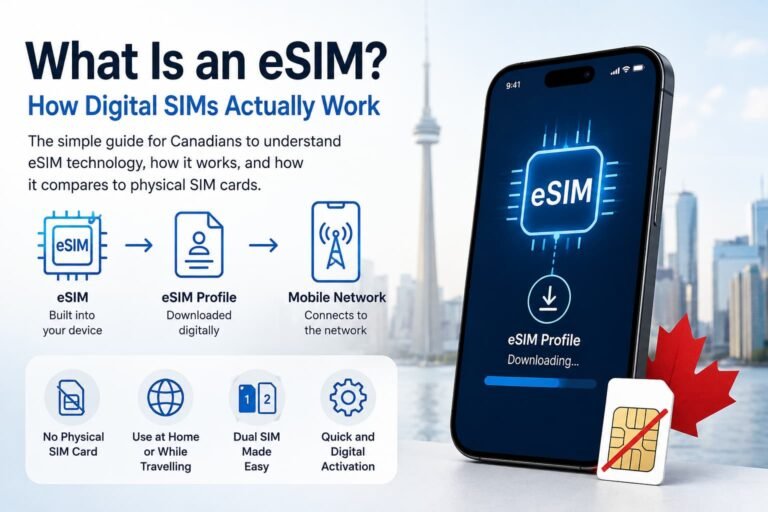
Activating an eSIM on a Samsung Galaxy phone in Canada works a little differently than it does on other Android devices because Samsung uses One UI and SIM manager to handle eSIM setup. This guide shows you exactly how to activate eSIM on Samsung in Canada using a QR code, a carrier app, or a manual activation method like entering an SM-DP+ activation code for Samsung devices in Canada.
This guide is specific to Canadian carriers, including Bell, Rogers, Telus and their sub-brands such as Fido, Koodo, Virgin Plus, Public Mobile, Chatr, and Freedom Mobile. You’ll also see how eSIM support can differ between Canadian carriers on Samsung Galaxy phones, depending on your plan, device model, and CSC region. Some carriers allow quick app-based installation while others require requesting a new QR code each time you switch devices.
If you’re upgrading to a new Galaxy S, Galaxy Z Flip or Fold, or a compatible A-series device, or moving your number from a physical SIM, this guide walks you through a complete Samsung Galaxy eSIM setup in Canada without needing tech support. We also cover common Samsung-specific eSIM issues in Canada such as:
- Add eSIM not showing in SIM manager
- eSIM activated but no mobile data
- eSIM transfer not available after Smart Switch
- CSC or region issues with imported Samsung models
By the end, you’ll have a full handle on Samsung eSIM activation in Canada and know exactly what to do if something doesn’t work the first time.
If you need eSIM setup instructions for a Google Pixel or Motorola, see our Android guide here: Activate eSIM on Android in Canada.

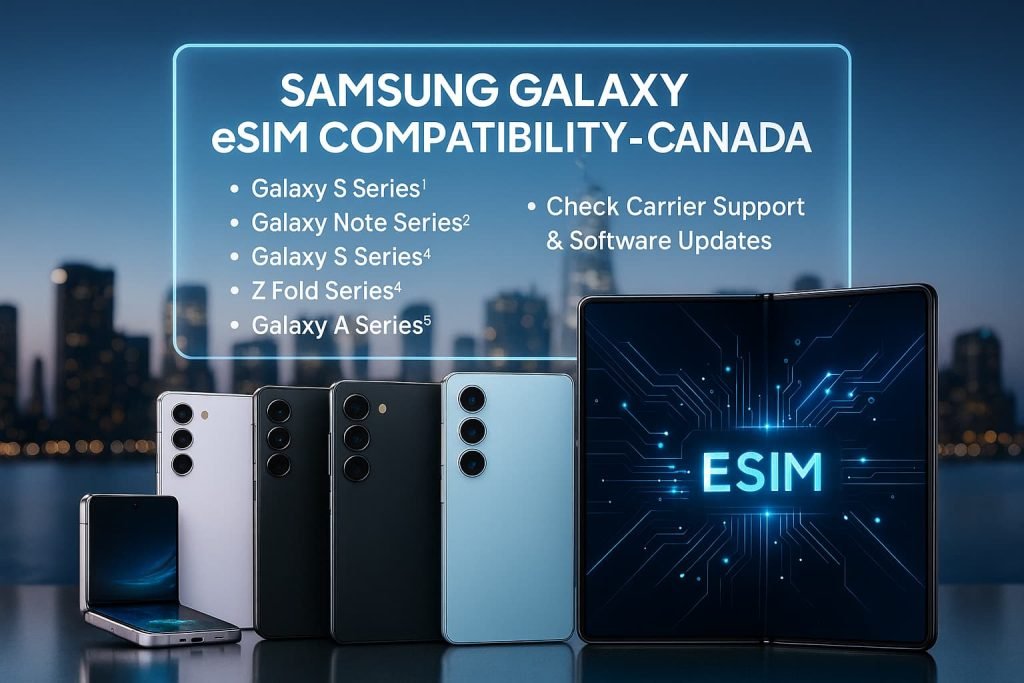
Samsung Galaxy Devices That Support eSIM in Canada
The following Samsung Galaxy smartphones and tablets support eSIM. Some regional restrictions apply. For example, several Galaxy A-series devices only support eSIM in specific markets such as Canada, the United States, Europe, and Korea.
Supported Samsung Galaxy Phones and Tablets
Galaxy S Series
- Galaxy S25 / S25+ / S25 Ultra / S25 Edge
- Galaxy S24 / S24+ / S24 Ultra
- Galaxy S23 / S23+ / S23 Ultra
- Galaxy S22 / S22+ / S22 Ultra
- Galaxy S21 / S21+ / S21 Ultra
- Galaxy S20 / S20+ / S20 Ultra
- Galaxy S25 FE, Galaxy S24 FE, Galaxy S23 FE
Galaxy Z Fold and Z Flip Series
- Galaxy Z Fold7 / Z Flip7 / Z Flip7 FE
- Galaxy Z Fold6 / Z Flip6
- Galaxy Z Fold5 / Z Flip5
- Galaxy Z Fold4 / Z Flip4
- Galaxy Z Fold3 / Z Flip3
- Galaxy Z Fold2
- Galaxy Z Flip 5G, Galaxy Z Flip
- Galaxy Fold (first generation)
Galaxy A Series (regional support: Europe, North America, Korea, and in some cases Japan)
- Galaxy A56
- Galaxy A36
- Galaxy A55
- Galaxy A35
- Galaxy A54
Rugged and Enterprise Models
- Galaxy XCover7 Pro
- Galaxy XCover7
Samsung Galaxy Tablets
- Galaxy Tab S11 / S11 Ultra
- Galaxy Tab S10 / S10+ / S10 Ultra
- Galaxy Tab S9 / S9+ / S9 Ultra
- Galaxy Tab S10 FE / S10 FE+
- Galaxy Tab S9 FE / S9 FE+
- Galaxy Tab Active5 Pro
- Galaxy Tab Active5
Device Compatibility Table
| Samsung Model Family | Supported Devices | Notes |
|---|---|---|
| Galaxy S Series | S25 > S20 families including FE models | Supported in Canada on major carriers |
| Galaxy Z Series | Z Fold7 > Z Fold2, Z Flip7 FE > Z Flip | Supported in Canada on major carriers |
| Galaxy A Series | A56, A36, A55, A35, A54 | eSIM supported only in Europe, North America, Korea, some Japan releases |
| Galaxy XCover | XCover7, XCover7 Pro | Support depends on carrier provisioning |
| Galaxy Tab Series | Tab S11 > Tab S9 families, FE models, Tab Active5 | Carrier support may vary for tablet plans |
Important Notes About Samsung eSIM Support in Canada
- Carrier-locked Samsung phones may have eSIM restrictions, depending on activation policies.
- Some prepaid plans do not allow eSIM activation or require a QR code request from customer support.
- eSIM features require a recent version of One UI and Android. If eSIM settings are missing, a software update may be required.
- For Galaxy A-series devices, verify regional support if the phone was purchased outside Canada.
What You Need Before You Activate an eSIM on a Samsung Device in Canada
Before adding an eSIM to your Samsung Galaxy phone or tablet, confirm the following requirements. These help prevent activation errors and reduce the need to contact carrier support.
1. An unlocked Samsung device that supports eSIM
Your phone or tablet must be able to use eSIM and must not be locked to a different carrier. If you purchased the device through a Canadian carrier on contract, it is usually unlocked, but some imported or used devices may not be. If you are unsure, contact your carrier.
2. A Canadian carrier eSIM plan or QR code
You will need an eSIM profile. Most carriers in Canada provide eSIM activation through a QR code or an activation code. If you do not yet have one, request it from your carrier before continuing.
3. A stable internet connection
Your device must be connected to Wi-Fi or mobile data to download the eSIM profile. Activation can fail if the connection drops during installation.
4. A recent version of One UI and Android
Your device should be running a modern version of Samsung’s software. For the best compatibility, Android 12 or later with a recent One UI release is recommended. If eSIM settings do not appear, update your software.
5. Enough battery to complete setup
A device restart might be required during activation. Keep your battery at 20 percent or higher.
How to Activate eSIM on Samsung in Canada (Methods Explained)
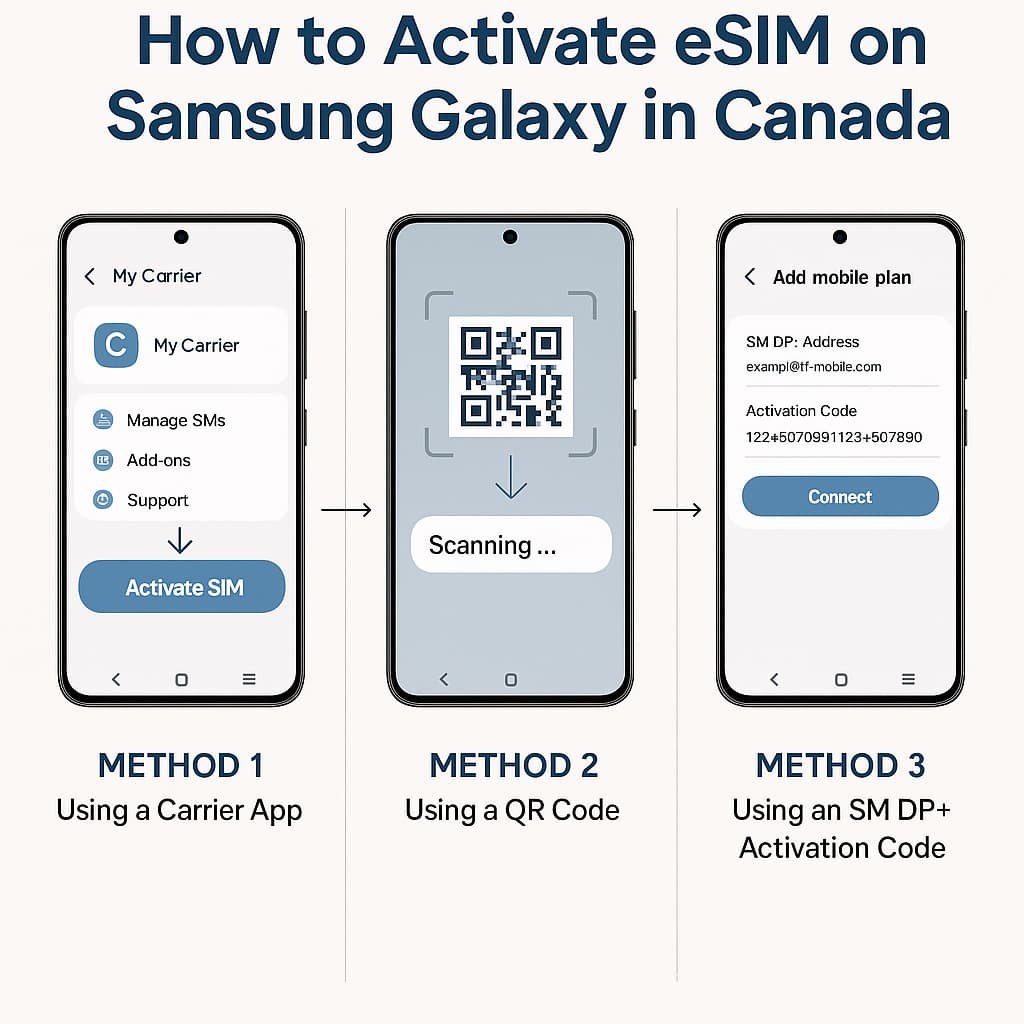
There are three ways to activate eSIM on Samsung in Canada. You can complete the setup using a carrier app, a QR code, or by entering the SM-DP+ activation details used for Samsung devices in Canada. These steps apply to Galaxy S, Galaxy Z Flip and Fold, and compatible Galaxy A-series devices.
Method 1: Activate eSIM on Samsung Galaxy Using a Carrier App
This is the fastest way to activate eSIM on a Samsung phone if your carrier supports app-based activation. Many Canadian carriers allow direct installation through their mobile apps, including Bell, Virgin Plus, Rogers, Fido, Telus, Koodo, Public Mobile, Chatr, Freedom Mobile, Eastlink, SaskTel, and Videotron. App-based setup is often the easiest method for Samsung eSIM activation in Canada, especially if you’re using a newer Galaxy S or Z series device.
Videotron users may see eSIM menu labels in French depending on device language settings.
1. Install your carrier app
Download the carrier app from Google Play. Sign in using your phone number or account login.
2. Start eSIM activation in the app
Look for Activate eSIM, Transfer eSIM, or Set up eSIM. Menu text may differ for each carrier.
3. Confirm your device and number
Follow the prompts to verify your Samsung device and select the line you want to activate.
4. Download and enable the eSIM profile
The app will trigger eSIM installation. Wait until the download finishes.
5. Turn on mobile data
Open Settings > Connections > SIM manager. Make sure your new eSIM line is active. Enable Mobile data and VoLTE or 5G if available.
If you recently changed phones using Smart Switch, the eSIM may not transfer. Some carriers will issue a new QR code or require manual activation. This is common across Canadian carriers when setting up eSIM on Samsung Galaxy devices, especially after switching phones.
Method 2: Activate eSIM on Samsung Galaxy Using a QR Code
Use this method if your carrier gives you a printed or emailed QR code. QR activation works on all compatible Galaxy models and is one of the most reliable options for setting up a Samsung Galaxy eSIM in Canada.
1. Open Settings
Go to Settings > Connections > SIM manager > Add eSIM.
2. Choose Scan QR code
Use your Samsung camera to scan the eSIM code. If scanning from a second screen, increase brightness so the camera reads it correctly. Some users may experience scanning issues, especially when setting up a Samsung eSIM using a QR code in Canada, so good lighting helps avoid failed reads.
3. Download the eSIM profile
Wait for your Samsung phone to download and install the profile. Do not close the screen until it completes.
4. Activate your line
Return to SIM manager and confirm your eSIM line is active. Turn on Mobile data and test browsing.
If the QR code fails, ask your carrier for a new QR code. Most QR codes are single-use and may expire after activation attempts or SIM changes.
Method 3: Activate eSIM on Samsung Galaxy Using an SM DP+ Activation Code
This method uses a server address and an activation code instead of scanning a QR code. It’s common for business plans, enterprise accounts, and situations where a carrier provides manual SM-DP+ activation details for Samsung devices in Canada.
1. Open Settings
Go to Settings > Connections > SIM manager > Add eSIM.
2. Select Use activation code
Choose the manual option to enter the eSIM details.
3. Enter the SM DP+ address and activation code
Type the information exactly as provided. Pay attention to upper and lower case characters. Manual entry is especially useful if your QR code fails or if your carrier requires an SM-DP+ activation code for Samsung Galaxy devices in Canada.
4. Download and enable the eSIM profile
Allow the device to install the profile. Wait for completion.
5. Restart if needed
Some Samsung devices require a reboot before calls, texts, and data start working.
If activation fails, request a new SM DP+ activation code from your carrier. Codes can expire or become invalid after multiple attempts.
How to Transfer an eSIM to a New Samsung Device in Canada
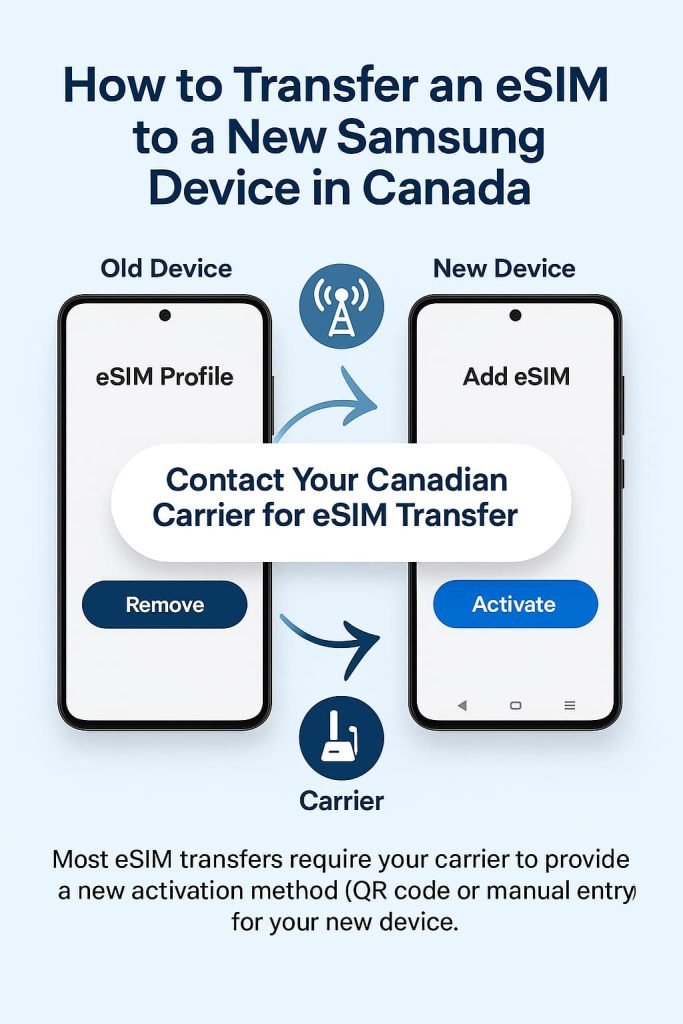
If you are upgrading your phone or moving from another device, you may be able to transfer your existing eSIM plan to your new Samsung Galaxy without requesting a new QR code. This is sometimes called eSIM Instant Transfer, and it is supported on many recent Samsung models using current versions of One UI and Android.
This method is available when transferring from:
- Samsung to Samsung
- iPhone to Samsung (supported by some carriers)
Before you begin, make sure:
- Your new Samsung device is unlocked
- Both devices have Wi-Fi or mobile data enabled
- You still have access to the old device and it has not had the eSIM erased yet
Steps: eSIM Transfer to a New Samsung Device
- On your new phone, go to Settings > Connections > SIM manager > Add eSIM.
- Tap Transfer SIM from another device.
- Keep your old phone nearby. You should see a pop-up message asking if you want to transfer the SIM.
- On the old device, tap Transfer.
- A six-digit verification code will appear on the new device. Enter that code on the old device.
- On your new phone, select the phone number or plan you want to transfer, then tap Transfer.
- Wait while the eSIM profile downloads and activates.
- On the old device, tap Done.
Your eSIM plan should now be active on the new Samsung phone. If data does not work immediately, restart the device and wait a few minutes for the network to update.
If transfer is not offered, you can activate the eSIM using a QR code or activation code instead. For detailed transfer guidance between phones, see:
How to Switch eSIM Between Devices in Canada (iPhone & Android Guide)
Using Dual SIM on Samsung in Canada
Samsung eSIM makes it possible to use two mobile plans on the same device. This is useful if you want to keep one line for personal calls and a second line for work, or if you want to use a travel data eSIM while keeping your Canadian number active.
Depending on the model and carrier:
- You can use one physical SIM and one eSIM, or
- You may be able to use two eSIM profiles active at the same time
To manage your SIMs:
- Go to Settings > Connections > SIM manager.
- You will see your active SIMs listed.
- Choose which SIM handles calls, messages, and mobile data.
- You can toggle a line on or off without deleting it.
This gives you flexibility when changing plans, traveling, or using a temporary data plan.
For a comparison of Canadian eSIM data options, refer to:
eSIM Canada: Best Providers, Setup & Guide for Travelers & Locals
Canadian Carriers That Support eSIM on Samsung Devices
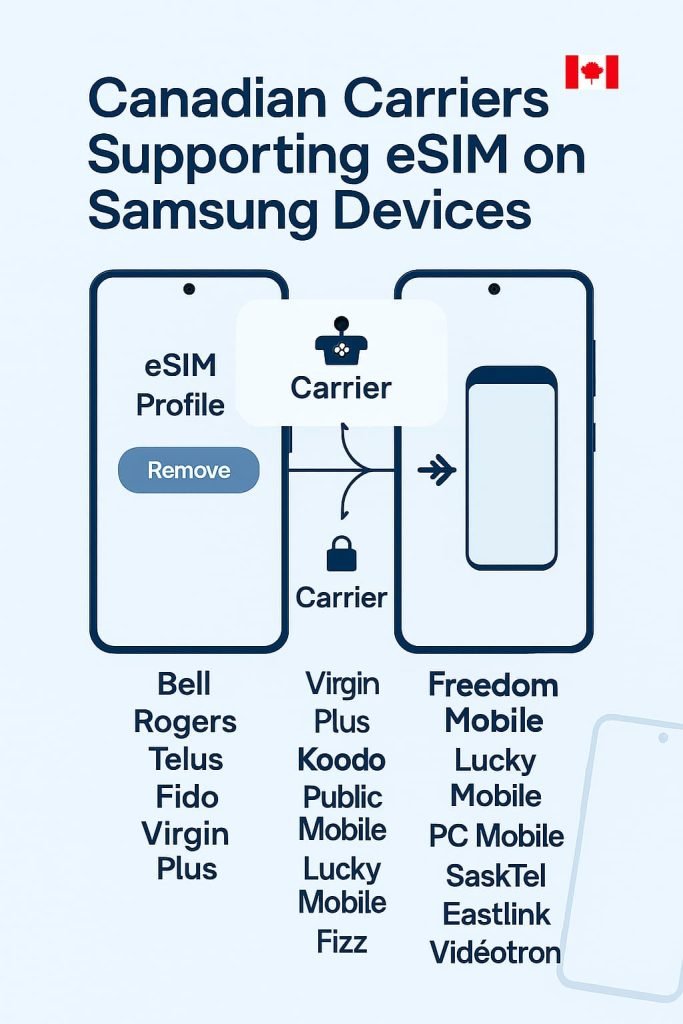
Most major mobile carriers in Canada support eSIM activation on Samsung Galaxy phones. Support for tablets and imported models may vary depending on the carrier and plan type. If activation is not available for your device, contact your carrier to confirm eligibility.
Carriers that support eSIM on Samsung phones in Canada include:
Bell, Rogers, Telus, Fido, Virgin Plus, Koodo, Public Mobile, Chatr, Freedom Mobile, Lucky Mobile, PC Mobile, SaskTel, Eastlink, Vidéotron, and Fizz.
Support may differ between prepaid and postpaid plans. Some carriers require requesting a QR code or an activation code through customer support before setup.
Carrier Support Notice
eSIM support can change as carriers update their activation systems. Plan eligibility, device compatibility, and setup methods may differ between physical SIM and eSIM plans. If you experience issues with how to activate eSIM on Samsung in Canada, or certain options are missing in SIM manager, contact your carrier to confirm that eSIM is enabled on your line and supported for Samsung eSIM activation in Canada.
For official Samsung eSIM support details, see Samsung Canada: Galaxy eSIM and Supported Network Carriers.
Troubleshooting eSIM on Samsung in Canada
If your eSIM does not activate or mobile data does not work after installation, the steps below can help resolve the most common issues on Samsung Galaxy devices in Canada. These troubleshooting steps apply to Galaxy S, Galaxy Z Flip and Fold, and compatible Galaxy A-series phones. Most plans from Bell, Virgin Plus, Rogers, Fido, Telus, Koodo, Public Mobile, Chatr, Freedom Mobile, Eastlink, SaskTel, and Videotron support eSIM in Canada, but real-world behavior can differ depending on how each carrier handles Samsung eSIM troubleshooting in Canada or device registration after activation.
1. Restart your Samsung phone to refresh network registration
Power the device off completely, wait at least 10 seconds, then turn it back on. This forces the SIM manager to reload your eSIM profile and start a fresh network registration.
2. Check eSIM status in SIM manager to confirm it is active
Go to Settings > Connections > SIM manager and confirm that your eSIM line shows as Active. If it is turned off, enable it and wait a few seconds to see if signal appears.
3. Toggle Airplane mode to force a new network connection
Open Quick Settings, turn Airplane mode on, wait at least 10 seconds, then turn it off again. This triggers a fresh connection to your carrier network and can clear temporary registration issues.
4. Enable Mobile data, VoLTE, and Wi-Fi Calling if calls or data fail
Go to Settings > Connections > Mobile networks and check the following:
- Mobile data is enabled
- VoLTE or 4G Calling is turned on, if your carrier supports it
To enable Wi-Fi Calling, open Phone app > Settings > Wi-Fi Calling and turn it on if available. Some Canadian carriers rely on VoLTE for voice over eSIM.
5. Reset APN settings if mobile data will not load
Go to Settings > Connections > Mobile networks > Access Point Names. Open the menu and choose Reset to default. Incorrect or old APN profiles can block mobile data and MMS on an eSIM line.
6. Update Samsung One UI if Add eSIM does not appear in SIM manager
If Add eSIM is missing, go to Settings > Software update > Download and install and apply any pending updates. Some older firmware builds may hide or disable eSIM options until the device is updated.
7. Check CSC region if your Samsung phone was purchased outside Canada
Imported Samsung models may limit or disable eSIM based on the CSC region. Go to Settings > About phone and confirm the model number and CSC code. Canadian CSC codes include XAC. If the CSC region does not support eSIM, contact your carrier to confirm whether the device is compatible on their network.
8. Request a new QR code or activation code if Smart Switch did not transfer eSIM
Smart Switch does not always move eSIM profiles to a new phone. If the eSIM does not appear on your new device after migration, log in to your carrier app or online account and request:
- a new eSIM QR code, or
- a new SM-DP+ activation code
Then follow this Samsung guide to activate it again using the carrier app, QR code, or manual SM-DP+ method.
9. Test 5G or LTE network mode if speeds are slow or signal is unstable
Go to Settings > Connections > Mobile networks > Network mode and select 5G or LTE/4G according to your plan and coverage. Some Canadian plans do not include 5G access, and some areas only support LTE. Switching modes can stabilize your connection.
10. Disable or remove your physical SIM if dual SIM is causing conflicts
Dual SIM setups can sometimes prioritize the physical SIM instead of the eSIM. Go to Settings > Connections > SIM manager and temporarily turn off the physical SIM. Set your eSIM as the default for Calls, Messages, and Mobile data, then test again.
11. Reinstall your eSIM profile if it stopped working after a software update
If the eSIM profile appears corrupted or stuck in activation after a One UI update, go to Settings > Connections > SIM manager, remove the eSIM, then reinstall it using your carrier app, QR code, or SM-DP+ activation code.
If the profile still does not behave correctly, see How to Reinstall or Reactivate an eSIM in Canada (Step-by-Step Guide) for detailed reinstall instructions.
12. Note Videotron French-language labels if menu text looks different
If your device language is set to French and you use Videotron, some menu labels such as Add eSIM or Mobile networks may appear translated. The menu locations are the same, even if the text is in French.
13. Check for Samsung Knox or Work Profile restrictions on company phones
On work-managed phones with Samsung Knox or a Work Profile, IT policies can block eSIM installation or changes. If you see errors when trying to add or modify an eSIM on a corporate device:
- Contact your IT administrator
- Ask whether eSIM activation is allowed
- If they enable it, complete activation again through the carrier app or QR code
14. Contact your carrier if activation still fails
If none of the previous steps work, contact your carrier’s support team. Ask them to:
- confirm that your plan supports eSIM,
- check that your line is properly provisioned, and
- issue a new QR code or SM-DP+ activation code if needed.
Carriers can refresh your line on their side and help complete the final activation.
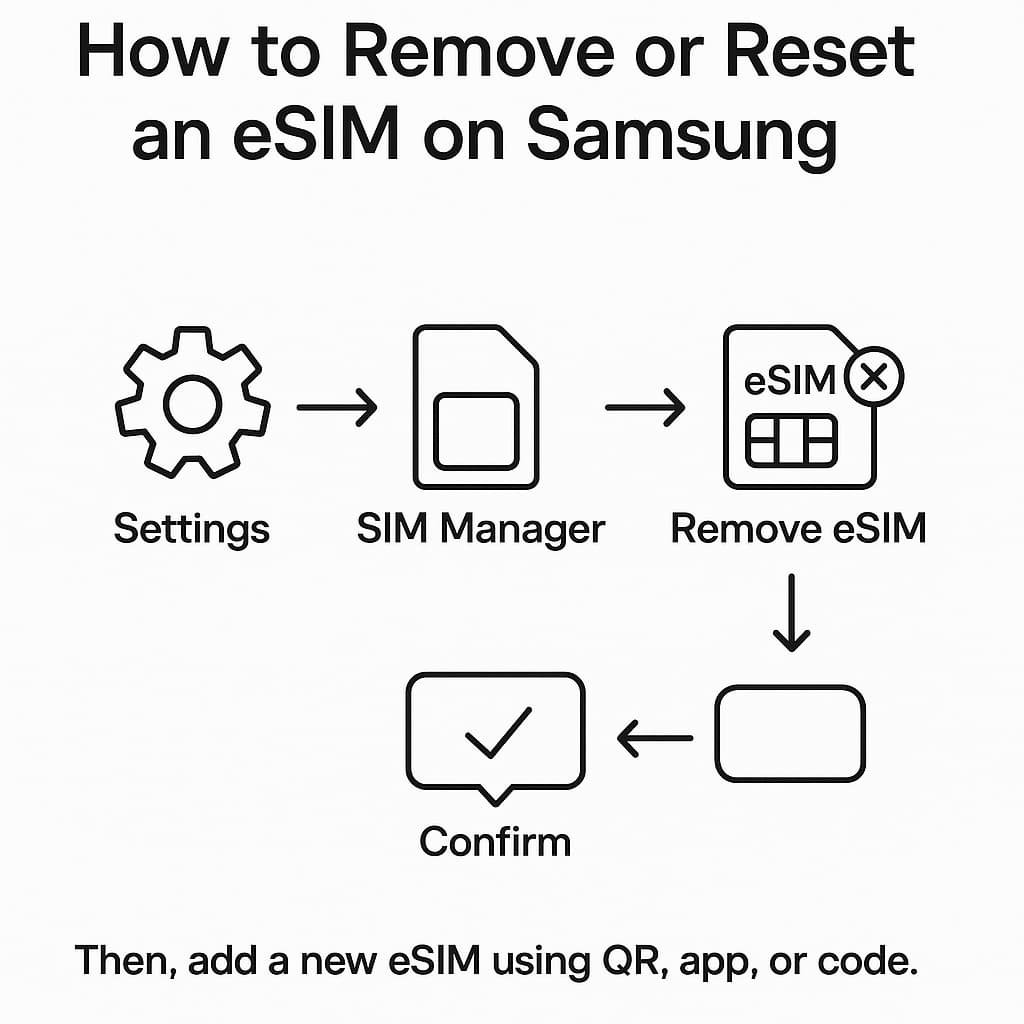
How to Remove or Reset an eSIM on Samsung
If you need to remove or replace your eSIM, follow these steps:
- Go to Settings > Connections > SIM manager
- Select the eSIM you want to remove
- Tap Remove or Delete eSIM
- Confirm when prompted
Once removed, you can add a new eSIM using a QR code, carrier app, or activation code.
For a complete removal guide, see:
How to Remove or Delete an eSIM in Canada (Step-by-Step Guide)
How to Convert a Physical SIM to eSIM on Samsung
Some Canadian carriers support in-phone conversion from a physical SIM to eSIM.
Steps:
- Go to Settings > Connections > SIM manager
- Select the physical SIM line
- Tap Convert to eSIM
- Confirm conversion and wait for activation
If the option does not appear, your carrier might require issuing a new eSIM QR code instead.
Frequently Asked Questions About How to Activate eSIM on Samsung in Canada
These are the most common questions about Samsung eSIM support and activation in Canada.
Why is Add eSIM missing in SIM manager on my Samsung phone?
This usually happens if the device’s CSC region does not support eSIM, the firmware is outdated, or the carrier has not provisioned your line for eSIM. Samsung devices imported from the U.S., Asia, or Middle East often disable eSIM at the CSC level. Update your phone and confirm your CSC is XAC (Canada) under Settings > About phone. If activation continues to fail, see What to Do If eSIM Activation Fails in Canada for additional steps.
Which Samsung Galaxy models support eSIM in Canada?
Most Galaxy S, Z Flip, Z Fold, XCover, and Tab S models support eSIM in Canada. Some A-series devices only support eSIM in certain regions, and imported models from the US or Asia may have eSIM disabled by firmware. You can verify eSIM support under Settings > Connections > SIM manager.
Can Samsung Smart Switch transfer my eSIM to a new Galaxy phone?
Smart Switch does not reliably migrate eSIM profiles. Many Canadian carriers require a new QR code or activation code after switching phones. If your eSIM will not transfer automatically, see How to Transfer Your eSIM Between Phones in Canada for steps to complete activation on your new Samsung device.
Does eSIM stop working after major One UI updates?
A major One UI update can occasionally disrupt an existing eSIM profile, causing network registration to fail or the line to appear inactive. Restart your phone, check your mobile network settings, and reinstall the eSIM profile if needed. If the issue continues, your carrier may need to refresh provisioning or issue a new QR code or activation code.
How can I check IMS Registration status on my Samsung after eSIM activation?
IMS Registration confirms VoLTE, Wi-Fi Calling, and SMS over LTE are active. Go to Settings > Connections > Mobile networks > IMS status. If IMS is not registered, restart your phone and toggle VoLTE or Wi-Fi Calling. Your carrier may need to refresh provisioning on your line.
Does Samsung Knox or Work Profile block eSIM activation?
Yes. Managed devices using Samsung Knox or a Work Profile may block eSIM activation or hide the Add eSIM option. Contact your IT administrator to request permission for eSIM installation or to temporarily disable restrictions.
How do CSC regions affect eSIM support on Samsung phones?
CSC controls which features are enabled. Only regions with eSIM support (like Canada’s XAC) allow the Add eSIM option. Imported phones with CSC set to non‑eSIM regions may permanently hide eSIM features.
Can a Samsung Galaxy use two active eSIM lines at the same time in Canada?
Newer Samsung models with MEP (Multiple Enabled Profiles) support multiple active eSIM lines. Older Galaxy devices allow storing multiple profiles but only one active at a time.
How do I fix 5G not working on a Samsung eSIM?
Make sure your plan includes 5G and confirm Network mode is set to 5G under Settings > Connections > Mobile networks. Restart the phone after enabling it. If 5G still does not appear, reset the APN to default and check whether your carrier supports 5G on eSIM in your area. Some Canadian eSIM plans activate with LTE-only, and your IMS profile may need to be refreshed by the carrier.
Can I convert my physical SIM to eSIM on Samsung?
Some Canadian carriers allow you to convert a physical SIM to an eSIM directly inside SIM manager. If the Convert to eSIM option does not appear, your carrier does not support in-phone conversion and you will need a replacement eSIM profile or QR code issued through your carrier’s app or support team.
Why won’t my Samsung camera scan my carrier’s QR code?
Make sure the entire QR code is visible, bright, and in focus. Clean your camera lens, increase screen brightness, and scan in good lighting. If it still won’t scan, go to SIM manager > Add eSIM > Enter activation code and type in the SM-DP+ server details provided by your carrier to complete activation manually.
How do I manually enter a Canadian eSIM activation code on Samsung?
Go to Settings > Connections > SIM manager > Add eSIM > Enter activation code. Your carrier will provide an SM-DP+ address and activation code. Enter both exactly as shown and complete the download.
Does eSIM on Samsung support VoLTE, Wi-Fi Calling, and 5G with Canadian carriers?
Yes. Most major Canadian carriers, including Bell, Rogers, Telus and their flanker brands, support VoLTE, Wi-Fi Calling and 5G on Samsung eSIM as long as IMS Registration is active. If any feature is missing, enable it under Mobile networks and restart your device. Older or imported Samsung models may not support all features depending on their CSC region.
Is it possible to activate a Canadian eSIM on Samsung while outside Canada?
Yes, but some carriers require Canadian IP or location during eSIM download. Travel eSIM providers usually allow activation from any country.Yes. Many carriers allow eSIM activation while roaming as long as you are connected to Wi-Fi. Some carriers require activation inside Canada, so results may vary.
Will eSIM work on Samsung models imported from outside Canada?
Sometimes, but not always. Many imported Samsung models have eSIM disabled at the CSC level. If Add eSIM does not appear, the device may not be compatible.
How do I fix “No Service” or “Emergency Calls Only” after eSIM activation?
Restart your device, toggle airplane mode, and confirm that the eSIM line is active in SIM manager. If the line shows active but cannot register on the network, your provisioning may need to be refreshed.
Can I use travel eSIM providers like Airalo or Holafly with Samsung in Canada?
Yes. Most Samsung Galaxy models that support eSIM can install travel eSIMs for Canada or international use. Check provider compatibility with Samsung/One UI before purchasing. For the best options, see Best Canadian eSIM Plans for Tourists to compare compatible providers.
More Related Guides from Our eSIM Canada Series
If you need help with other parts of the eSIM setup process in Canada, you may find these guides useful:
- Activate eSIM on Android Canada: Step-by-Step Setup Guide
- How to Activate eSIM on iPhone in Canada
- How to Switch eSIM Between Devices in Canada (iPhone & Android Guide)
- How to Reinstall or Reactivate an eSIM in Canada
- How to Remove or Delete an eSIM in Canada
- eSIM Canada: Best Providers, Setup & Guide for Travelers & Locals
- How to Fix eSIM Not Working in Canada (iPhone & Android)
- What to Do If eSIM Activation Fails in Canada (Step-by-Step Fix)
- Compare Canadian eSIM Providers: The Ultimate 2025 Guide to Finding the Right Plan
Final Thoughts
eSIM offers a simple and convenient way to activate mobile service on Samsung Galaxy phones and tablets without relying on a physical SIM card. If you want clear steps on how to activate eSIM on Samsung in Canada, this guide walks you through every supported method, the carriers that work in Canada, and the most reliable fixes when something doesn’t activate on the first try. Whether you’re upgrading your device, switching carriers, or using dual lines for travel or work, Samsung eSIM support gives you plenty of flexibility across Canadian networks.
By following the activation methods and troubleshooting tips in this guide, you should be able to set up your eSIM confidently and resolve most issues without needing technical support.
If you need more help after this, explore the related guides in the eSIM Canada Series or reach out to your carrier for assistance.